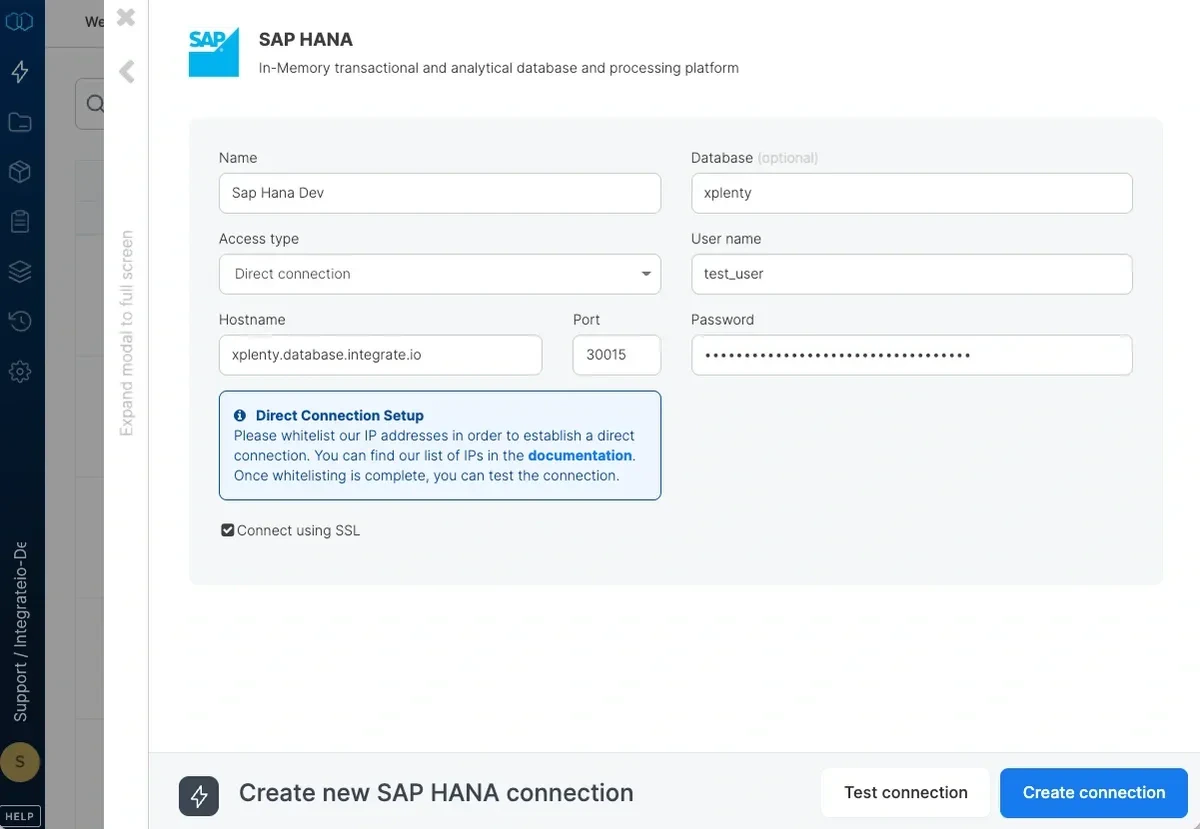
- Create a user and grant it minimum permissions required for Integrate.io ETL to read or write data from the database.
- Add rules in your database firewall to allow access for Integrate.io ETL’s IP addresses. Add a rule for each IP relevant to your account’s region using this list (Refer to this article if you’d prefer to create an SSH tunnel or reverse SSH tunnel.)
To create a SAP HANA database connection in Integrate.io ETL
1
Click the Connections icon (lightning bolt) on the top left menu.
2
To create a connection, click New connection.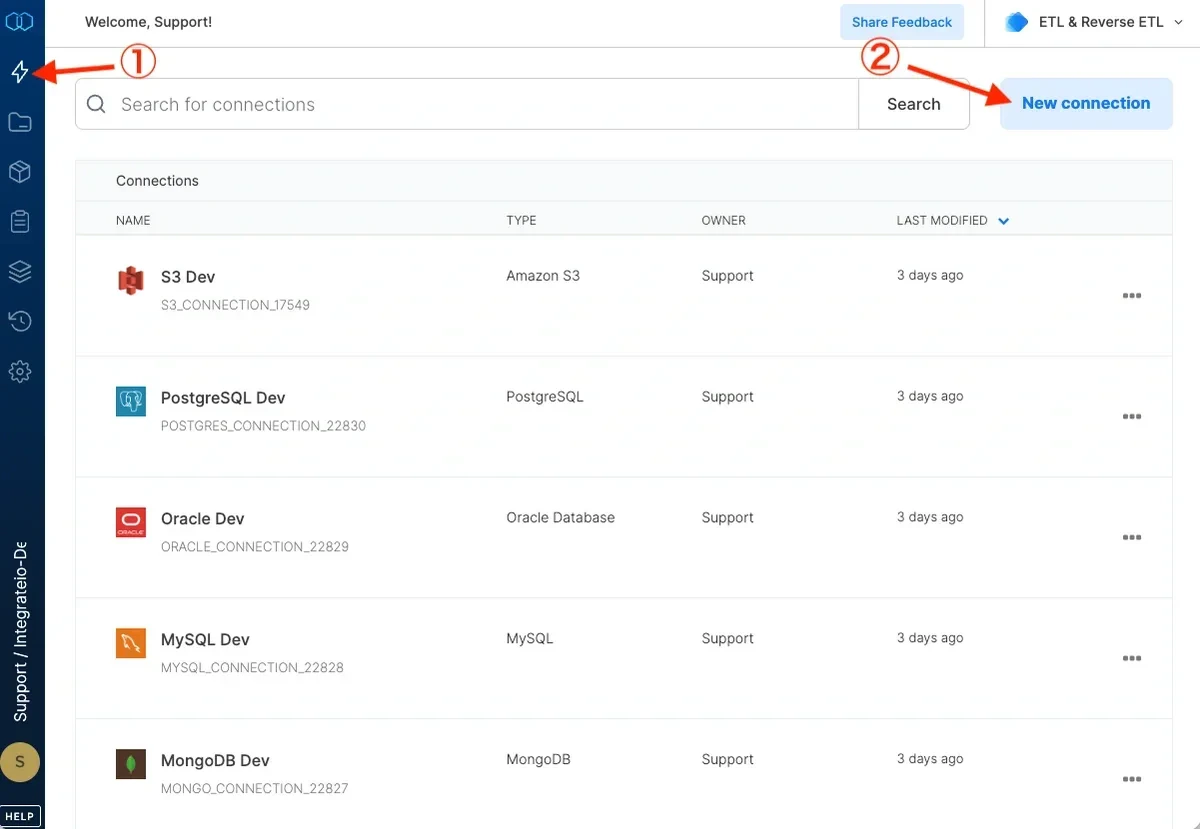
3
Select SAP HANA and name the connection.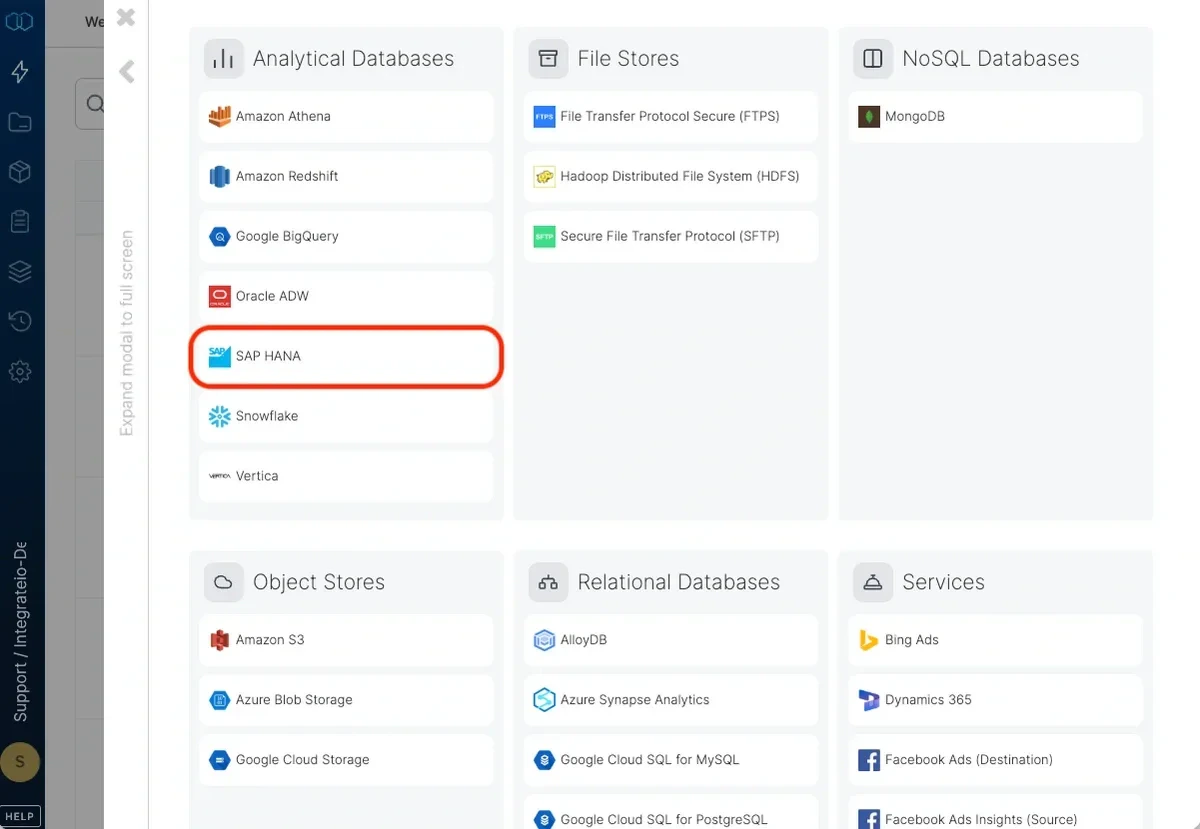
4
Select your access type (direct connection if you’ve whitelisted Integrate.io ETL’s IP addresses.)
5
Enter your database host name.
6
Enter the database name.
7
Enter the user name.
8
Enter the user’s password.
9
Click Test Connection to make sure the connection details are correct.
10
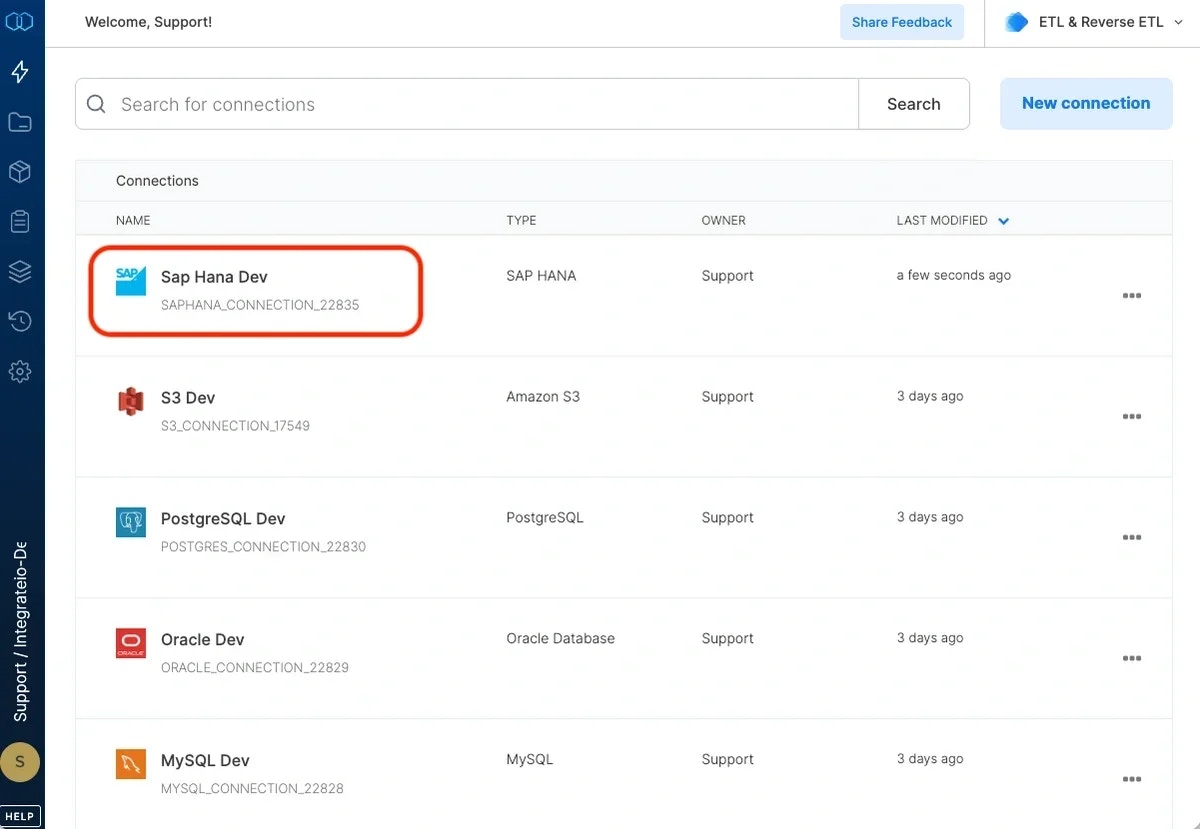
Click Create connection to create the connection.