To create an Intercom connection in Integrate.io ETL
1
Click the Connections icon (lightning bolt) on the top left menu.
2
To create a connection, click New connection.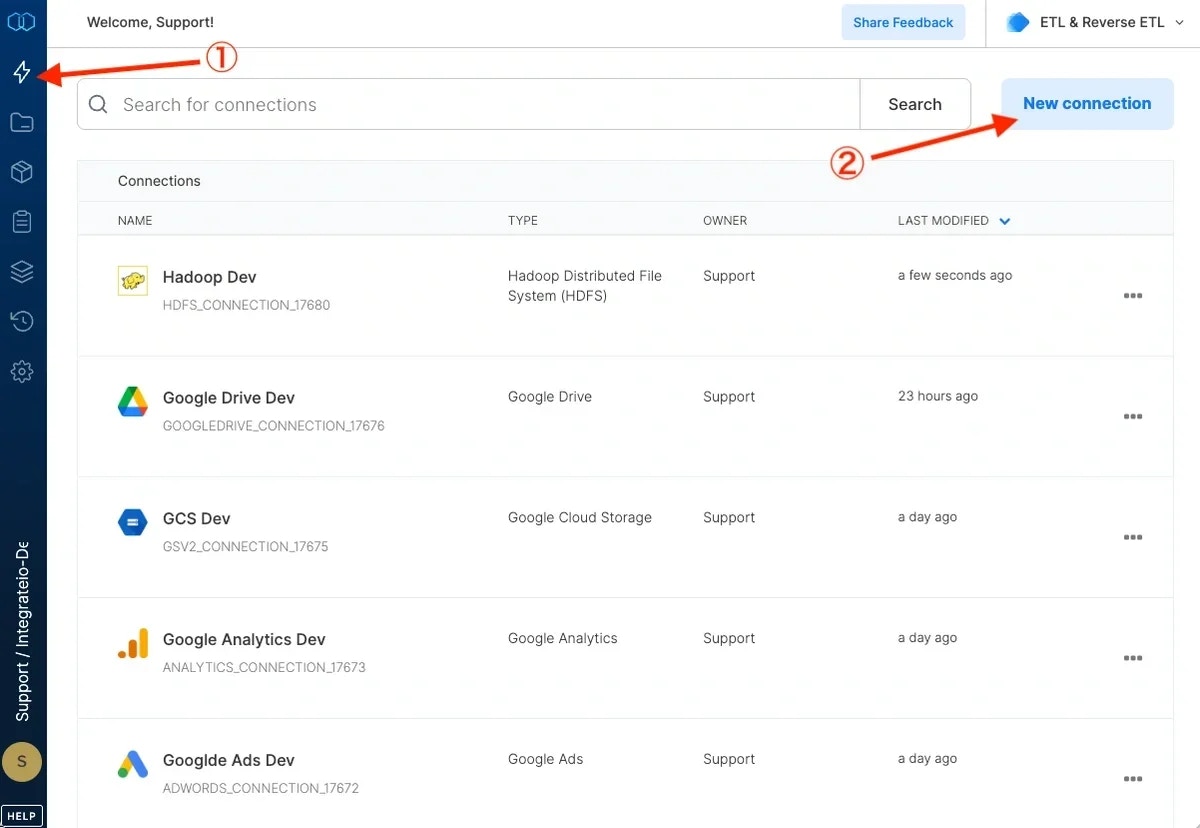
3
Select Intercom.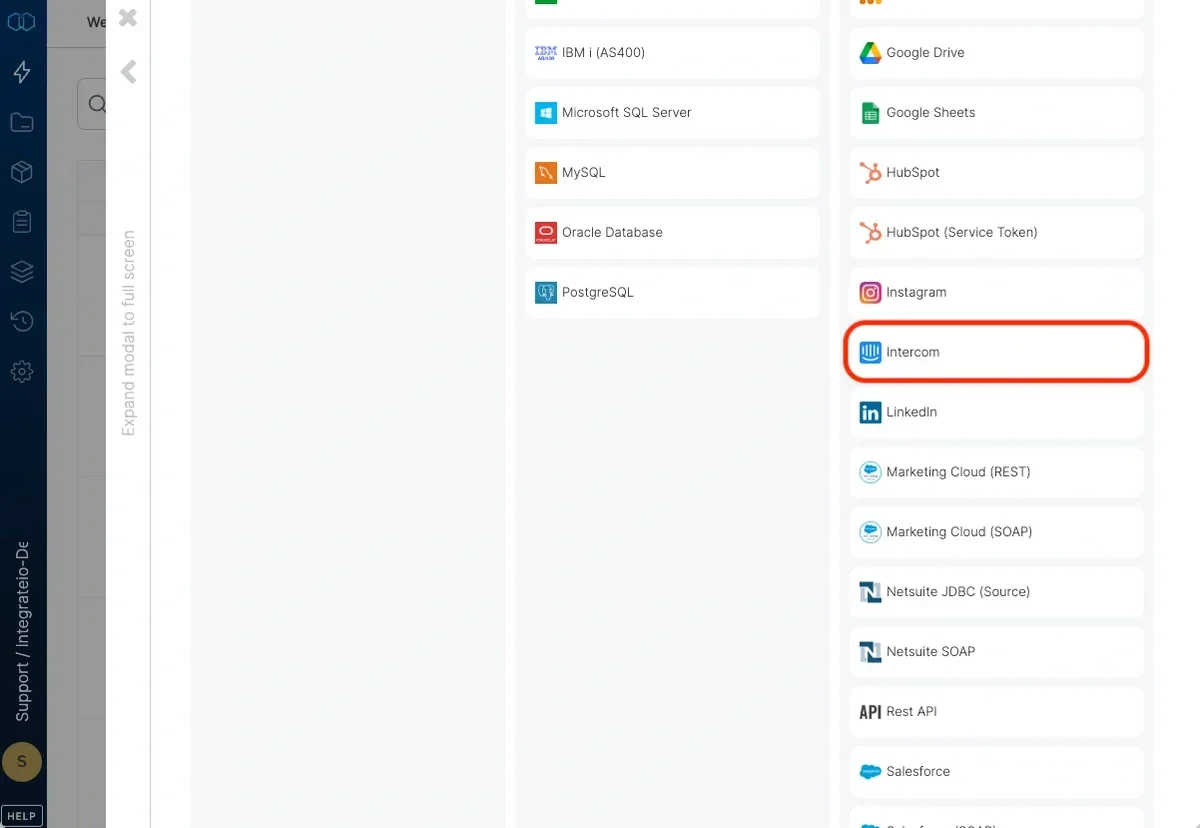
4
Click Authenticate. (If required, sign in to Intercom)
5
Click Connect to authorize Integrate.io ETL access to your Intercom account.
6
Click Save Changes to create connector after setting connector name.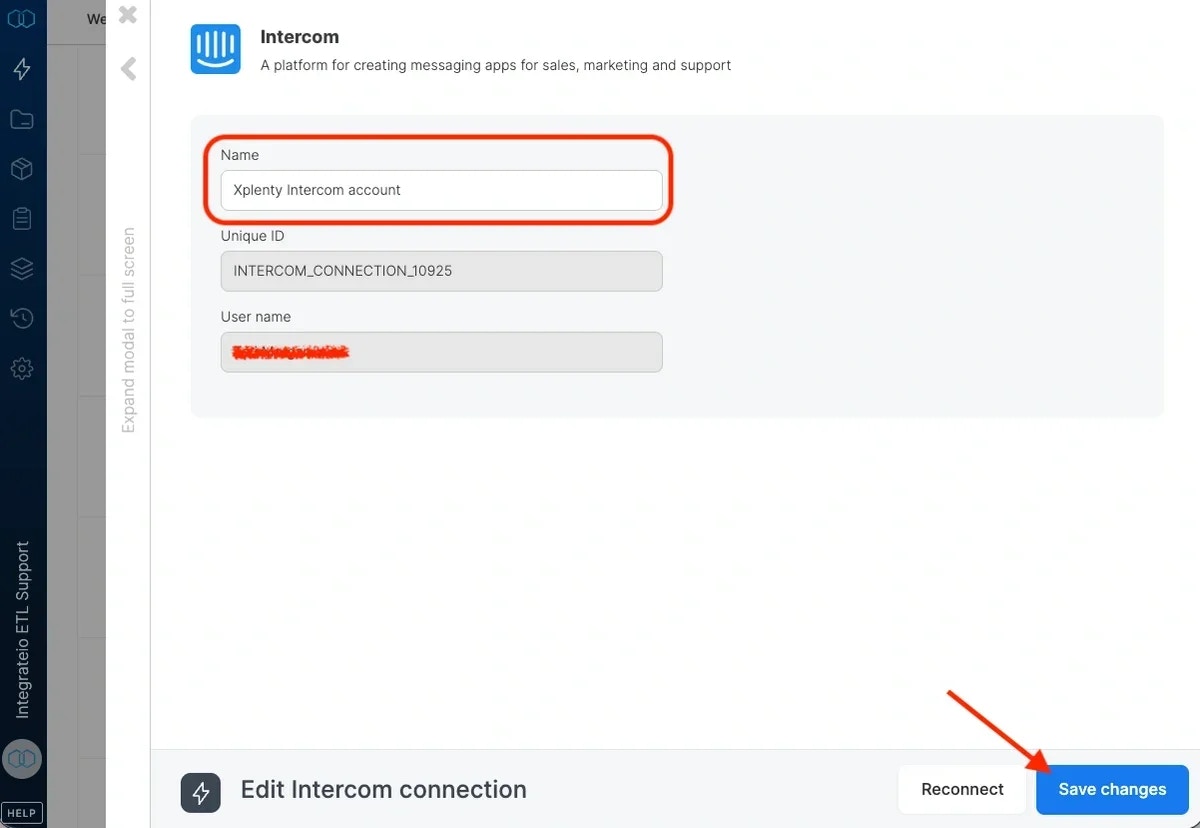
7
In the new Intercom connection window, name the connection and click Create Intercom connection.
To modify Intercom connections in Integrate.io ETL
1
Click the Connections icon (lightning bolt) on the top left menu.
2
Click a connection to re-connect if your password has changed or the token has expired.
3
To delete an Intercom connection, click the three vertical dots on the far right of the connection listing and select the Delete connection option.
To build a data pipeline to read Intercom companies data in Integrate.io ETL
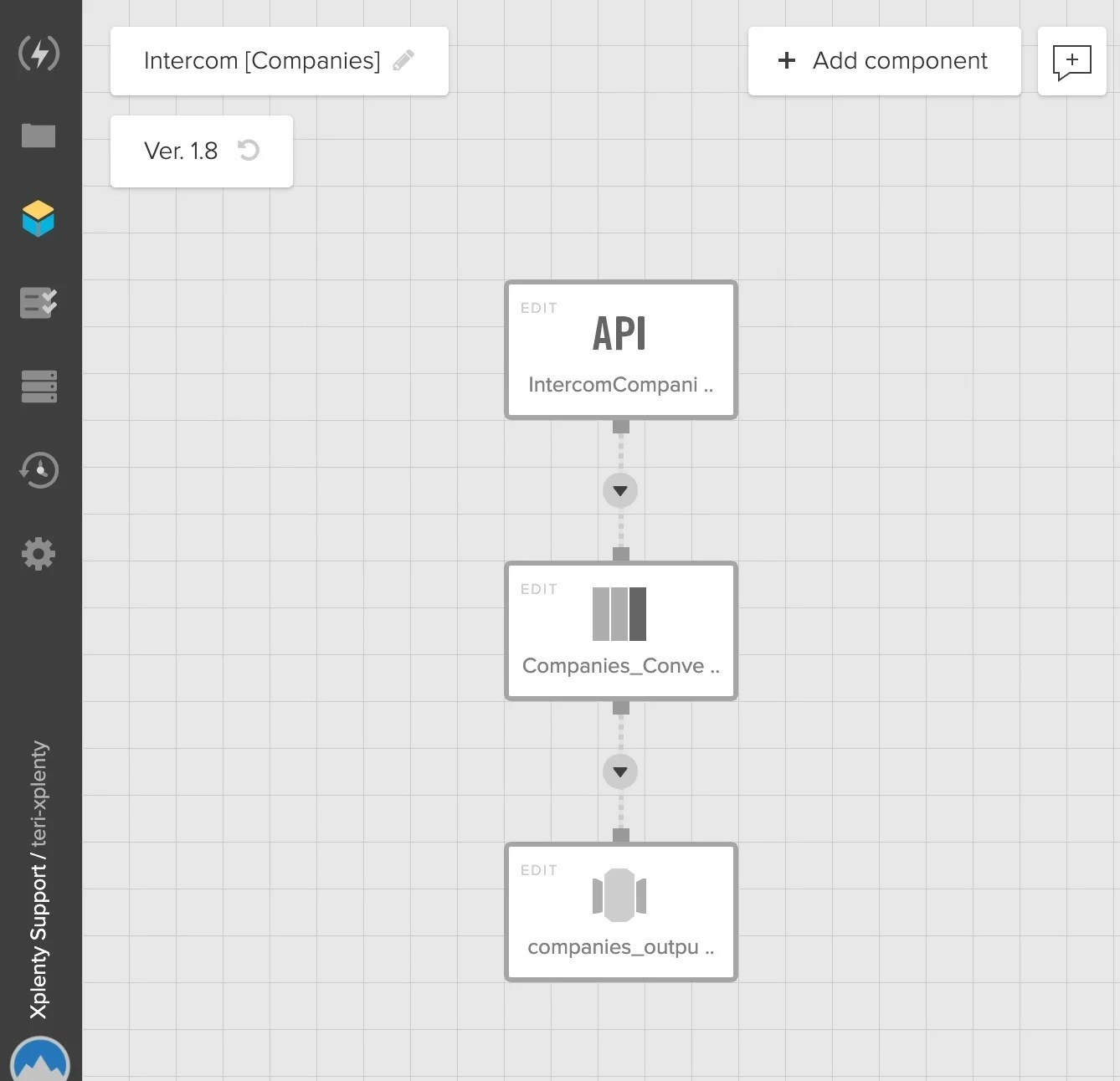
REST API Component: IntercomCompanies
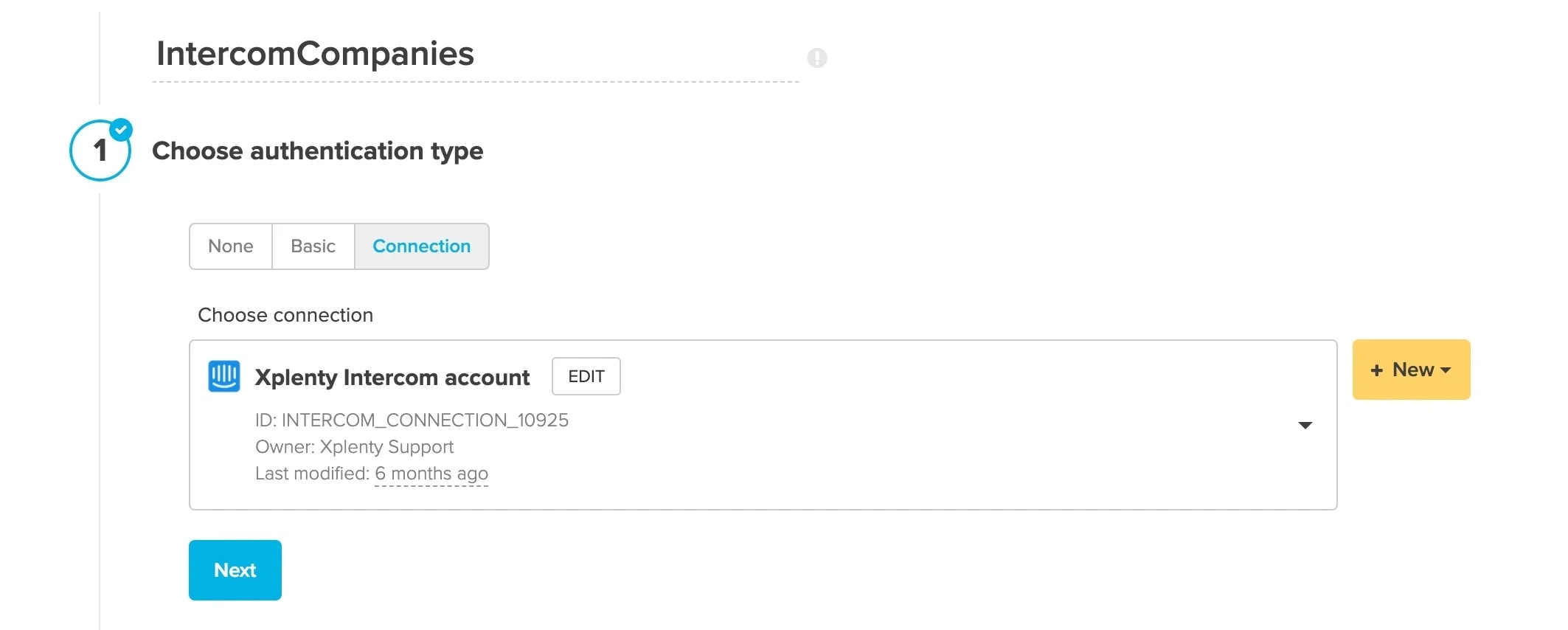
- Authentication - Click Connection and then select your Intercom connection. If you haven’t created your Intercom connection yet, click + New and follow the instructions found above.
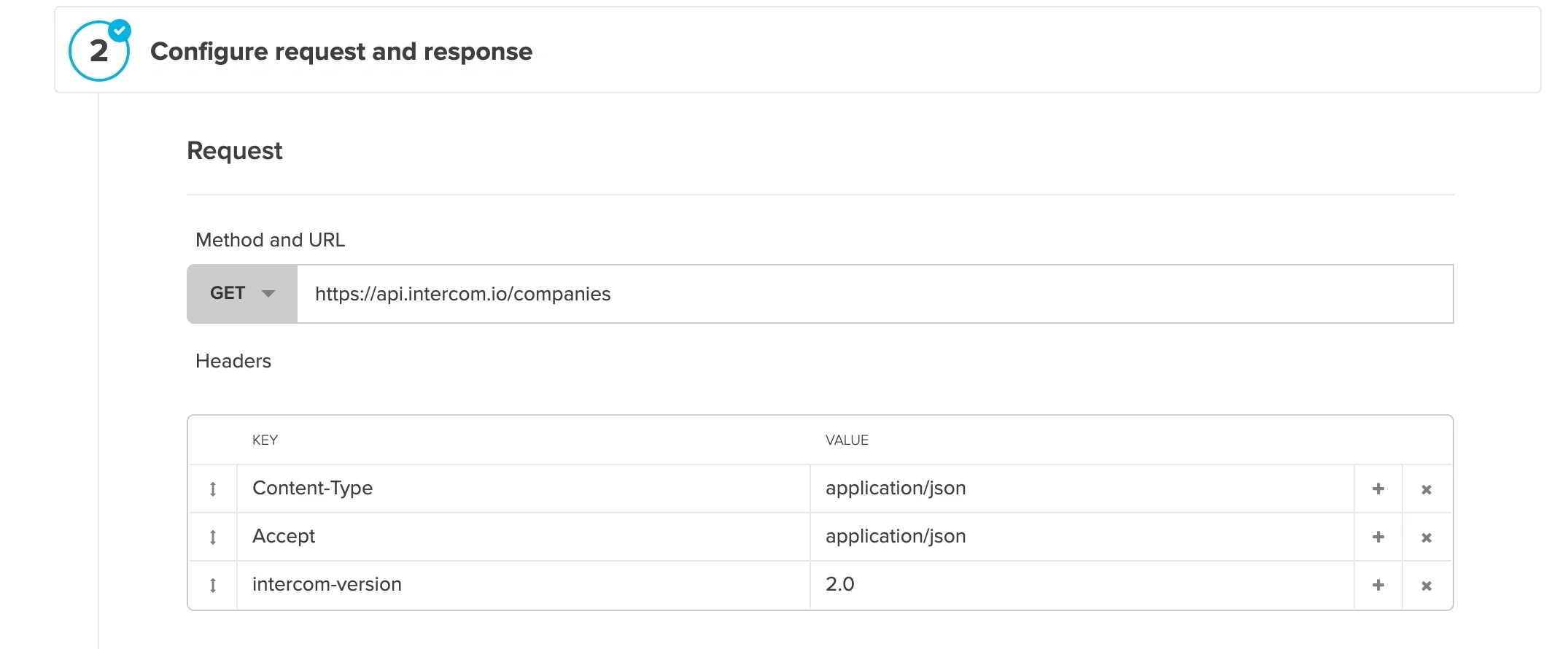
- URL - Enter the URL for the Companies endpoint of the Intercom API: https://api.intercom.io/companies. Make sure the method is set to GET.
- Headers - Click Add and create Content-type, Accept, and Intercom-version headers as shown here:
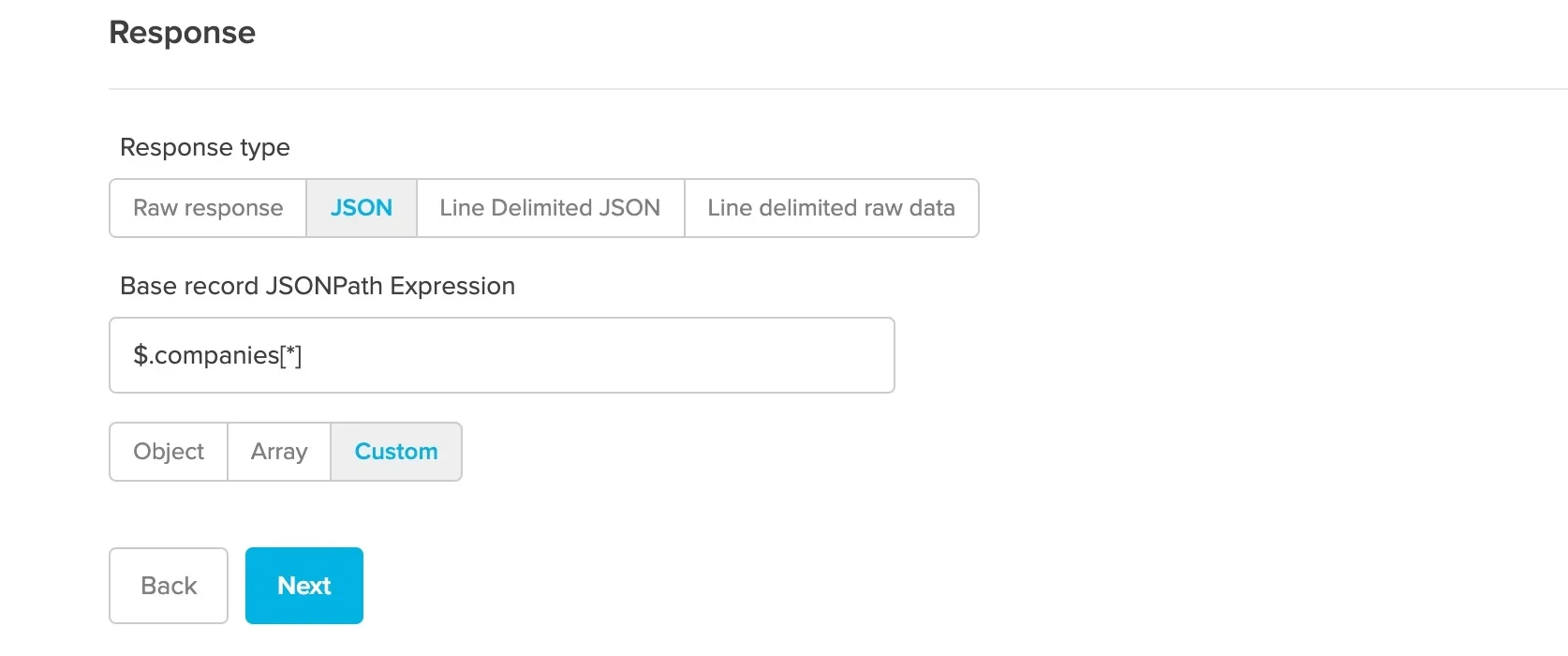
- Response - Type $.companies[*] in the Base record JSONPath Expression field.
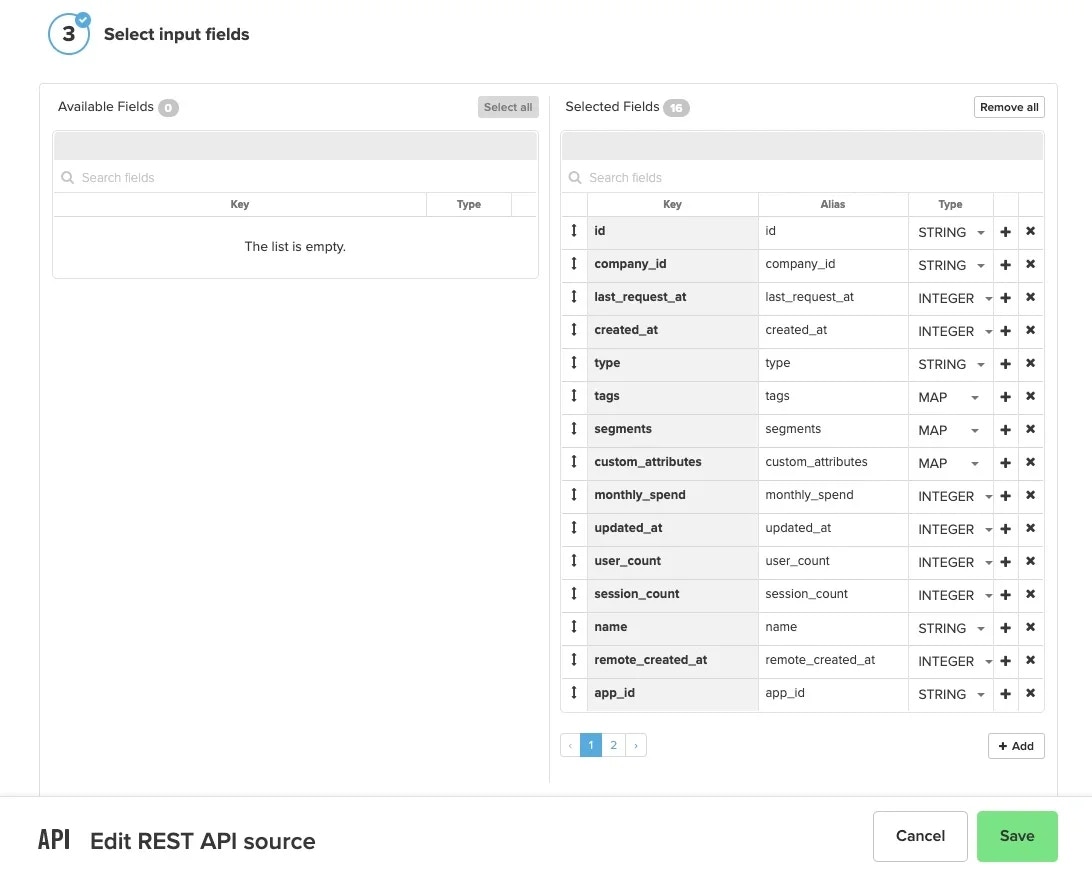
- Input fields - Click Select all to move all the Available fields over to the Selected fields or pick and choose which fields you would like by clicking on the + icon next to the field name in the Available Fields column. Then click Save.
Select Component: Companies_ConvertDates
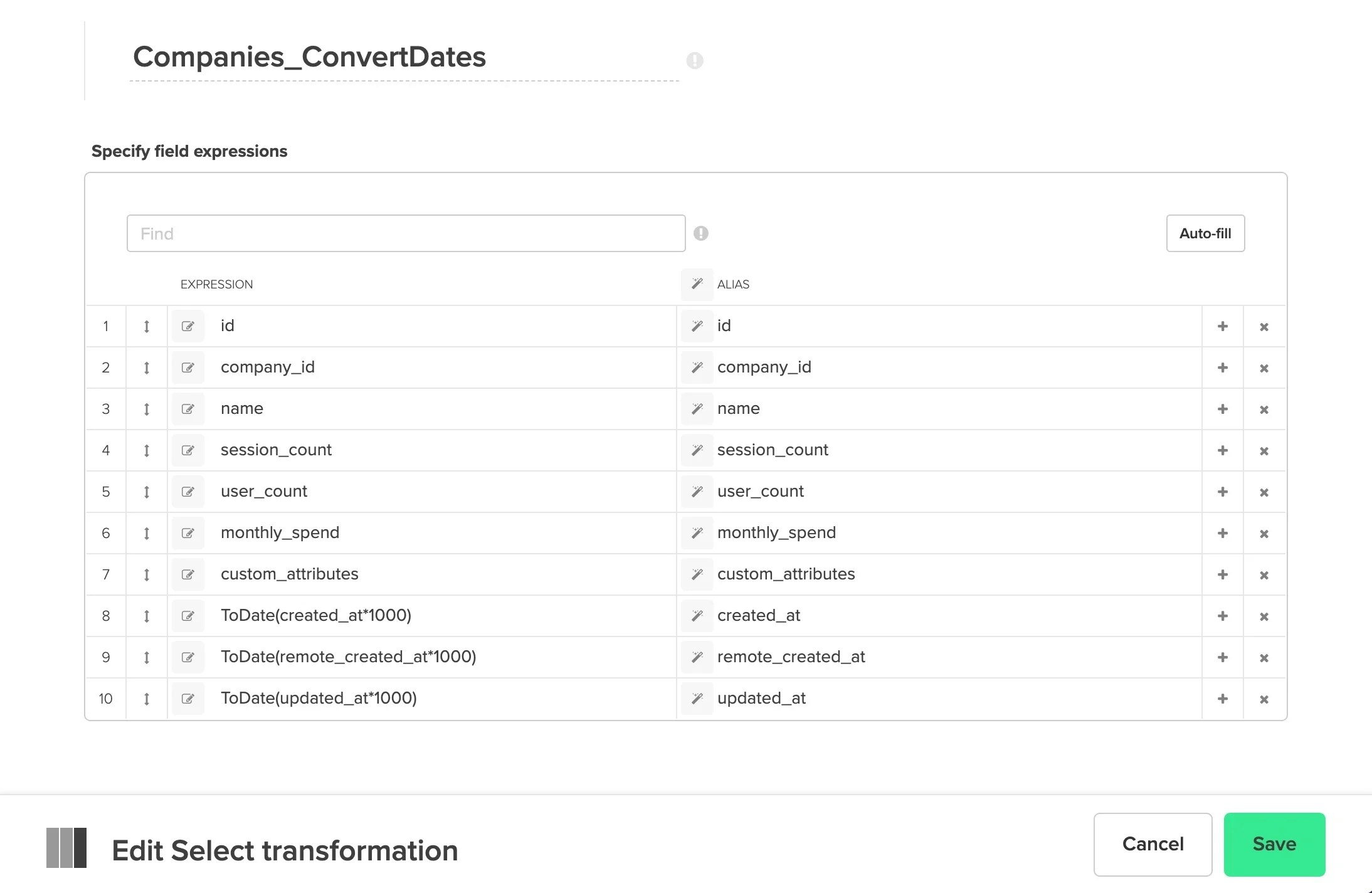
- Click Autofill to bring in all the fields from the source component. If desired, convert the three Unix timestamp fields (created_at, remote_created_at, and updated_at) into Datetime data types. Multiply the three fields times 1000 and pass the result into the ToDate function (for more information on the ToDate function see this article) - like this ToDate(created_at * 1000). Click Save.
Destination Component: companies_output
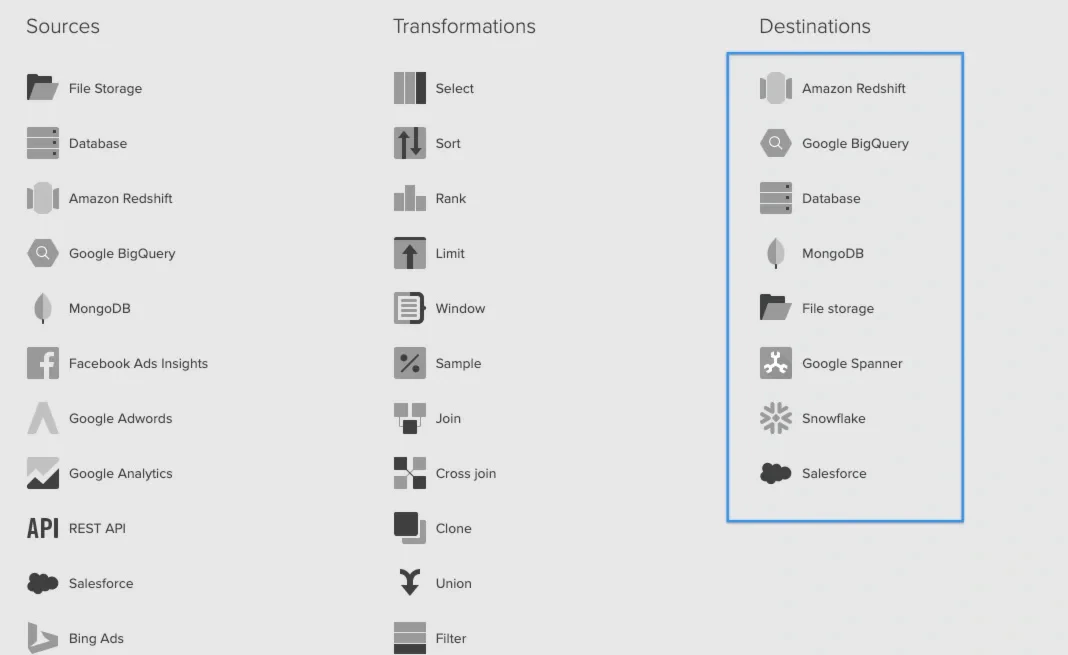
- The template shows a Redshift destination component; however, if you’d prefer to use a different destination, delete the Redshift component and select a destination component of your choice.
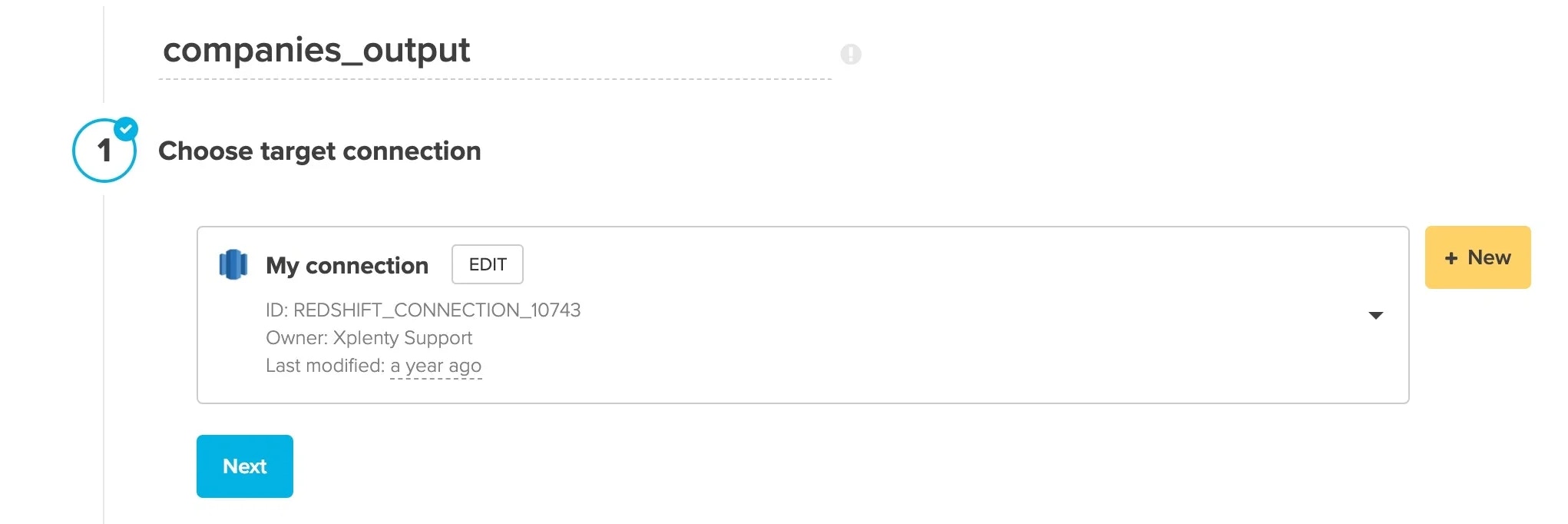
- Choose target connection - Select your target connection. If you haven’t created your connection yet, click + New.
- Destination properties - Fill in the values for target schema and table, select an operation type, pre or post-action SQL, and advanced options.
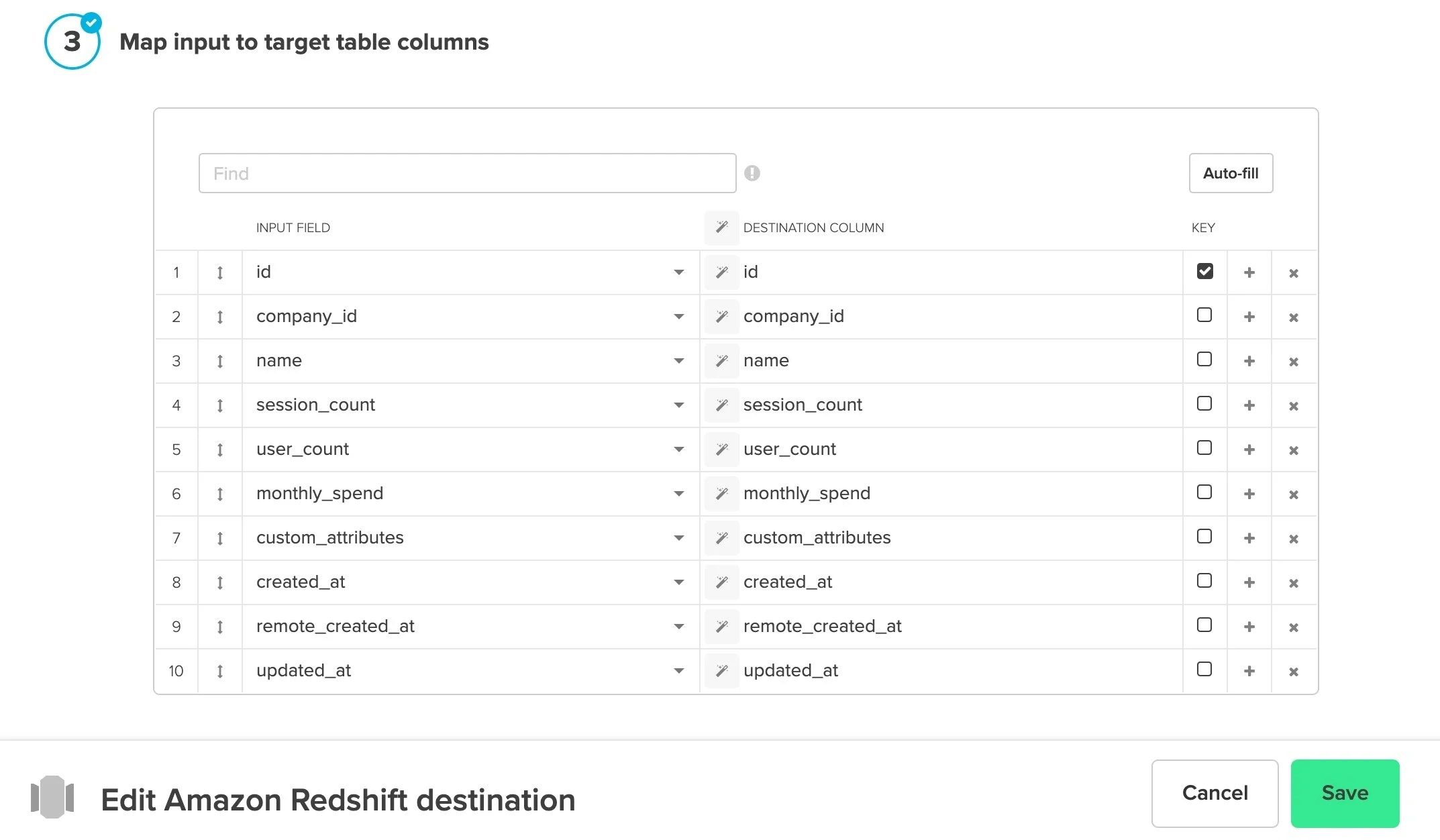
- Schema mapping - Click Auto-fill to bring in all of the fields. If you’ve selected a Merge operation type, click the Key box next to the merge key field(s). Click Save.