

Connection Setup
Integrate.io ETL supports two ways to connect to Google Sheets: a Google Cloud service account (recommended for team or workspace-owned spreadsheets), or user-based OAuth.Service Account (recommended)
Use a service account when you want to avoid user-based OAuth, share access across a team, or connect spreadsheets owned by a workspace rather than an individual user.Step 1: Create a service account and JSON key
1
Access your Google Cloud Console and select the project you want to use.
2
On the sidebar, choose IAM & Admin → Service Accounts → Create Service Account.
3
Fill in the Service account name (for example,
integrateio-google-sheets) and click Done. Roles are not required at the project level for Google Sheets; access is granted per spreadsheet in Step 3.4
From the Service Accounts list, click the service account you just created and open the Keys tab.
5
Click Add Key → Create new key, choose JSON, and click Create. A
.json key file is downloaded to your machine. Keep this file secure. You will upload it to Integrate.io in Step 4.6
Copy the service account’s email address (it ends in
@<project-id>.iam.gserviceaccount.com). You will need it in Step 3.Step 2: Enable the Google Sheets API
1
In the Google Cloud Console, go to APIs & Services → Library.
2
Search for Google Sheets API and click Enable. If you plan to let Integrate.io list spreadsheets by name, also enable the Google Drive API.
Step 3: Share your spreadsheets with the service account
The service account can only access spreadsheets that have been explicitly shared with it.1
Open the Google Sheets spreadsheet you want to connect to.
2
Click Share in the top-right corner.
3
Paste the service account’s email address into the sharing field.
4
Choose the access level:
- Viewer, for source components that only read data.
- Editor, for destination components that write data.
5
Uncheck Notify people and click Share.
Step 4: Create the connection in Integrate.io ETL
1
Click the Connections icon (lightning bolt) in the top-left menu.
2
Click New connection.
3
Select Google Sheets (Service Account).
4
Name the connection and upload the JSON key file you downloaded in Step 1. The service account email is filled in automatically from the key file.
5
Click Test Connection to verify the credentials, then click Create connection.
OAuth
To connect with a personal or user-based Google account instead of a service account:1
Click the Connections icon (lightning bolt) on the top-left menu, then click New connection.
2
Select Google Sheets.
3
Click Authenticate and, if required, sign in to Google.
4
Click Connect to authorize Integrate.io ETL access to your Google Sheets account.
5
Name the connection and click Create Google Sheets connection.
Source Properties
The source component is configured in Step 02 of the component editor.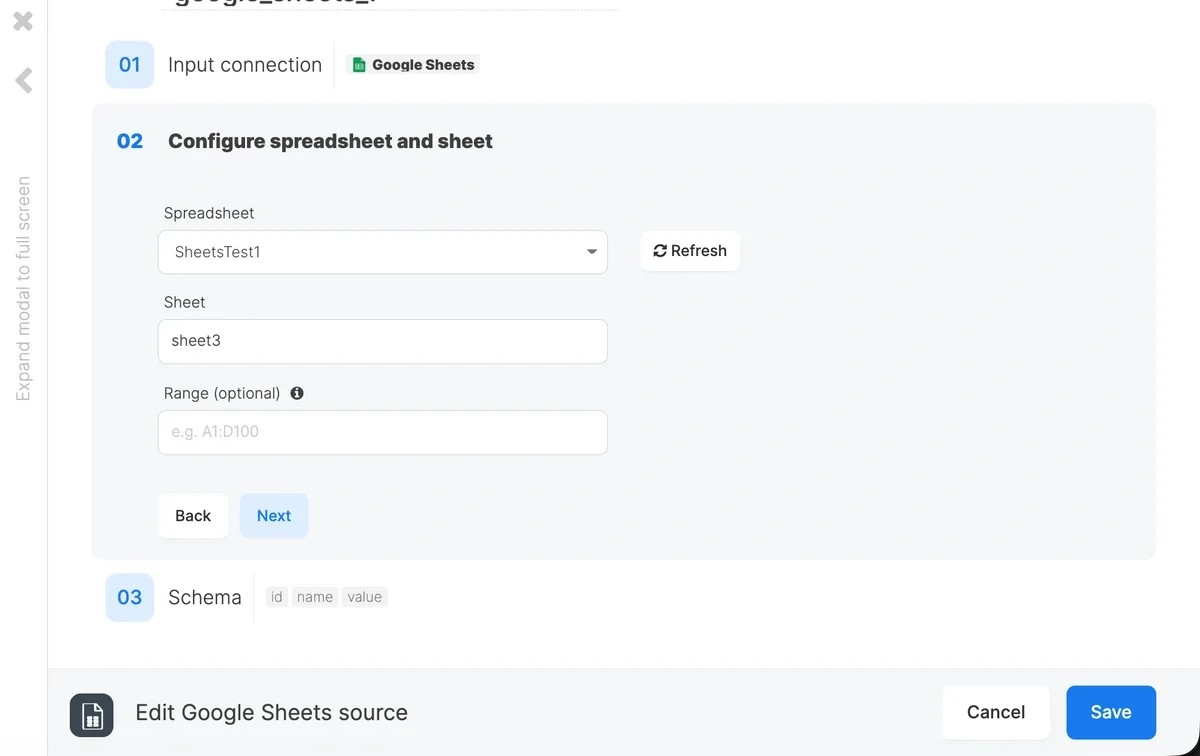
Spreadsheet
Select the spreadsheet to read from. The dropdown lists all spreadsheets that have been shared with the service account. Use the search field to filter by name. If your spreadsheet is not listed, make sure it has been shared with the service account’s email address. See Step 3 under Connection Setup above. Click the Refresh button to reload the spreadsheet list if you have recently shared a new spreadsheet.Sheet
Select the sheet (tab) within the spreadsheet to read from. The dropdown is populated automatically after a spreadsheet is selected.Schema
After configuring the source properties, the Schema section (Step 03) displays the fields available in the pipeline. These are derived from the header row (row 1) of the selected sheet.- The first row of the sheet is treated as the header row and defines the column names.
- Data types are automatically inferred from sample data rows. Supported types include:
string,long,double,boolean, anddatetime. - If a column contains mixed types or cannot be inferred, it defaults to
string.
column_0, column_1)