

Connection Setup
To allow Integrate.io ETL direct access to your server, create firewall rules to allow inbound connections from the Integrate.io IP address list. Alternatively, follow the directions for SSH tunnel or reverse SSH tunnel access.1
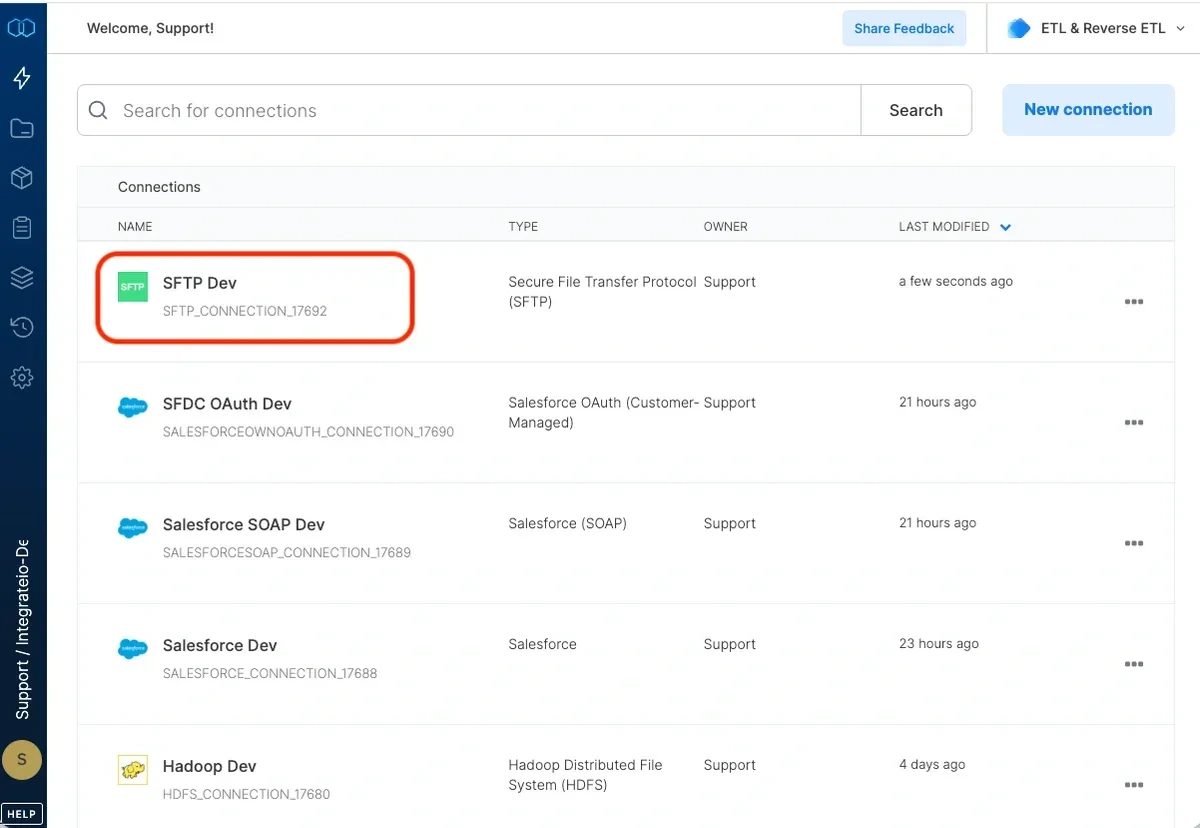
Click the Connections icon (lightning bolt) in the top-left menu.
2
Click New connection.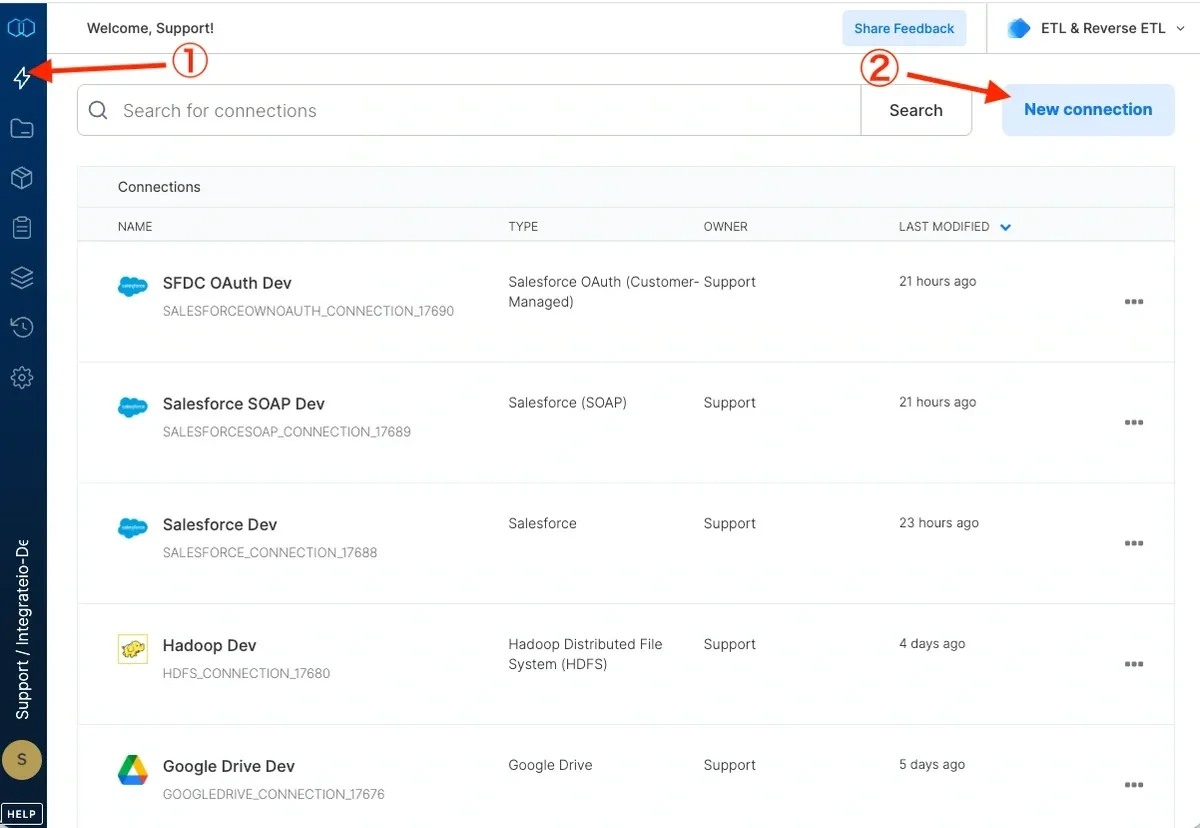
3
Select Secure File Transfer Protocol (SFTP).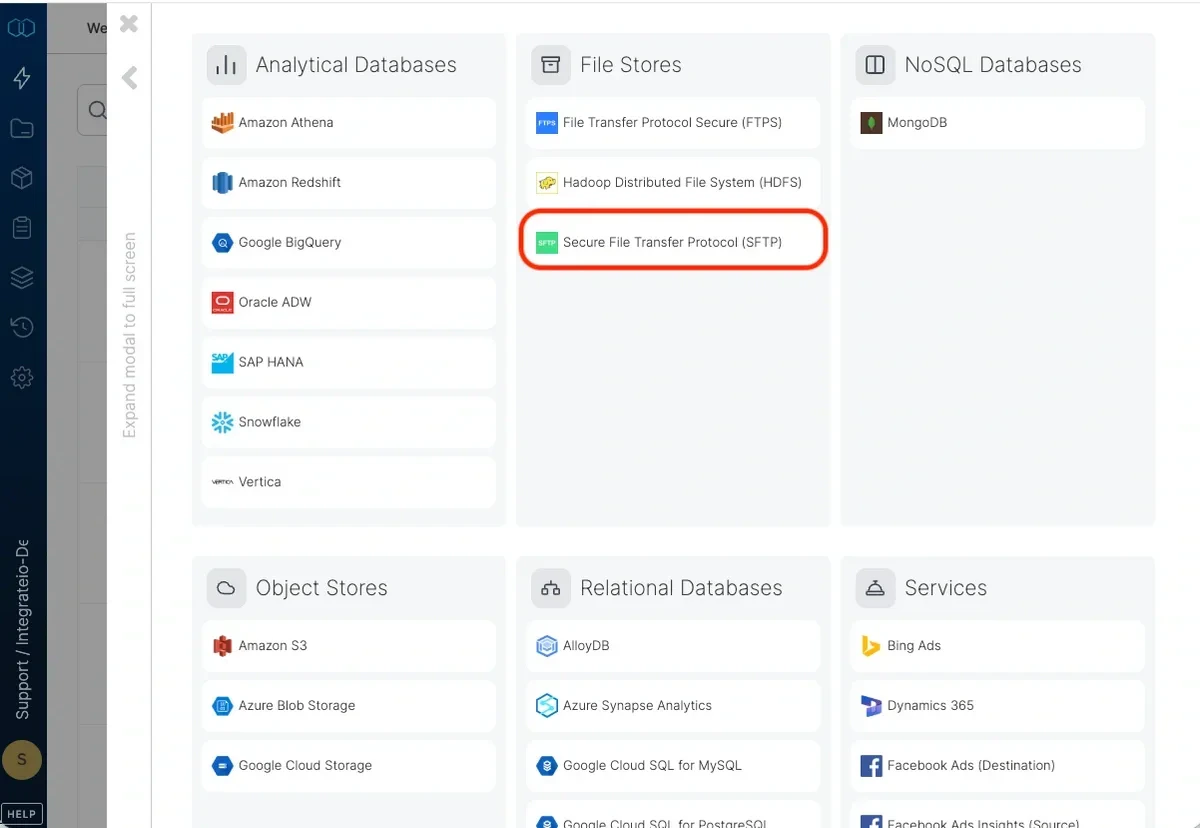
4
Name the connection and fill in the connection details: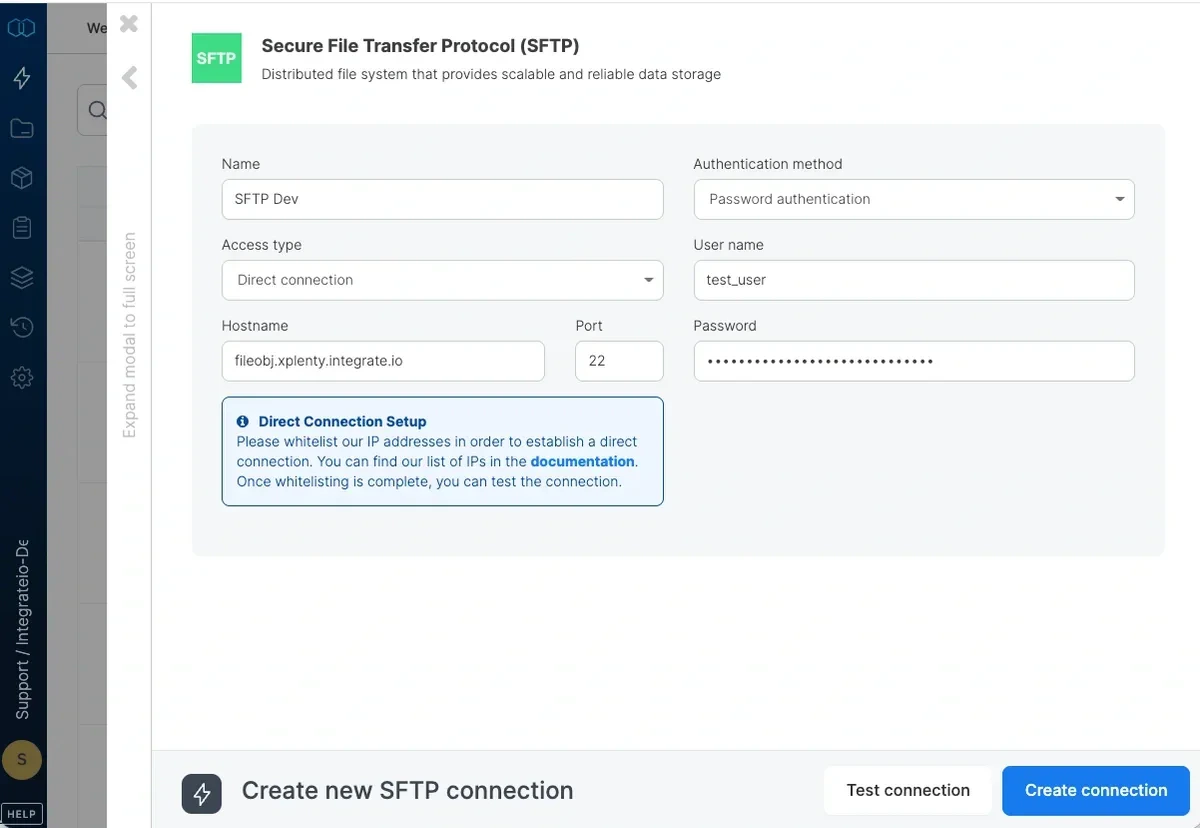
5
Click Test connection to verify the credentials.
6
Click Create SFTP connection.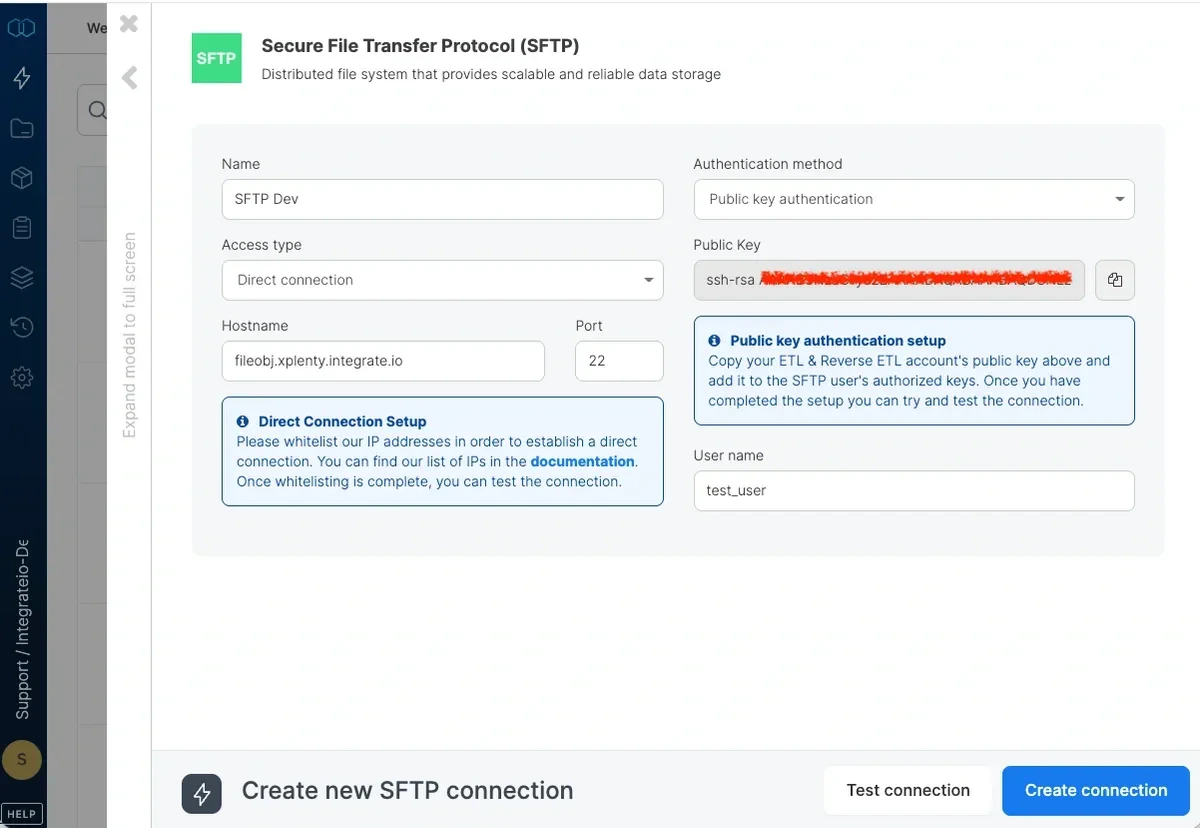
Servers That Allow Only One File Transfer per Session
Some SFTP servers reject a second file operation on a session that already has one in progress, with the errorThe requested operation cannot be performed because there is a file transfer in progress. This affects Move processed files to another folder, which reads each processed file and writes its archive copy over the same session.
For these servers, set the single_transfer_per_session custom property on the connection. The archive step then stages each file in a temporary directory on the cluster, so each hop uses the session for either a read or a write, never both. The property applies only to SFTP and FTPS connections and is off by default.
The property isn’t shown in the connection form. Set it with the API:
true is accepted in any letter case, with surrounding whitespace ignored. Any other value leaves the connection on the default direct copy.
Source Configuration
Connection
Select your SFTP connection from the dropdown, or create a new one using the steps above.Source Path
The path to the input file, folder, or pattern on the SFTP server. Paths must begin with/. Integrate.io prepends the slash automatically if omitted.
You can use wildcard characters for pattern globbing. File and directory names beginning with an underscore (
_) or a dot (.) are ignored.
SFTP has no bucket or container field. The path is relative to the SFTP server root.
Source File Format
Record type: the format of each record. Select the record type first:Avro file format is not supported.
- New line (
\n,\n\r,\r): each line in the file is one record. - End of file: each file is treated as a single record.
.zip, a Case insensitive file matching checkbox appears in Advanced settings. Enable it to match the zip file path without regard to letter case.
To read ASC X12 EDI files such as 834 benefit enrollment files, use the dedicated EDI (X12) source instead.
Delimited Values Parameters
Applies when record type is Delimited values.1
Field delimiter: select comma, tab, semicolon, pipe, space, or
\u0001 from the dropdown, or select Custom and type a single character or escape sequence:2
String qualifier: if fields are enclosed in quotes, select
' or ". Any quote qualifier keeps line breaks inside quoted fields at runtime, so a quoted value that spans several lines is read as one field instead of being split into separate records. Select None when the files have no quote character; newlines then always end a record.The " (newline inside) and ' (newline inside) options behave the same as plain " and ' at runtime. They are hidden from the dropdown unless the component already has one of them saved, so existing packages keep working.3
Escape character: available when a string qualifier is set. Specifies the character used to escape qualifier characters within field data.
4
Allow stray quotes in quoted fields: available when a string qualifier is set. Off by default. Turn it on for files where a qualifier inside a quoted value is not doubled or escaped, for example a value written as
"the right to park "six vehicles" instead of "the right to park ""six vehicles".Without this setting, such a quote ends the value early. The rest of the line is then read as part of the next field and, because quoted values can span lines, every row after it can be lost while the job still completes.With it on, a qualifier ends a quoted value only when the field delimiter or the end of the line follows it. Any other qualifier is kept as text, and a doubled qualifier ("") still means one qualifier. The exception is a doubled qualifier directly before the delimiter or the end of the line: it's read as a stray quote followed by the closing quote, so a value that ends in a quoted phrase, such as "park "six cars"", reads as park "six cars".5
Header: select where the header row is. See Header options.
Header Options
Applies when record type is Delimited values or Excel. Select one Header option:
Parquet files carry their own schema, so the Header option is not shown for them.
Excel Parameters
Applies when record type is Excel.Password-Protected Workbooks
If a workbook is encrypted with a password (set via Protect Workbook in Excel), open Advanced settings, check This file is password protected, and enter the password in the File Password field. Integrate.io decrypts the workbook during schema preview and job runs. Passwords containing special characters such as$ are supported.
The checkbox appears when the record type is Excel, whatever the file extension. It is not shown when the source path ends in .xls, because legacy .xls files are not supported for password decryption. Unchecking the box clears any saved password.
Password-protected workbooks do not use streaming mode. When a password is set, enabling Ingest large Excel file reads the workbook in standard mode.When streaming a single sheet, date cells come through as Excel serial numbers (e.g.
45306). Declare those columns as int or decimal in your schema, or transform them downstream.JSON Parameters
Applies when record type is JSON object. Base record JSONPath Expression: defines the base record and extracts nested objects or arrays.
Read more about processing JSON data.
Source Action
All four source actions are available for SFTP. When using Move processed files, the Append string to filename option is supported. If the server allows only one file transfer per session and archiving fails with
there is a file transfer in progress, see Servers That Allow Only One File Transfer per Session.Incremental Load (Process Only New Files)
Move Processed Files
When Append string to filename is checked, enter the string in the field that appears. Use it to tag archived files with the run they came from, or to stop repeat runs of the same source filename from overwriting each other in the archive folder. A checked box with an empty string does nothing.
If the filename has an extension, the string is inserted before the last dot. Otherwise it is added to the end. For example,
report.csv with _processed becomes report_processed.csv, and data.tar.gz with _v2 becomes data.tar_v2.gz.
The string can be literal text, a job or package variable, or a combination:
- Literal:
_processed - Job variable:
_$_JOB_ID - Combined:
_processed_$_JOB_ID,_${PACK_VAR}_v2
/, a line break, a backtick, a double quote, or $(. Components with these characters can't be saved.
With this option on, each archived file is staged on the cluster before it is written to the archive folder, and renamed there. On Amazon S3, Google Cloud Storage, and Azure Blob Storage this doubles the archive transfer and adds one rename per file, which a source that archives hundreds of files per run may notice. If any file fails to rename, the job fails and the original source files are not deleted.
PGP Decryption
To decrypt source files encrypted with OpenPGP, open Advanced settings, set Decrypt file to PGP, and pick an active entry. The entry must hold a private key. Integrate.io decrypts each matching file before parsing it. Encryption and compression can be combined in either order:member.csv.gz.pgp is decrypted and then decompressed, and member.csv.pgp.gz is decompressed and then decrypted.
Paths that contain a space, semicolon, or parenthesis are not supported when a PGP key is set.
Source Schema
After defining the source location and format, select the fields to include.
For each field, define:
- Alias: how to refer to the field in downstream components. Illegal characters are flagged before you close the dialog.
- Data type: the type to cast the field to.
- Key (JSON only): the key name in the source JSON.
file_path or file_modified_at, that column is read like any other and the meta data field of the same name isn't offered.
Use
file_modified_at to tell apart deliveries of a file that keeps the same name, or to keep only the newest version of a resent file. It is the time the storage reports for the file, not the time the job ran (for that, use the $_JOB_SUBMISSION_TIMESTAMP variable):
- Amazon S3, Google Cloud Storage, Azure Blob Storage: when the object was last written, usually the upload time.
- SFTP, HDFS: the file's modification time, to the second.
- FTPS: depends on the server. Many FTP servers report times only to the minute, and some in the server's local time zone.
- A file inside a zip archive (a path such as
archive.zip/data.csv): the archive's time.
rsync -t or scp -p). For files delivered that way, the value is when the file was created at the sender, not when it arrived.
file_modified_at is not available for Excel, Parquet, XML, EDI (X12) or whole-file raw sources, for a path ending in .zip, for Google Drive, or with the Process only new files (Incremental load) and Copy, merge and process all files source actions. In those cases the files are copied before they are read, and the copy does not keep the original time.FAQ
How do I allow Integrate.io to connect to my SFTP server? Add the Integrate.io IP addresses to your server’s firewall allowlist. If direct access is not possible, use an SSH tunnel. Can I use SSH key authentication instead of a password? Yes. Select Public key authentication, then copy your Integrate.io account’s public key from Settings > Account Settings > Profile and add it to the SFTP user’sauthorized_keys file on the server.
My server requires both a key and a password. Is that supported?
Yes. Select Private key + password authentication, upload your own OpenSSH private key, and enter the password. Integrate.io authenticates with both in the same session. Add the matching public key to the SFTP user’s authorized_keys file on the server.
My password contains an @ symbol. What should I do?
Passwords cannot contain @ in the SFTP connection form. Contact your server administrator to change the password, or switch to public key authentication.
Does SFTP support incremental load?
Yes. Select Process only new files (Incremental load) in the source action settings and configure a manifest path. See reading file storage data incrementally.