

Connection Setup
Step 1: Create a Service Account within your GCP project
Create a Service Account
1
Access your Google Cloud Console.
2
On the sidebar, choose IAM & Admin > Service Accounts.
3
4
Fill up the Service account details and click “Done”.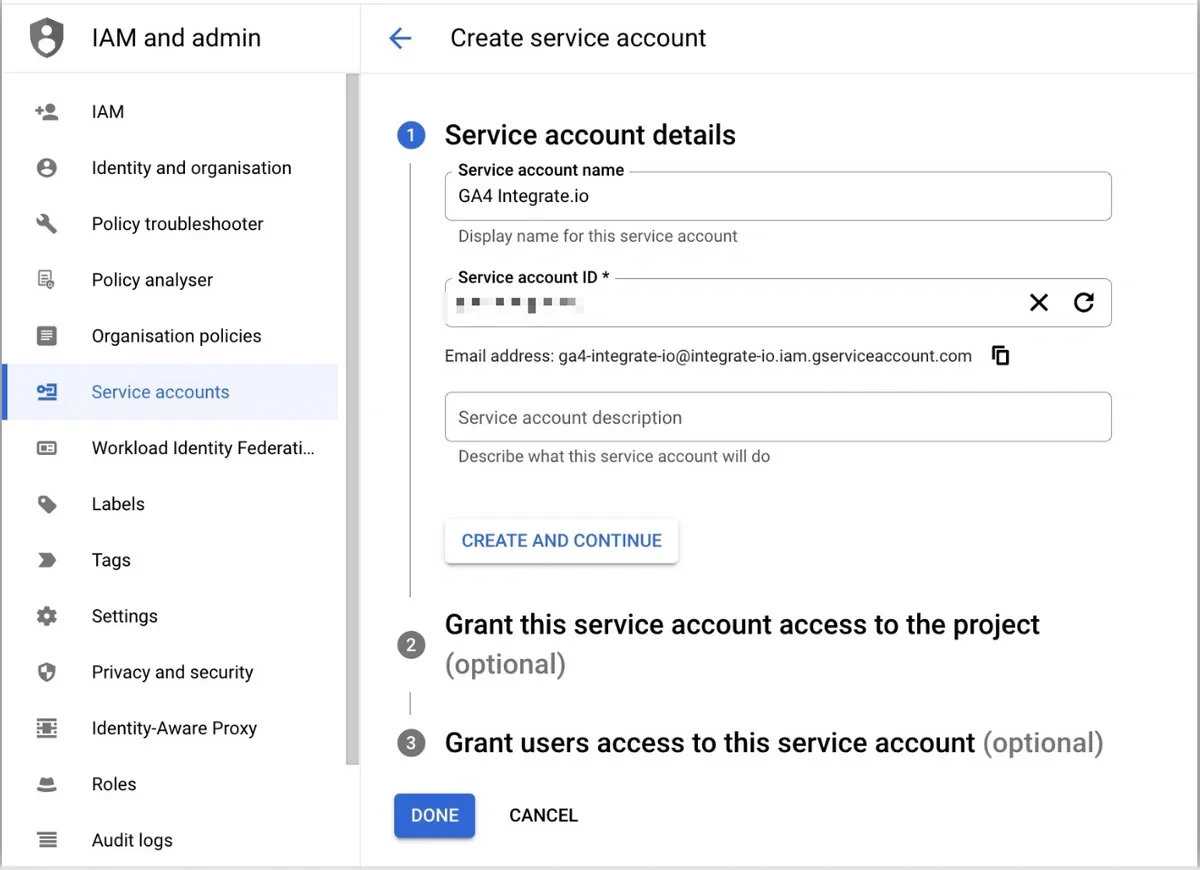
Generate a private key for your service account
1
Navigate to IAM & Admin > Service Accounts.
2
Click the Service Account you created from the previous step.
3
Click the “KEYS” tab.
4
Click “ADD KEY” > “Create new key” > “JSON” and click “CREATE”.
5
A private key (JSON) file will be automatically downloaded to your machine.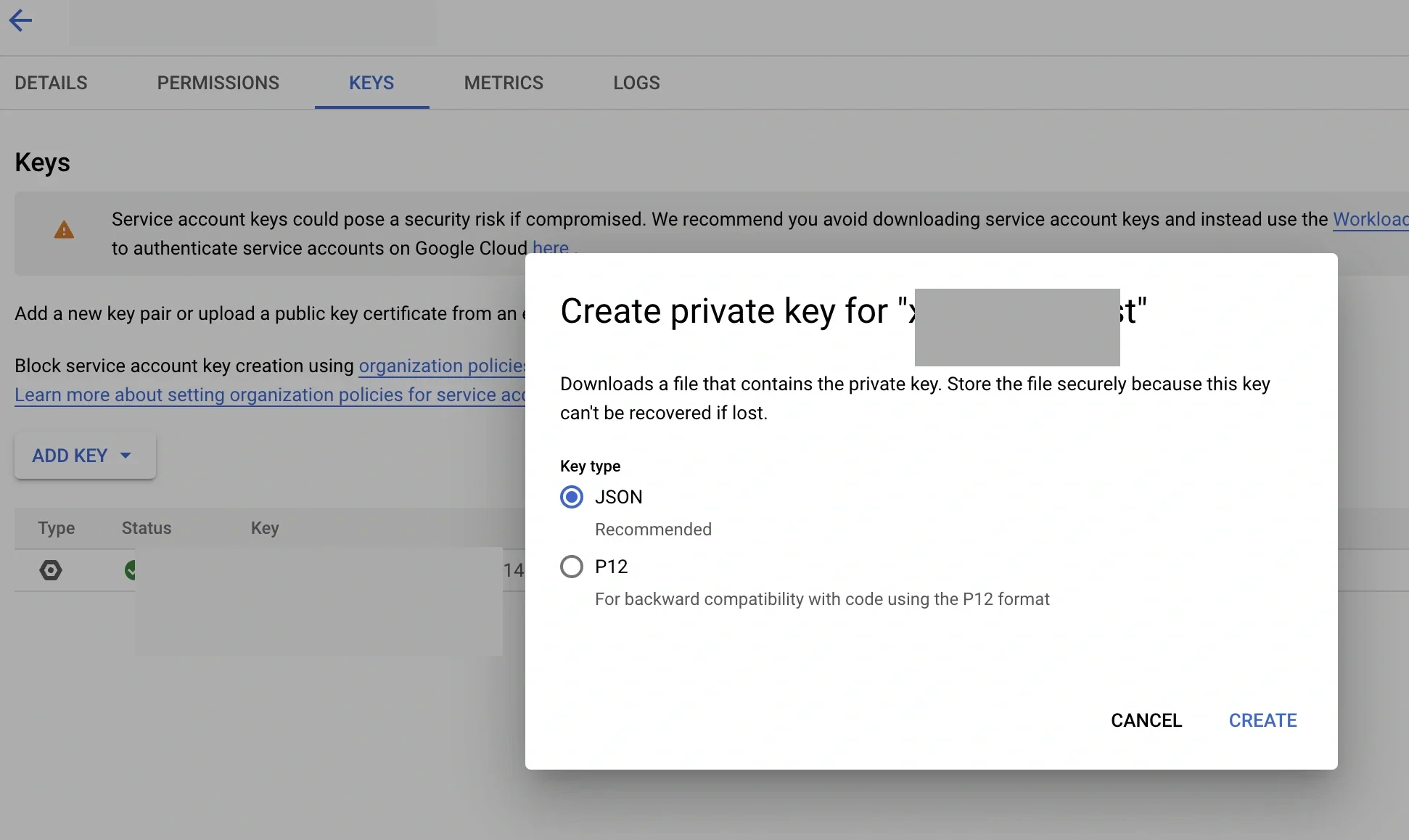
Step 2: Enable the APIs
1
Enable Google Analytics Admin API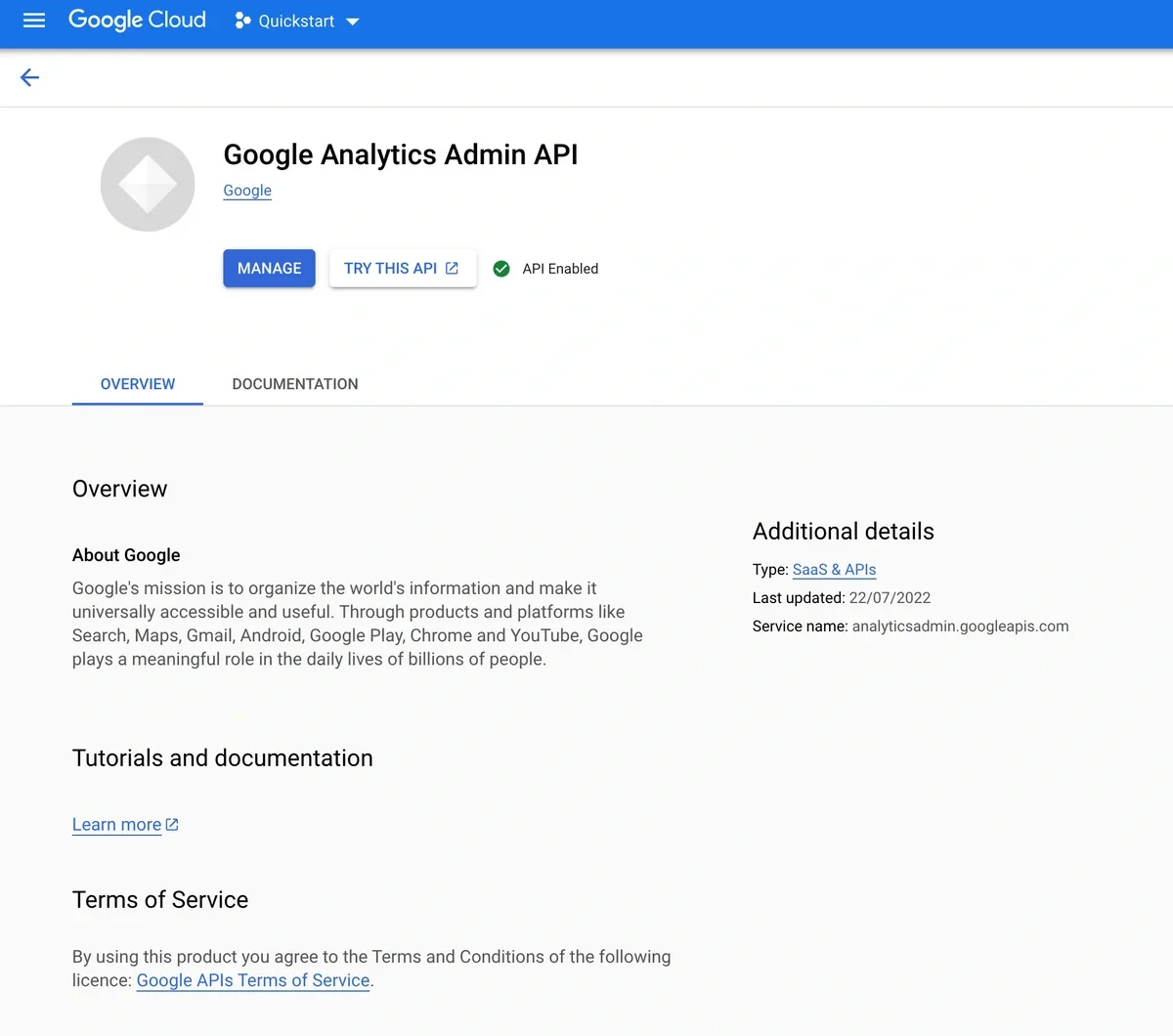
2
Enable Google Analytics Data API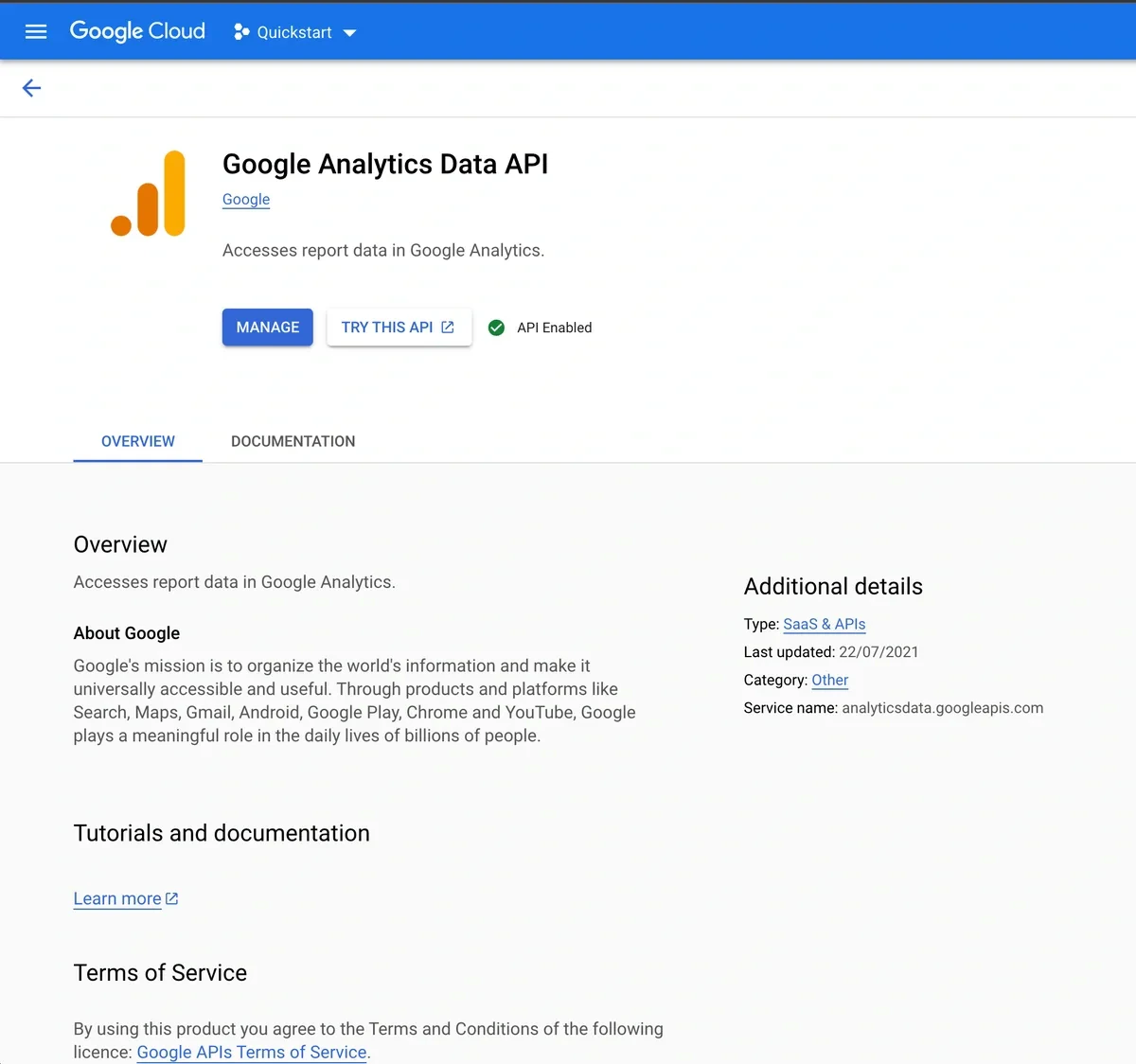
Step 3: Grant Google Analytics 4 Property Access to Service Account
1
Navigate to Google Analytics and click the “Admin” cog in the left sidebar.
2
Ensure that you are in the correct Account and Property, and then click “Property Access Management”.
3
Click the blue + button to add access permissions to new users, and select “Add users”.
4
Paste the Service Account email address you created earlier. Deselect “Notify new users by email” and select “Viewer” and click “Create”.
Step 4: Create GA4 Connection on Integrate.io ETL
1
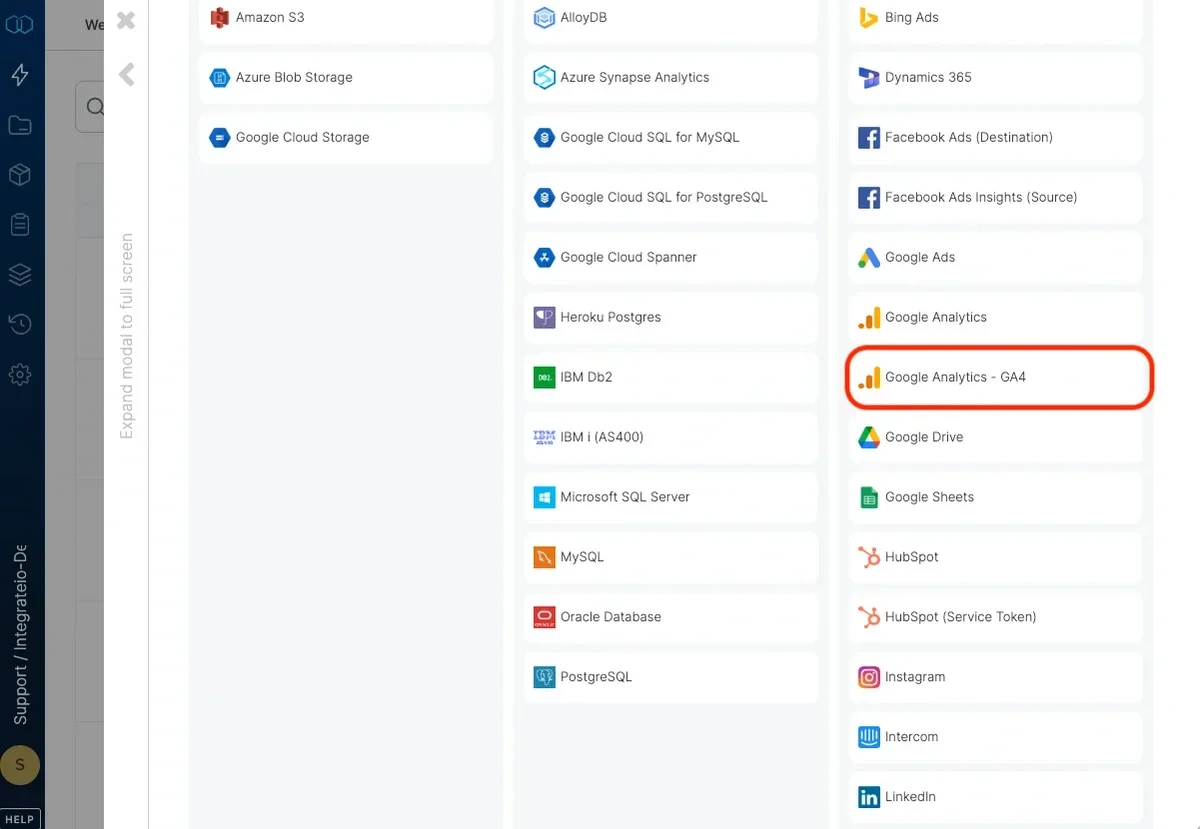
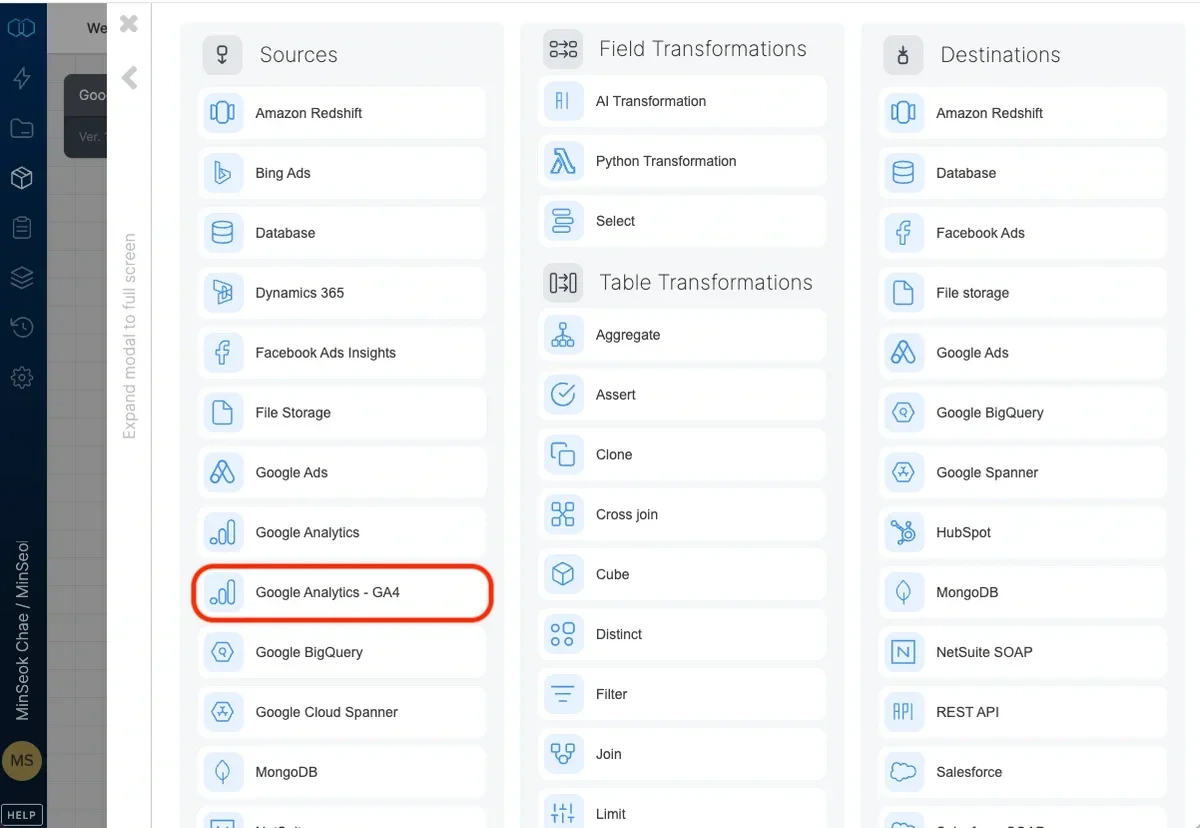
Navigate to the Connections tab and click Google Analytics - GA4.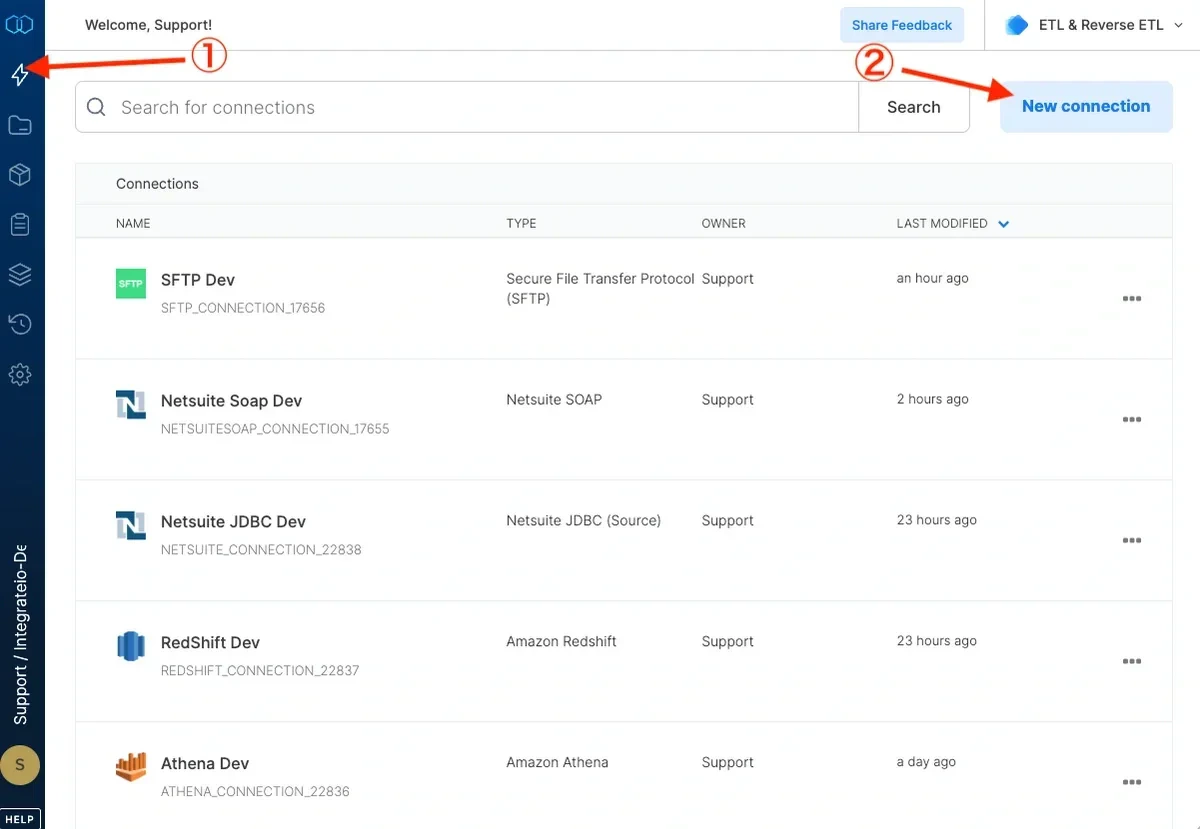
2
Fill up the Connection Name.
3
Upload the JSON key you generated from Step 1.
4
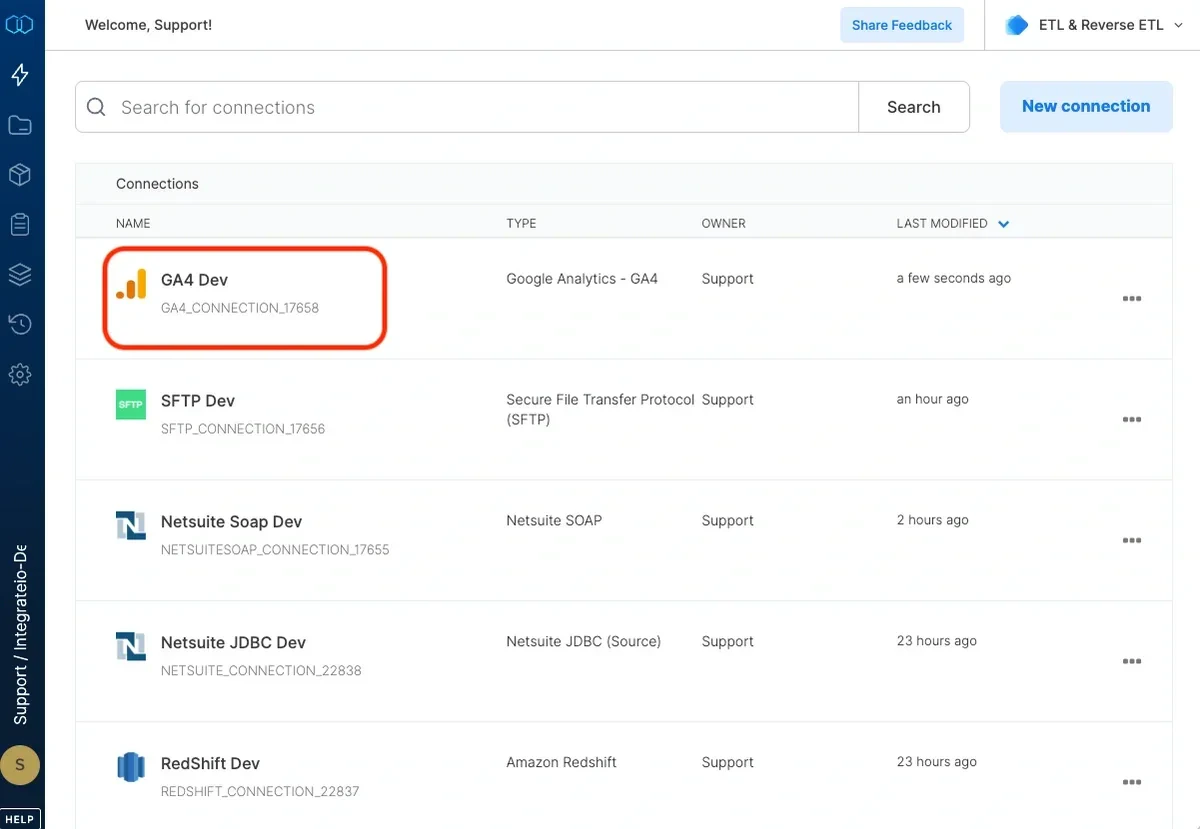
Click Test Connection and Create Connection.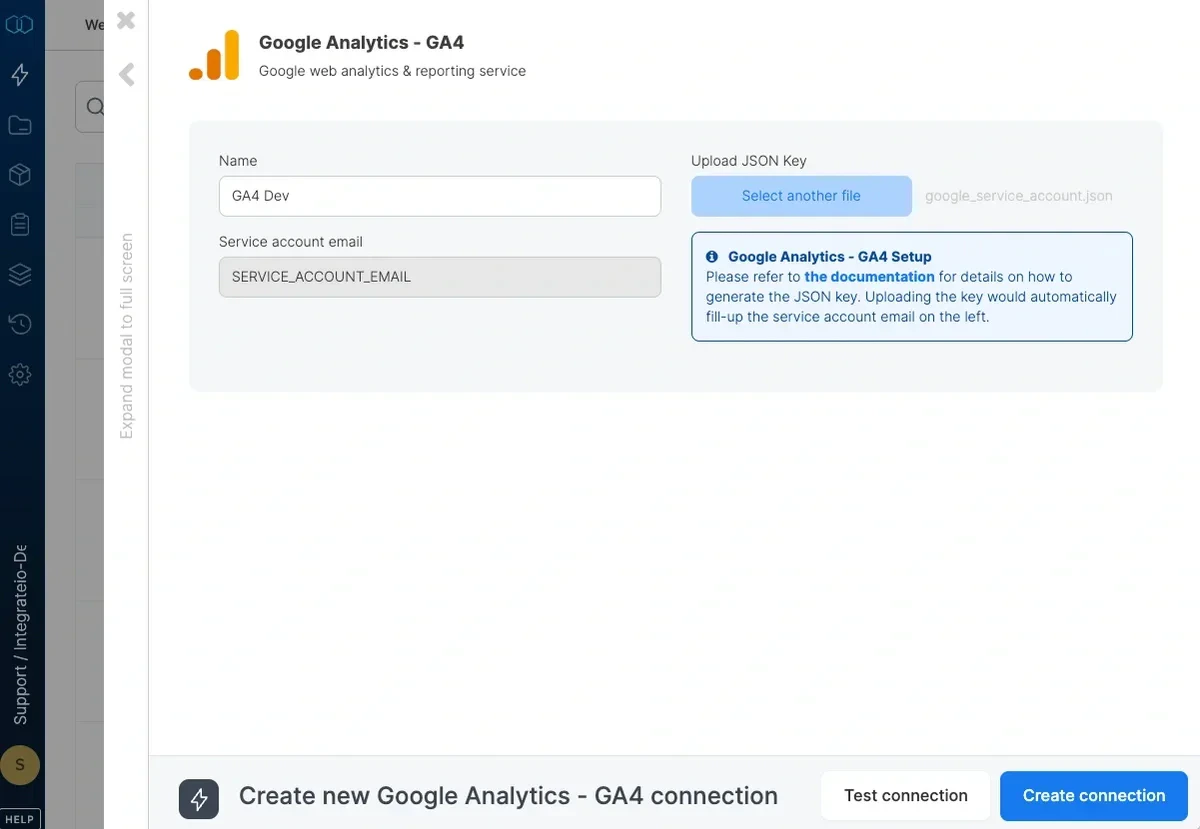
Connection
Select an existing Google Analytics 4 (GA4) connection or create a new one.Source Properties
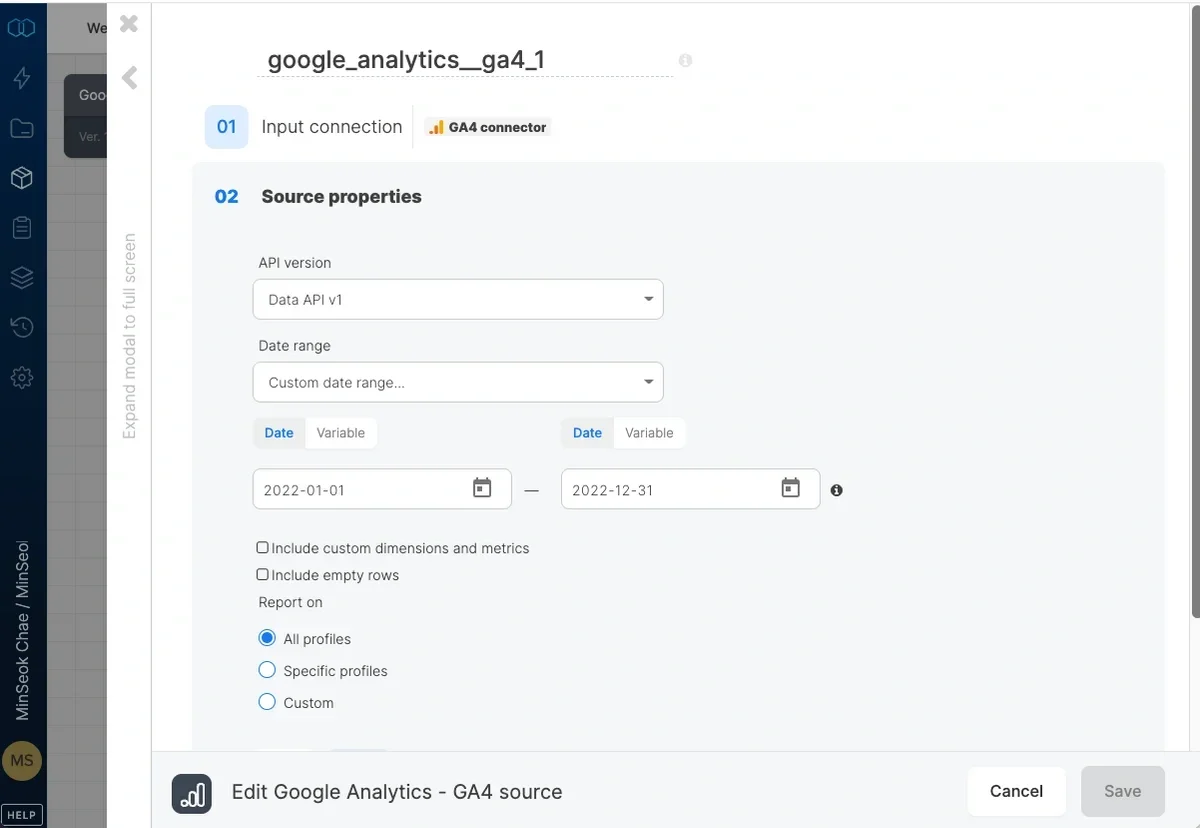
- Api Version - Select api version Google Analytics 4 API. See list of available APIs from Google here
- Date range - Select a date range from the dropdown list of ranges. If you select
custom date range..., you will be prompted to enter From date and To date. Click either inputs and select the dates from the calendar. You can also use variables as values for the custom date range in the formatyyyy-MM-dd. - Include custom dimensions and metrics - Fetch list of custom dimensions and metrics from selected accounts and show it on tables of dimensions and metrics in schema section
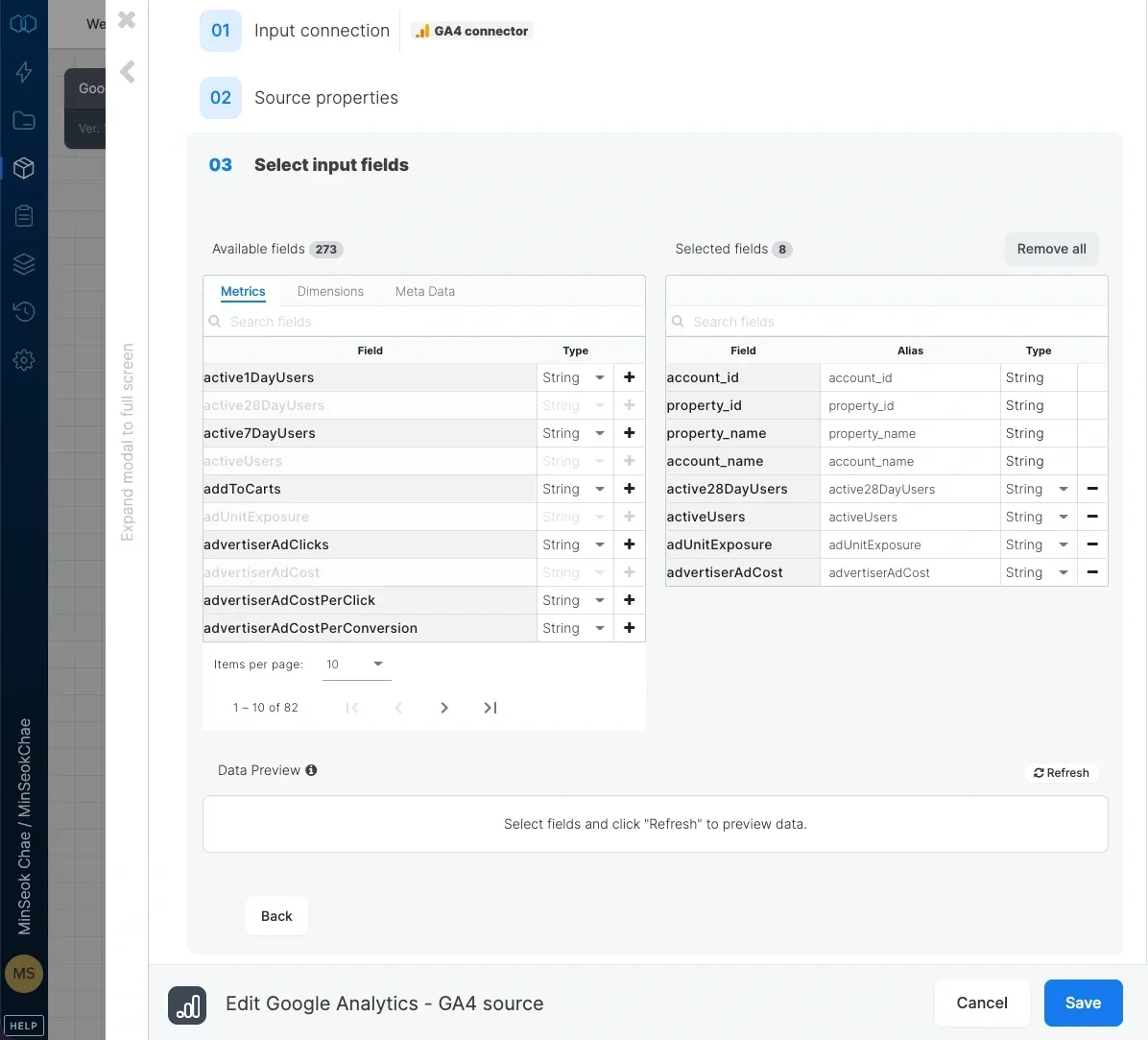
- Property IDs - Leave empty to read data for all accessible Google Analytics 4 properties or type in the IDs of your Google Analytics properties (or tables) in the form of properties/xxx. You can enter multiple ids separated by comma or use a variable too. Source Schema
Report filters
Use report filters to have Google Analytics 4 return only the rows you need. GA4 applies the filters before it sends data to Integrate.io ETL. This is faster than reading the whole report and removing rows later with a Filter Transformation. The filters apply to both job runs and data preview. The source has two optional filters. GA4 returns only rows that match both.- Dimension filter - Filters rows by dimension values, such as
countryorpagePath. - Metric filter - Filters rows by metric values, such as
sessionsortotalRevenue. GA4 applies metric filters to the totals of each row, as grouped by the selected dimensions.
Set filters in the editor
The Filter report data (optional) step comes after Source properties and before field selection, so the data preview in the field step is already filtered.1
In the Dimension filters or Metric filters section, click + Add condition.
2
Select a field, an operator, and enter a value. The field list contains only the dimensions or metrics of the selected properties.
3
Under Conditions, select whether rows must match all, any, or none of the conditions in that section.
Metric values are numbers in the metric’s unit. Rates such as
engagementRate are fractions, for example 0.5 for 50%. Durations are in seconds. You can also enter a package variable, such as $min_sessions.
If a filter was set through the API with nested groups, the editor shows it as read-only. Integrate.io ETL still applies it when the job runs. Click Replace with new conditions to replace it with rows.
Filter format for the API
When you set filters through the API, each filter is a GA4 Data API FilterExpression in JSON format, stored in thedimension_filter and metric_filter fields. A filter expression contains exactly one of these keys:
filter- A single condition on one field. It contains afieldNameand exactly one condition.andGroup- Rows must match all expressions in its non-emptyexpressionsarray.orGroup- Rows must match at least one expression in its non-emptyexpressionsarray.notExpression- Rows must not match the nested expression.
Conditions
Numeric values use either
int64Value or doubleValue, for example {"int64Value": "100"}. Field names can be in API form (customEvent:plan) or schema form (customEvent_plan).
Integrate.io ETL validates each filter when you save the package. If a filter is invalid, the error names the location of the problem, such as $.filter.stringFilter.matchType must be one of EXACT, BEGINS_WITH, ....
Examples
Dimension filter that keeps sessions from the United States or Canada on product pages:Using variables in filters
You can use package variables in filter values with the$name syntax. For example, {"int64Value": "$min_sessions"} uses the value of the min_sessions variable. Integrate.io ETL validates numeric values that contain variables when the job runs, not when you save the package.
Integrate.io ETL replaces any
$ followed by letters with a variable value. This applies inside regular expressions too. A $ at the end of a pattern, such as ^/blog/.*$, is not affected.Limitations
- A filter on a custom field, such as
customEvent:plan, fails for any selected property that doesn’t have that field. This can happen when Property IDs is empty or lists several properties. - GA4’s
emptyFiltercondition is not supported.