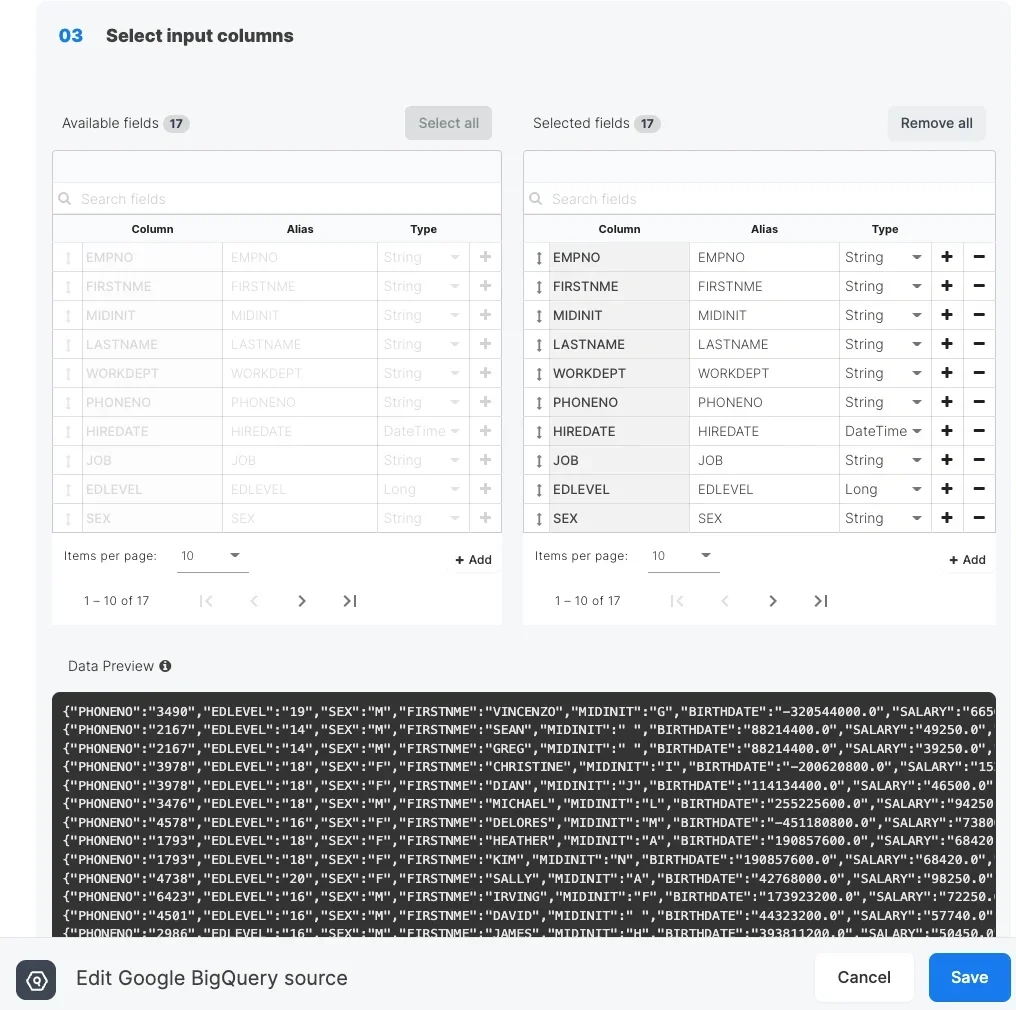
Connection Setup
Integrate.io ETL uses highly secured certificate-based authentication for connecting to your Google BigQuery Dataset. You need to provide your own service-account’s JSON-key and grant Integrate.io ETL access only to projects and associated datasets that you specifically select. This article discusses providing Integrate.io ETL access on your Google BigQuery dataset and then details creating the BigQuery connection in Integrate.io ETL.Project Access
1
Access your Google Cloud Console.
2
Click the project name for which you want to grant Integrate.io ETL access.
3
On the sidebar, choose IAM & Admin -> Service Accounts
4
Click ”+ CREATE SERVICE ACCOUNT”
5
Fill-out service account details and then grant following roles: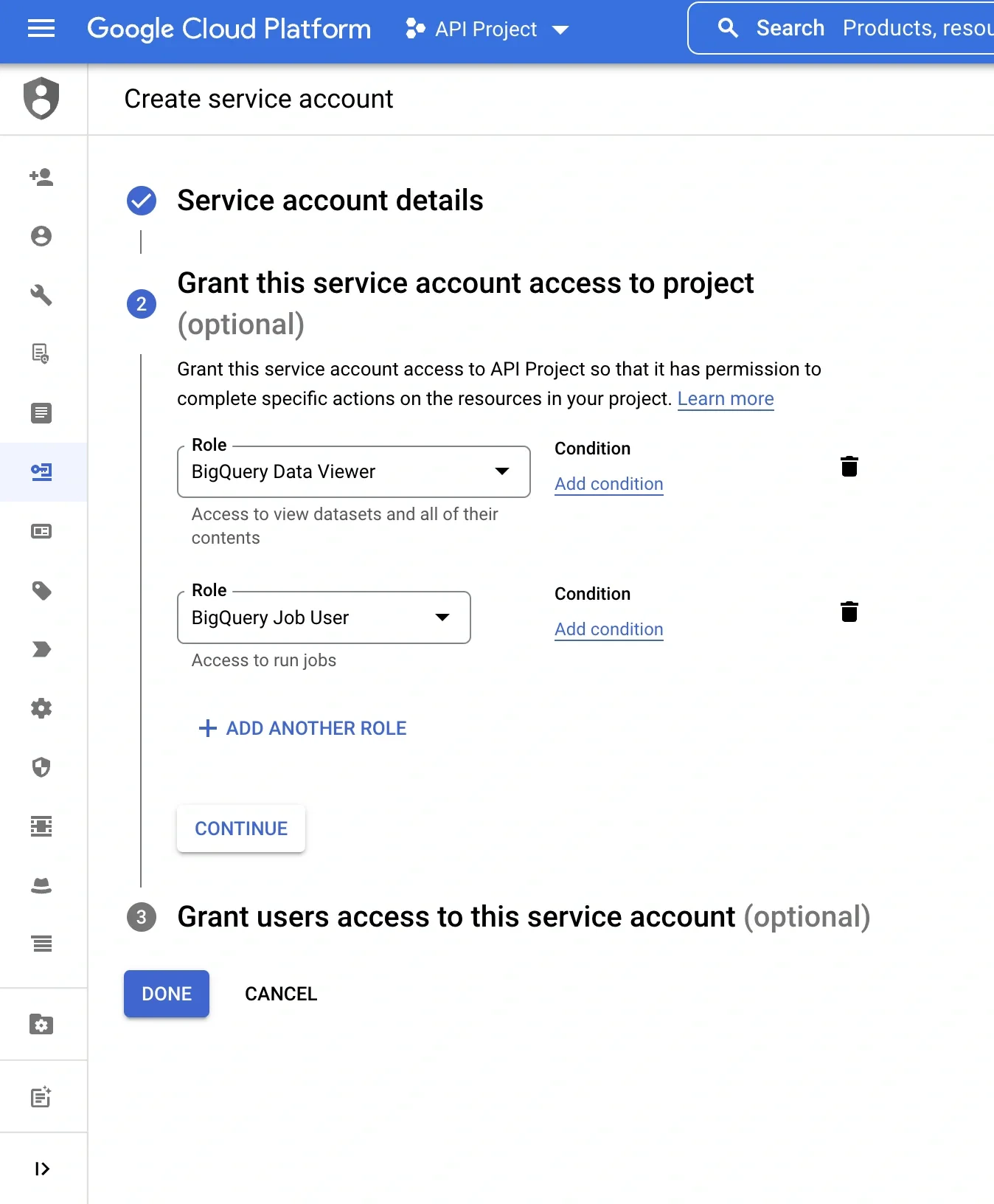
- BigQuery Data Viewer
- BigQuery Job User
Dataset Access
1
Access your BigQuery console.
2
In the BigQuery sidebar, under Resources, select your project, then select your dataset, click SHARE DATASET and select Permissions
3
Click ”+ ADD PRINCIPAL” and then assign following roles: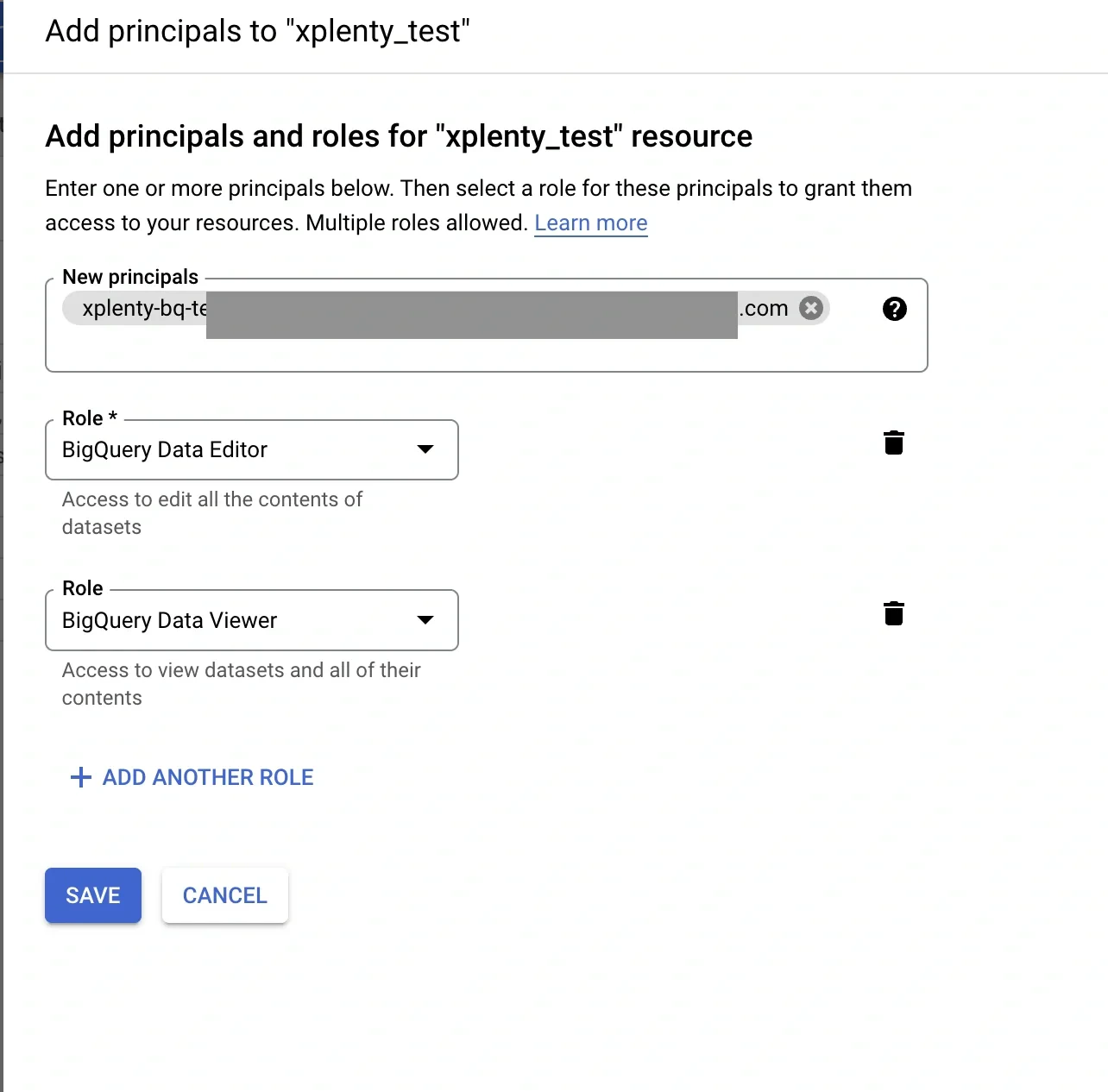
- BigQuery Data Editor
- BigQuery Data Viewer
Create a service-account JSON-key
1
Access your Google Cloud Console.
2
Click the project name for which you want to grant Integrate.io ETL access.
3
On the sidebar, choose IAM & Admin -> Service Accounts
4
Select & click the service account that has been created in previous step, click “KEYS” tab on the top and then click “ADD KEY” -> “Create new key” -> choose “JSON” -> click “CREATE”
5
A JSON-key file will be automatically downloaded to your machine.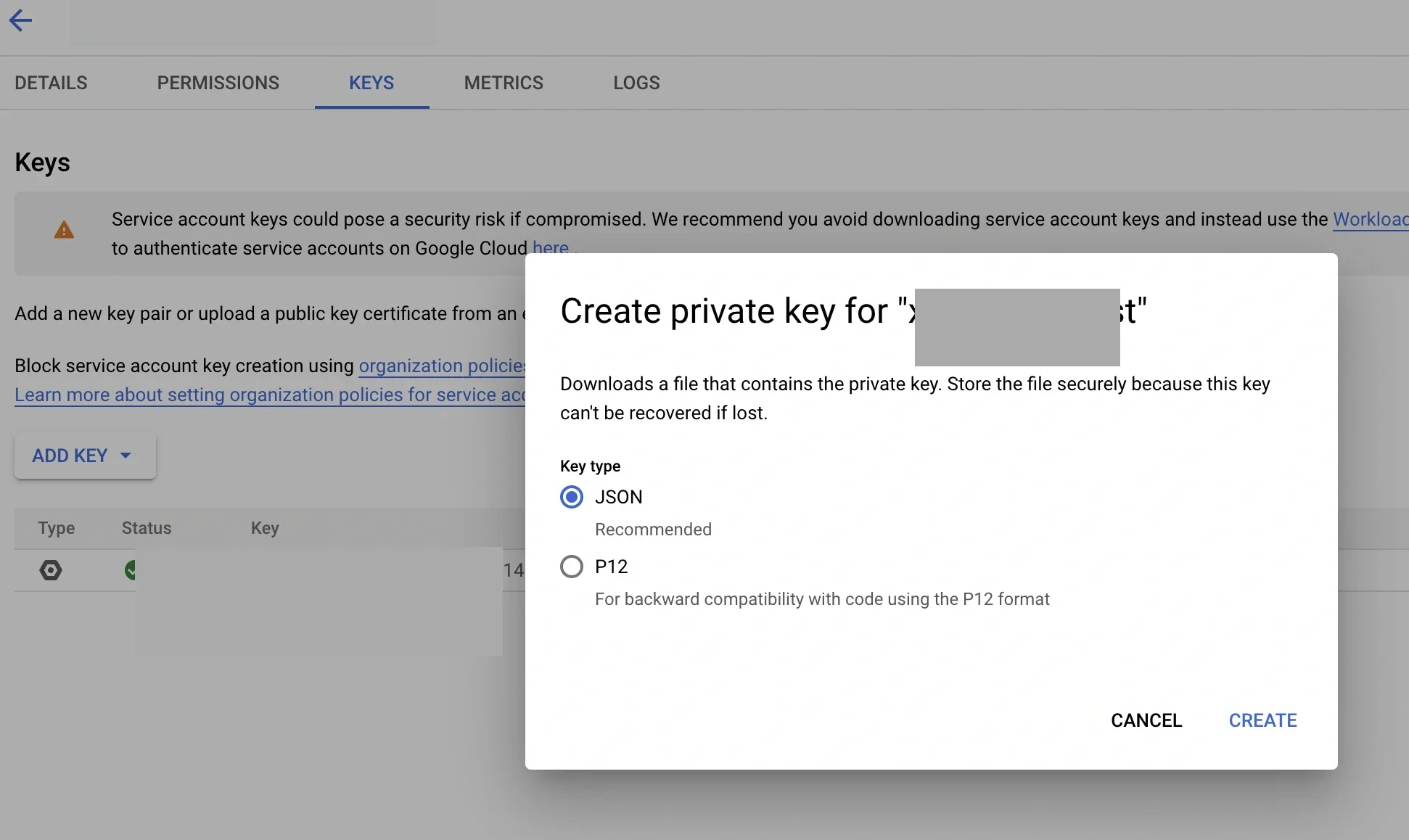
Create Google BigQuery connection in Integrate.io ETL
1
Click the Connections icon (lightning bolt) on the top left menu.
2
To create a connection, click New connection.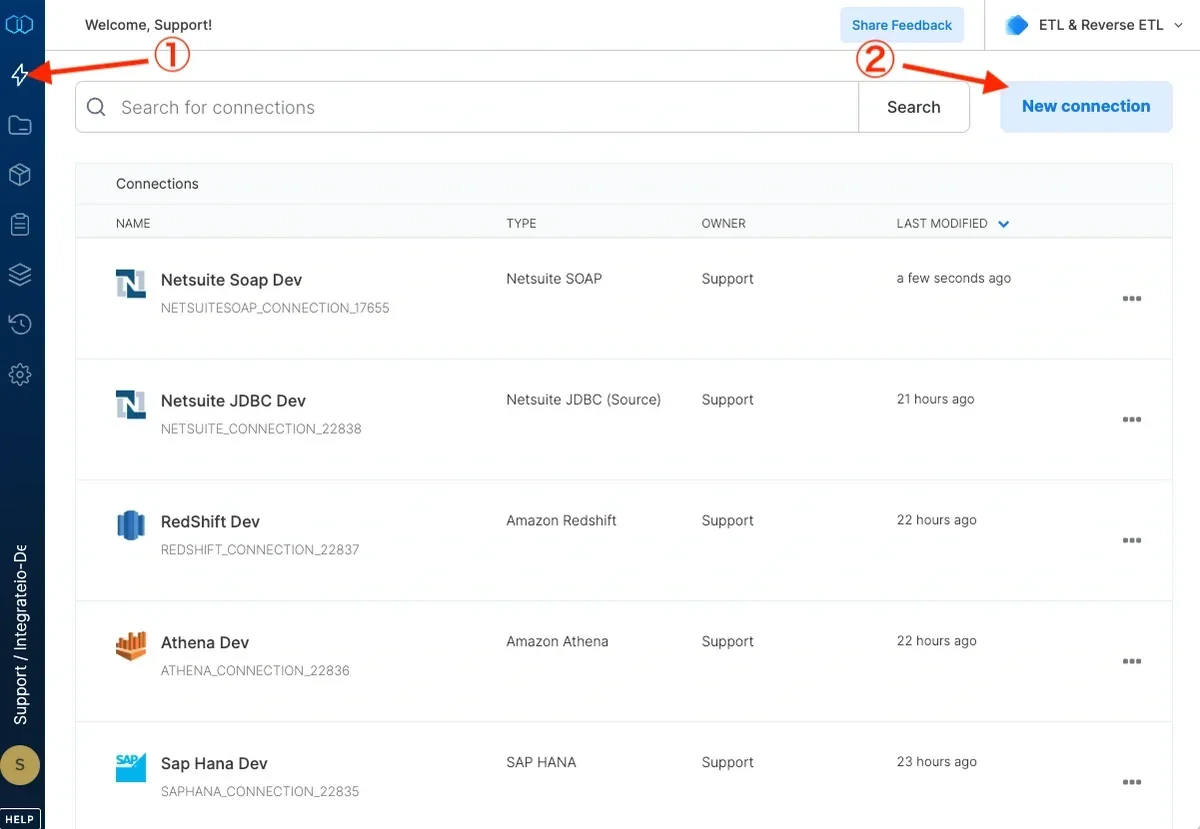
3
Select Google BigQuery.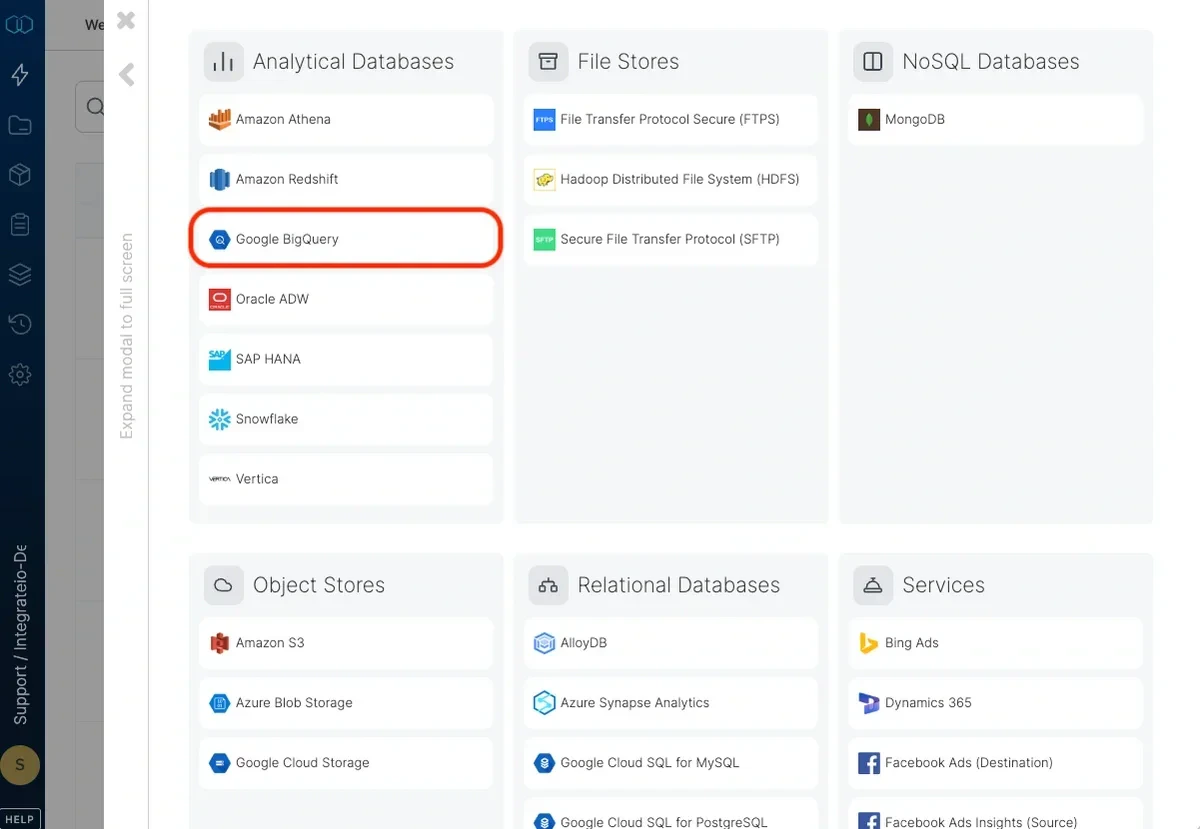
4
Name the connection.
5
Fill in Dataset ID and select the region where your BigQuery is hosted.
6
Upload a JSON-key file that you have created on previous step. Service account email and Project ID will be filled in automatically.
7
Click Test Connection to make sure the connection details are correct.
8
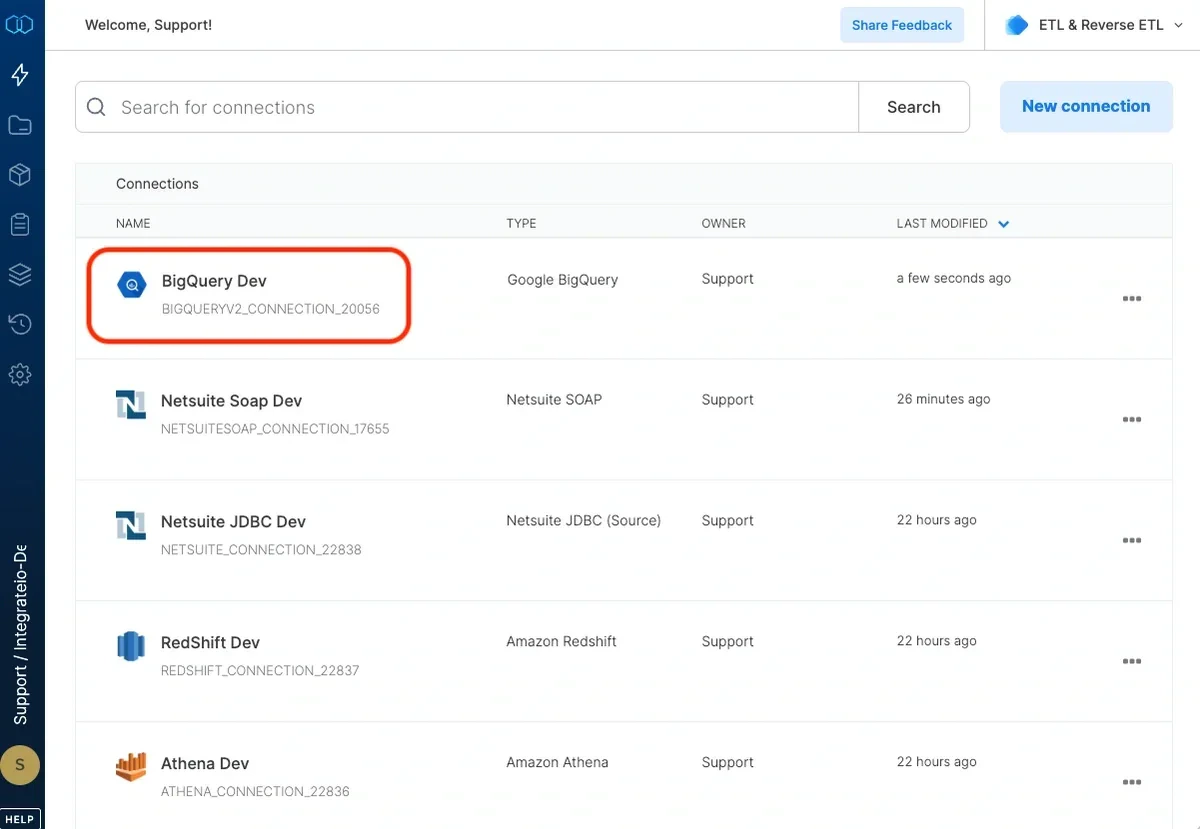
Click Create connection to create the connection.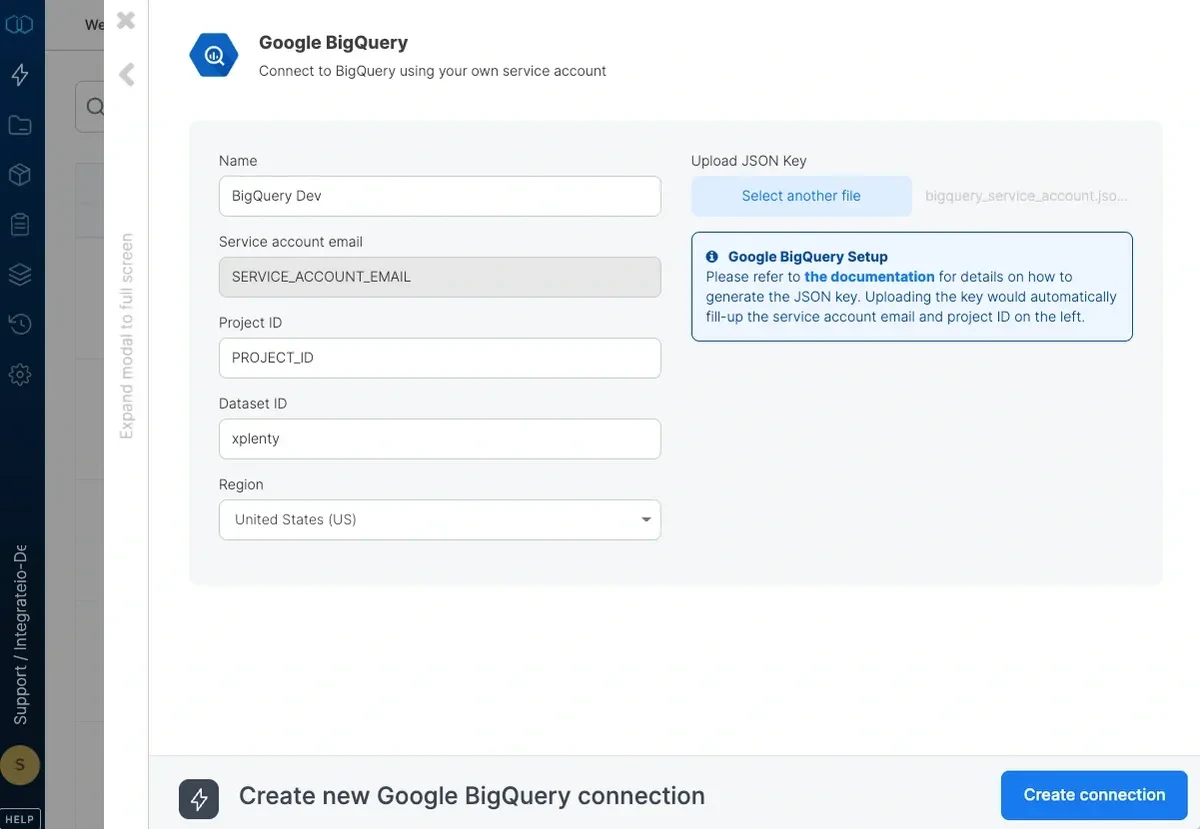
Migrate from previous version of Google BigQuery connector
Customers who have created previous version of BigQuery connector and want to migrate to the latest version of BigQuery connector, please follow these steps:1
Select package containing BigQuery connector from your dashboard.
2
On the package designer page, select BigQuery source and/or destination components that you want to modify.
3
Replace previous version of BigQuery with connection that has prefix ID BIGQUERYV2_CONNECTION_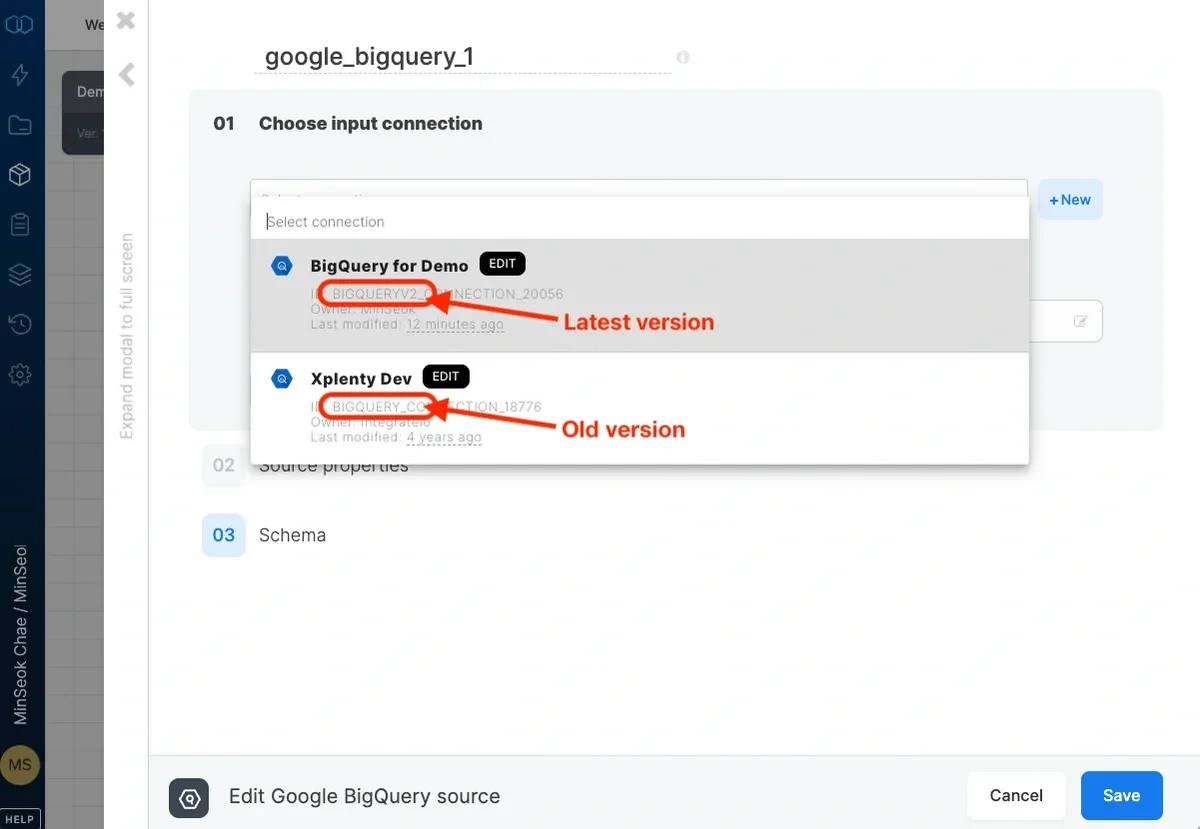
4
Remove Integrate.io ETL’s service account email (service-account-integrateio-for-xplenty@developer.gserviceaccount.com) from your both project’s and dataset’s permission.
- To remove from your project’s permissions, access your Google Cloud Console and go to IAM & Admin -> Service Accounts, select checkbox on Integrate.io ETL’s service account email and click DELETE
- To remove from your dataset’s permissions, access your BigQuery console. In the BigQuery sidebar, under Resources, select your project, then select your dataset, click SHARE DATASET and select Permissions. Remove Integrate.io ETL’s service account email from each assigned role by clicking delete icon.
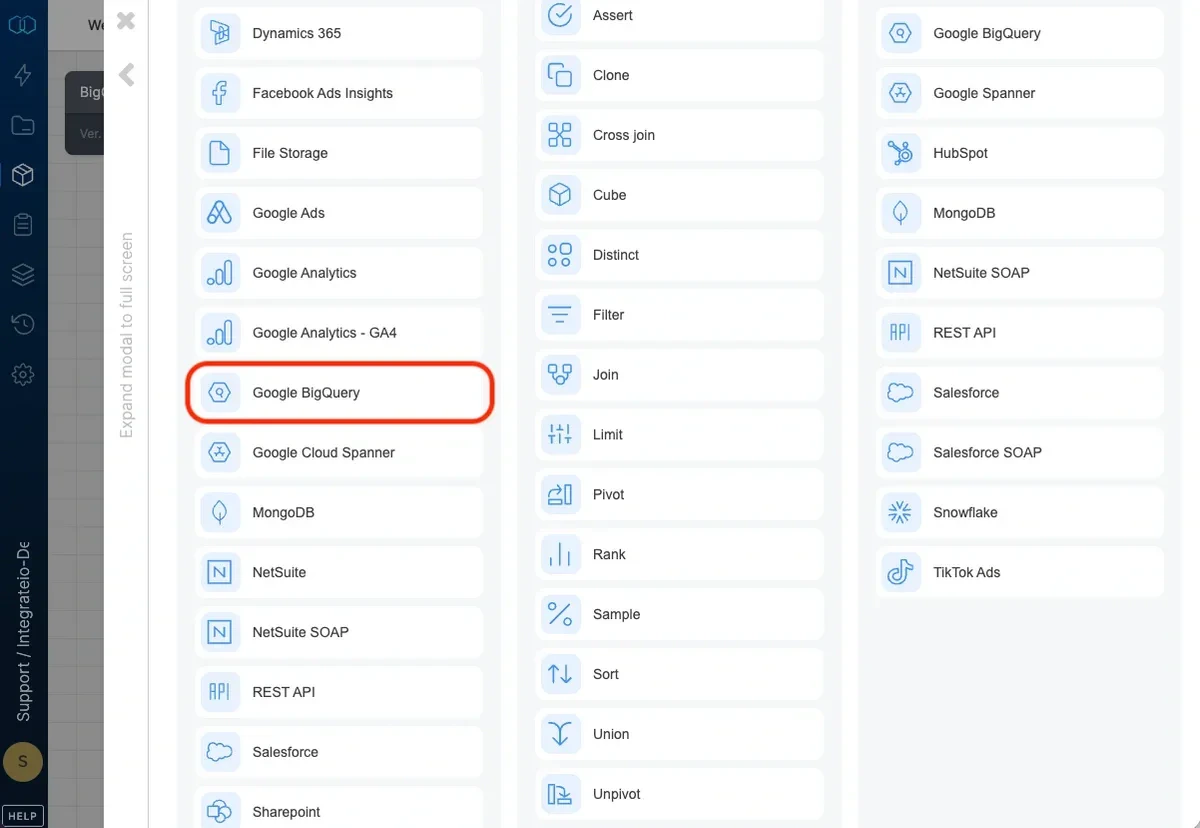
Connection
Select an existing Google BigQuery connection or create a new one. For more information, see Allowing Integrate.io ETL access to my Google BigQuery dataset.Source Properties
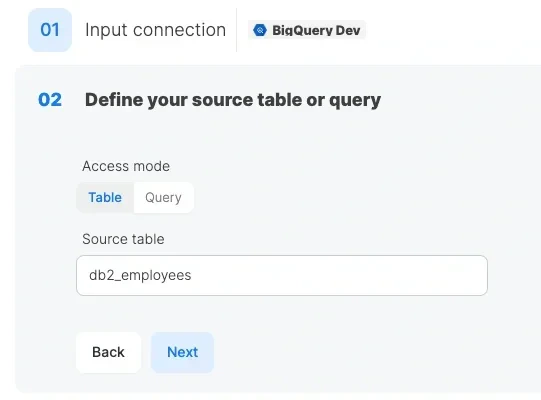
- Access mode - select table to extract an entire table or query to execute a query (access table views).
- Source table - the table name from which the data will be imported.
- Query - type in a SQL query. Make sure to name all columns uniquely.
Source Schema