

To create a workflow:
1
On the main menu, click Packages.
2
Click New package.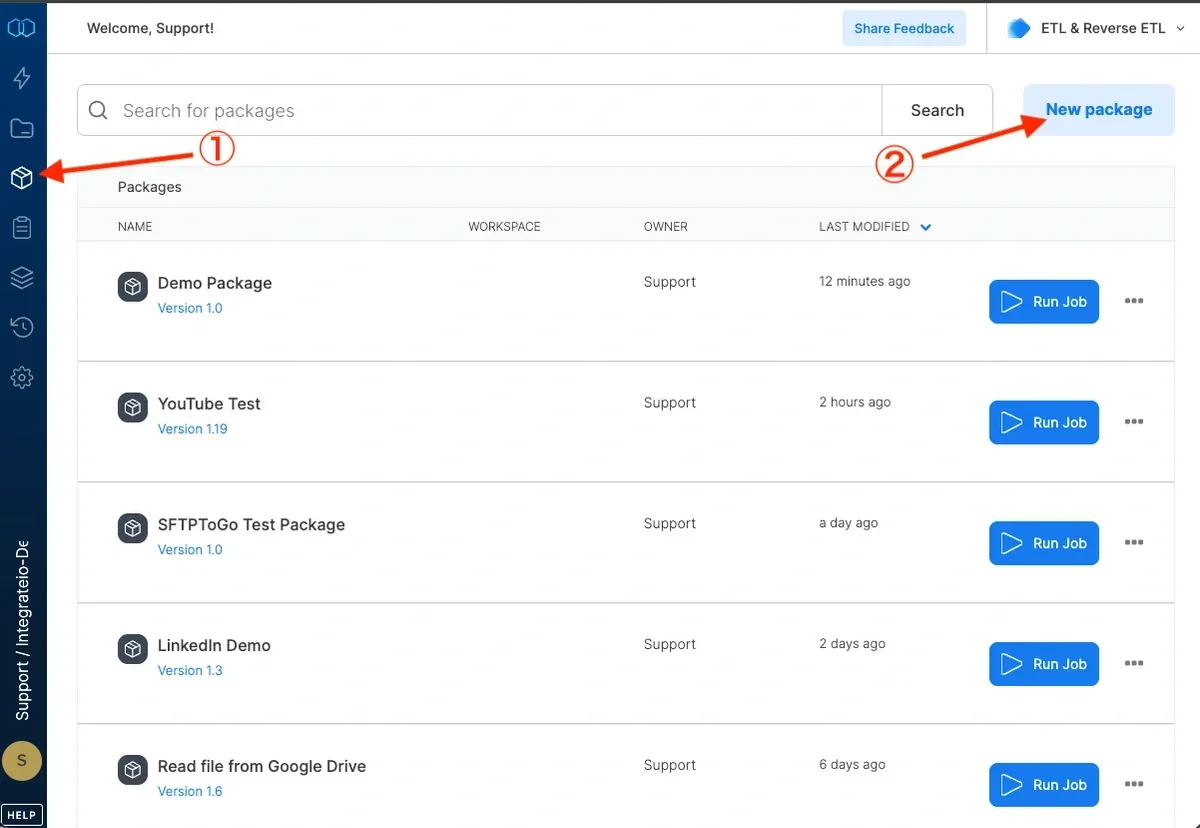
3
Optionally, set a name and/or description
4
Select workflow option from Type dropdown
5
Click Create package to create workflow package.
6
Click + Add Task button.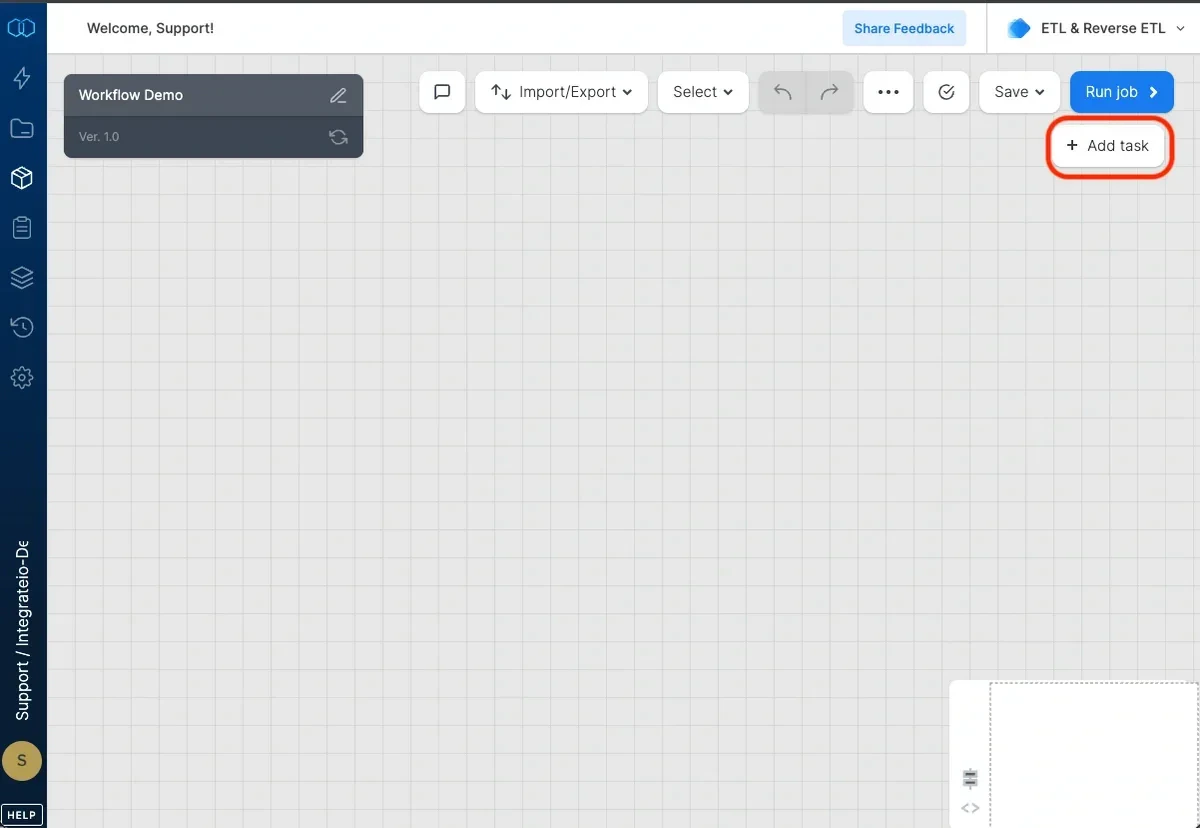
7
Choose task.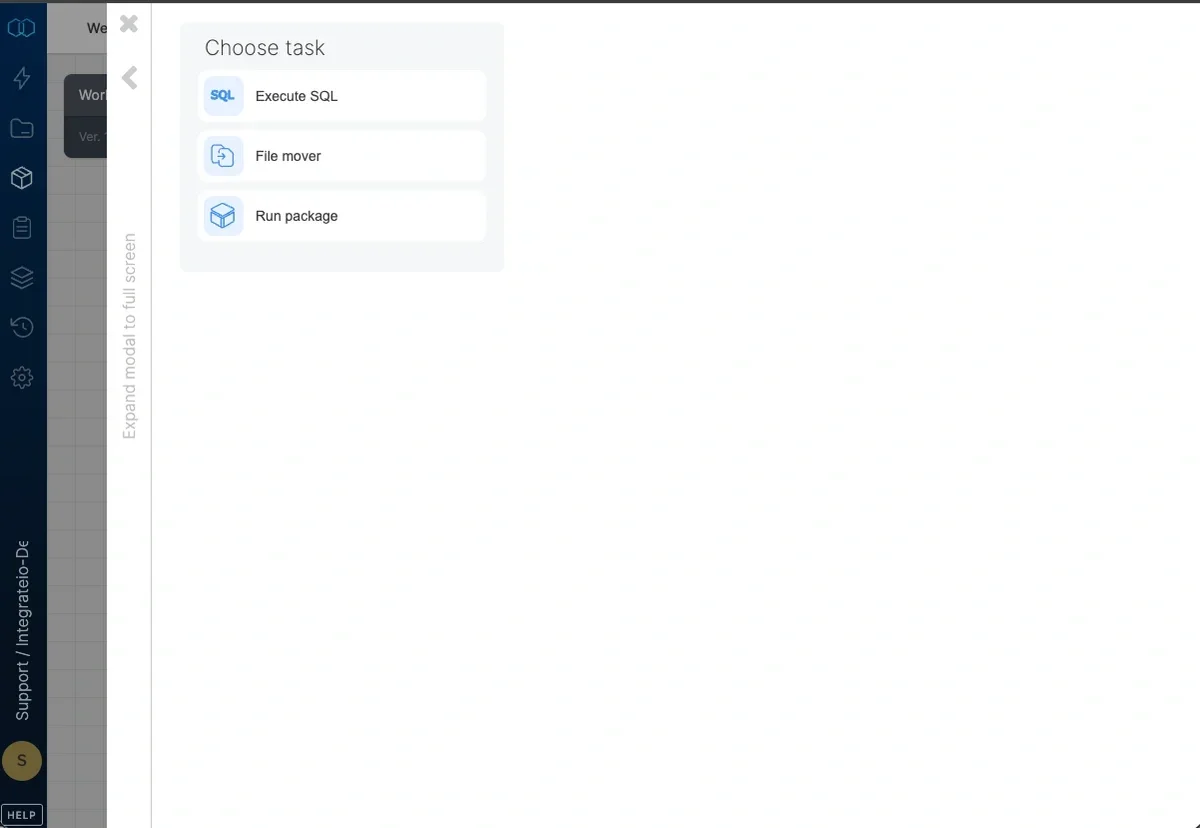
8
Add additional tasks as required
9
Connect tasks to create sequence of task execution. Click the connect icon on the dotted line to set the execution condition: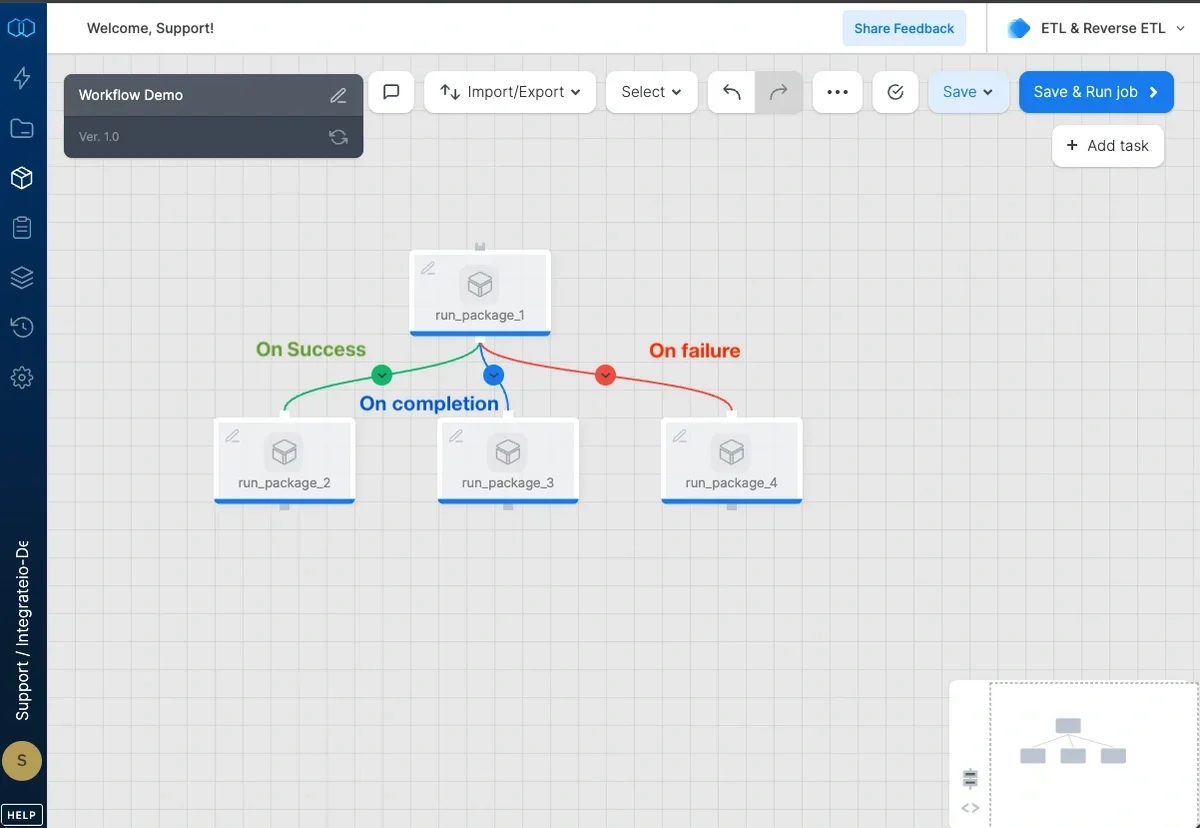
- On success (default) - task will be executed once the preceding task was executed successfully
- On failure - task will be executed once the preceding task execution failed
- On completion - task will be executed once the preceding task completed, regardless to the completion status (failed/succeeded)
Execute SQL task
1
Select your DB connection.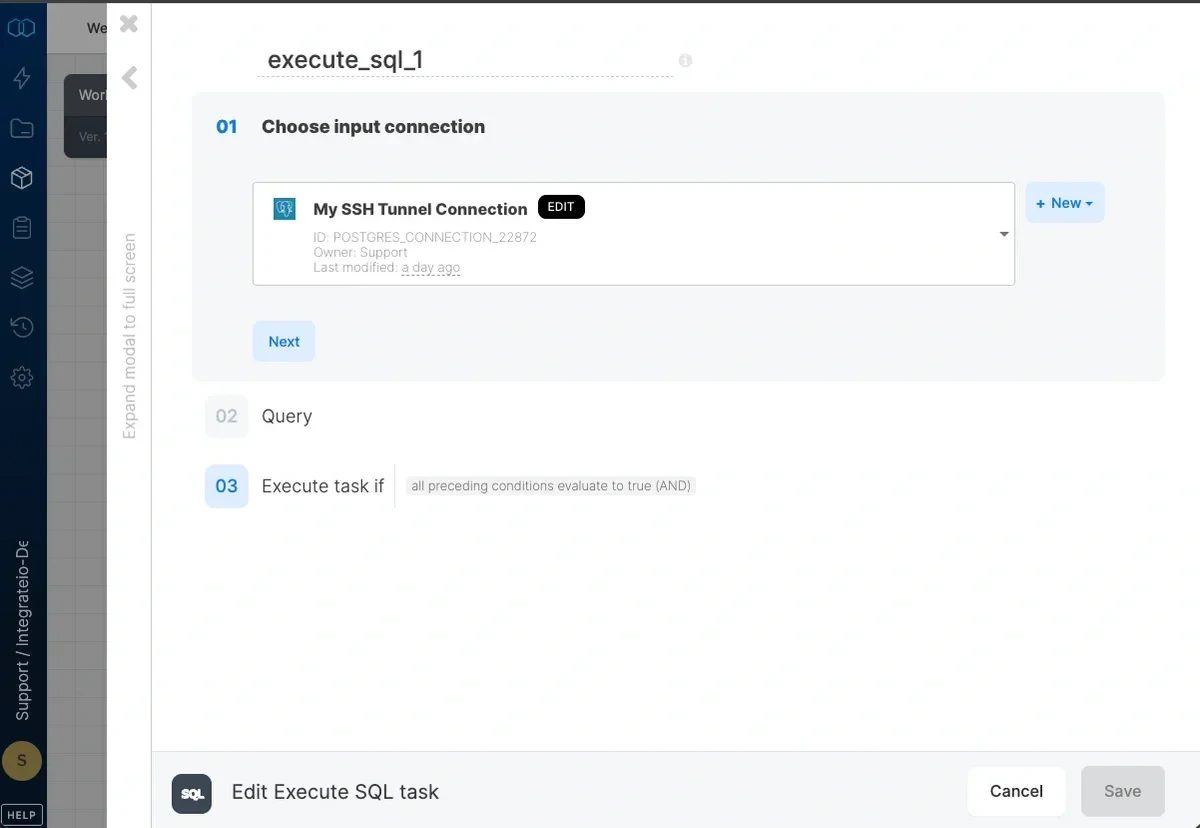
2
Write the SQL query that should be executed, and select the query result type from Result type dropdown. You can test the query by clicking Test Query.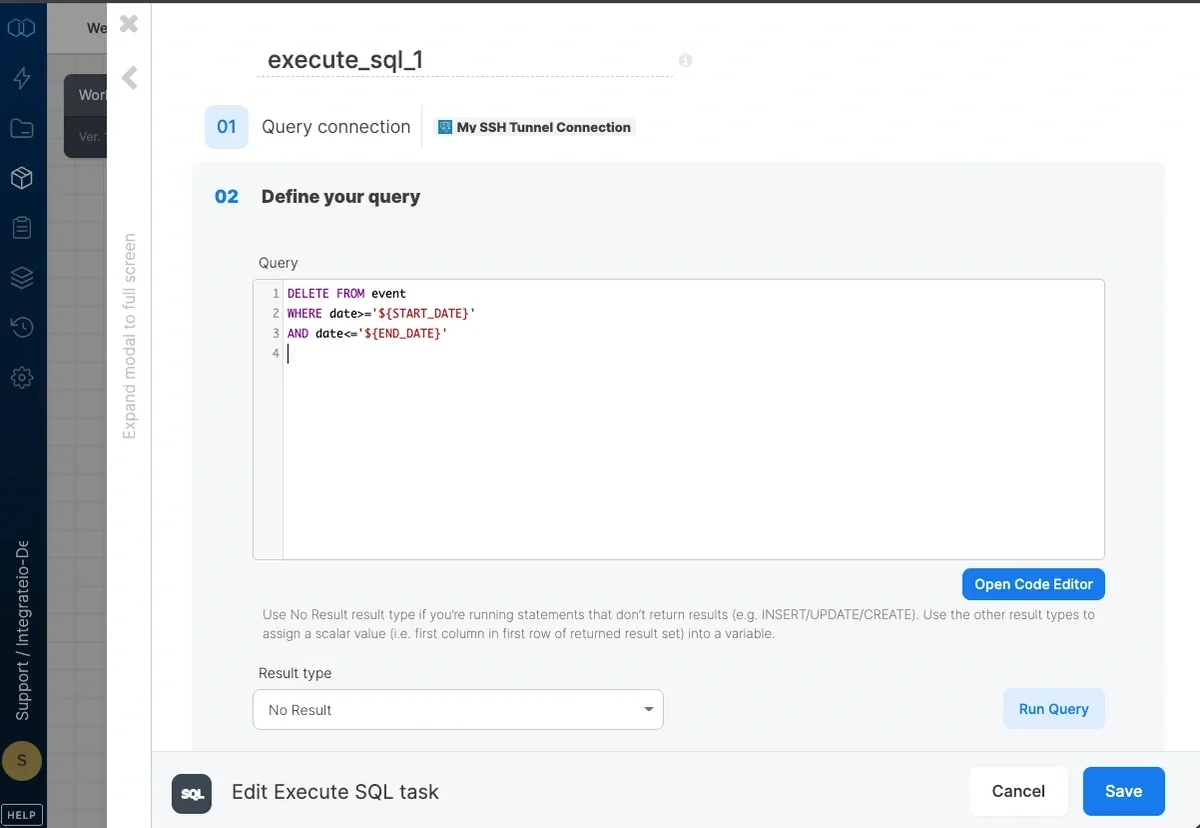
3
You can assign the return value to a workflow variable.
4
If there are at least two preceding tasks, choose task execution condition:
- all preceding conditions evaluate to true (AND)
- one of the preceding conditions evaluate to true (OR)
Note:BigQuery connections uses standard SQL within Execute SQL task
Run package task
1
Select the package to run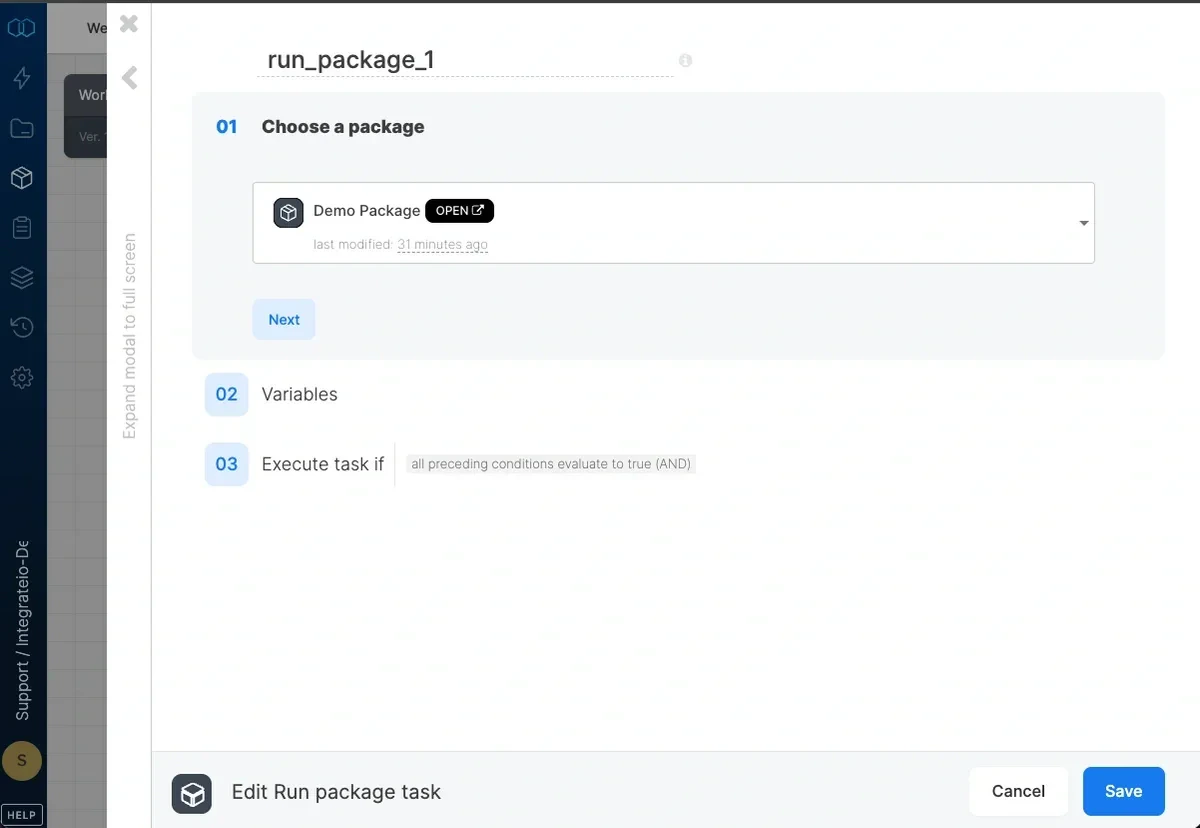
2
Optionally, you may edit the dataflow variables if you want to override the values with workflow variables.
3
If there are at least two preceding tasks, choose task execution condition:
- all preceding conditions evaluate to true (AND)
- one of the preceding conditions evaluate to true (OR)
File mover task
1
Select a file storage connection as the source of the file(s)
2
Input source bucket (if connection requires a bucket) as well as the source path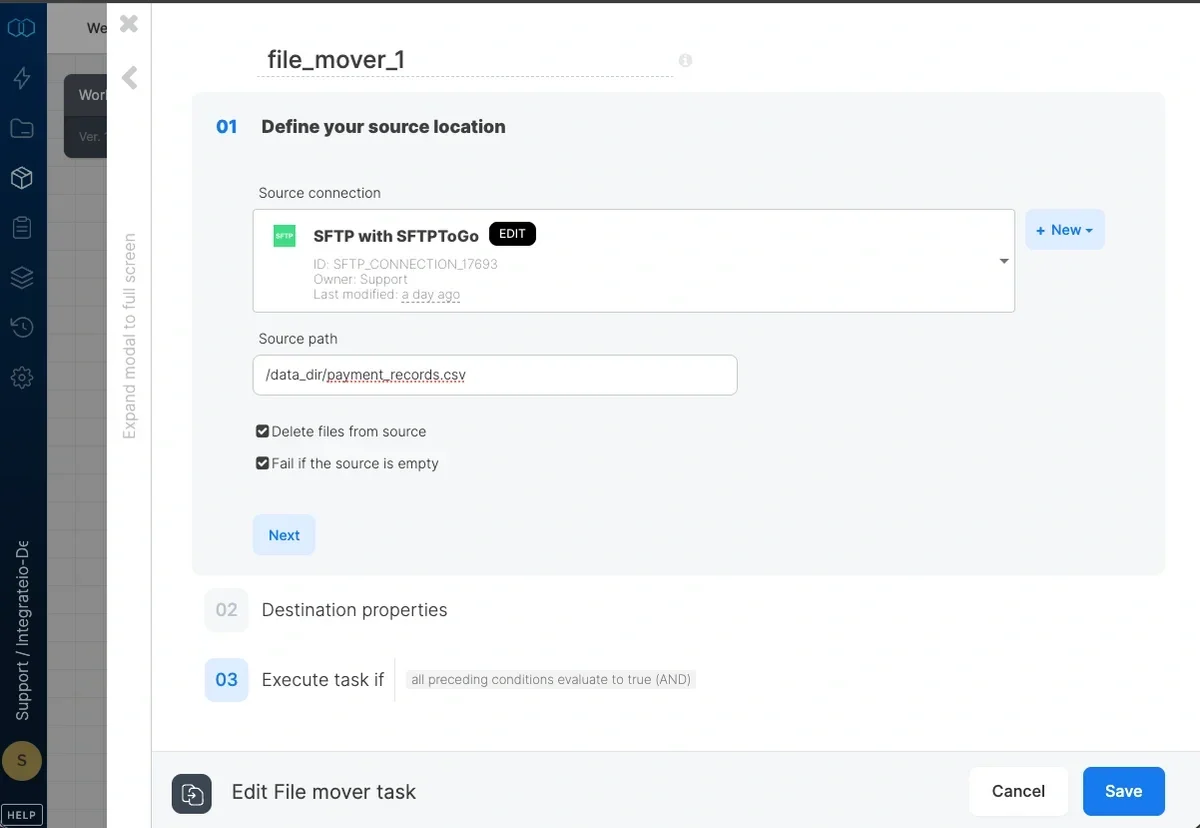
3
You can enable following options on the source connection:
- Delete files from source
- Fail if the source is empty
4
Select a file storage connection as the destination of the file(s)
5
Input destination bucket (if connection requires a bucket) as well as the destination path. Any directories/folders in the path must already exist. If you wish to change the name of the file, define the path all the way to the file name and extension - for example, directory_name/new_file_name.csv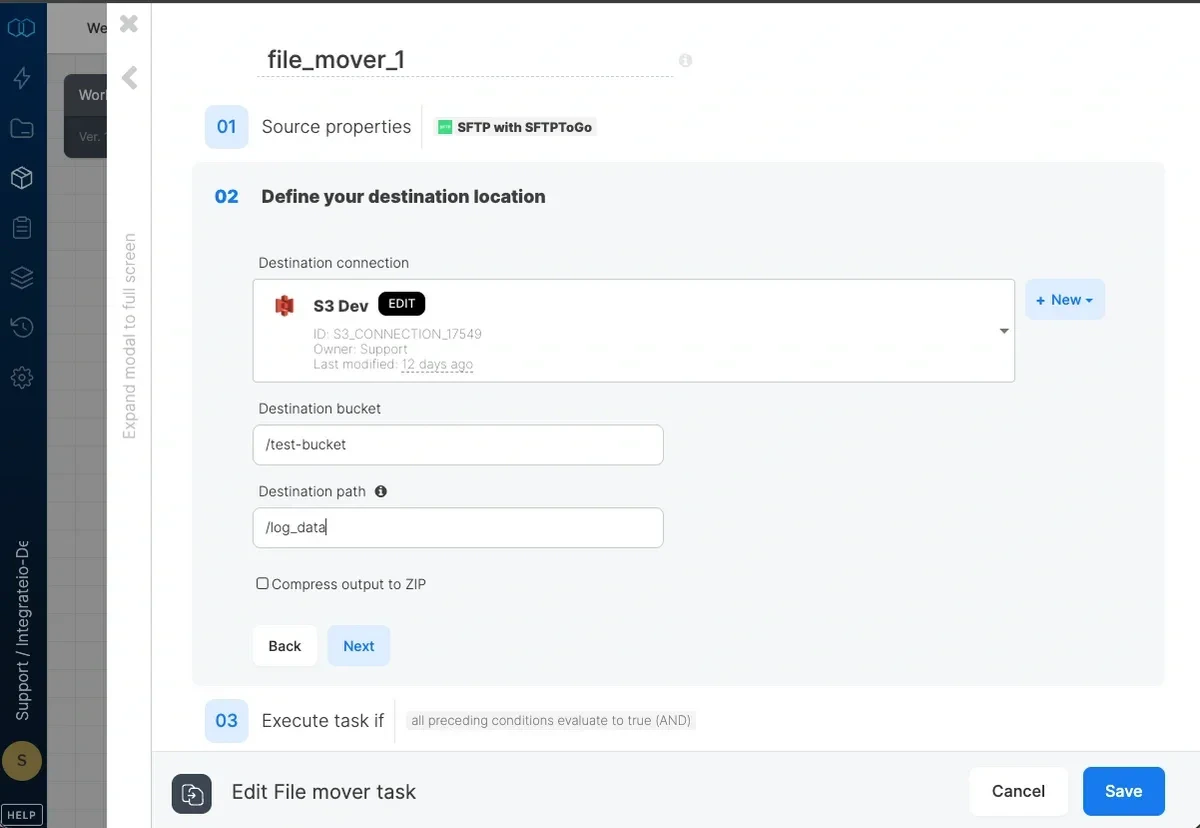
6
If there are at least two preceding tasks, choose task execution condition:
- all preceding conditions evaluate to true (AND)
- one of the preceding conditions evaluate to true (OR)
Note:Package variable (`$`) and Wildcard file pattern (`*`) can be applied as bucket or path name.
Using Variables in Workflows
User variables can be defined at the workflow package level and can be used for both the Execute SQL Task and the Run Package Task.-
Execute SQL Task
- Variables can also be assigned values by the Execute SQL task. This is useful if you want to have dynamic values on your variable and use it later on.
- When using variables in a SQL query, enclose the variable within curly brackets (i.e:
'${var\_name}'). - Example of using a variable within the Execute SQL task query:
DELETE FROM event
WHEREdate>='${START\_DATE}'
ANDdate<='${END\_DATE}'
- When using variables in a SQL query, enclose the variable within curly brackets (i.e:
- Variables can also be assigned values by the Execute SQL task. This is useful if you want to have dynamic values on your variable and use it later on.
-
Run Package Task
-
Workflow package level variables can be used to override dataflow level variables. Values you do not override track the child dataflow’s current variables and secrets, so edits made on the child are reflected in the workflow without re-saving. Here’s an example:
 Note:Take note that we address package variables regularly as $variable_name which is different from the way we used it on Execute SQL Task above.
- If both workflow and dataflow variables have the same name, you will still have to assign the workflow variable to the dataflow variable.
- If a task dataflow uses a variable that isn’t defined at the dataflow level but is assigned a value at the workflow level, the dataflow task will use the workflow variable value.
-
Workflow package level variables can be used to override dataflow level variables. Values you do not override track the child dataflow’s current variables and secrets, so edits made on the child are reflected in the workflow without re-saving. Here’s an example: