

Connection Setup: Salesforce
Integrate.io ETL can read your Salesforce data. This article details creating the Salesforce connection in Integrate.io ETL. Note that Integrate.io ETL can only be used with Salesforce editions that have API access. Some plan types, including trial versions, do not have API access by default and cannot be used with Integrate.io ETL.Salesforce orgs with IP login restrictions: Salesforce connections now route through Integrate.io’s secure proxy by default (enabled for all accounts). If your Salesforce org limits access by IP (for example, Login IP Ranges on a user profile, or Trusted IP Ranges under Setup → Network Access), allowlist Integrate.io’s IP addresses so the connection can authenticate and run. Use the current list here: Integrate.io ETL’s IP addresses.
To create a Salesforce connection in Integrate.io ETL
1
Click the Connections icon (lightning bolt) on the top left menu.
2
To create a connection, click New connection.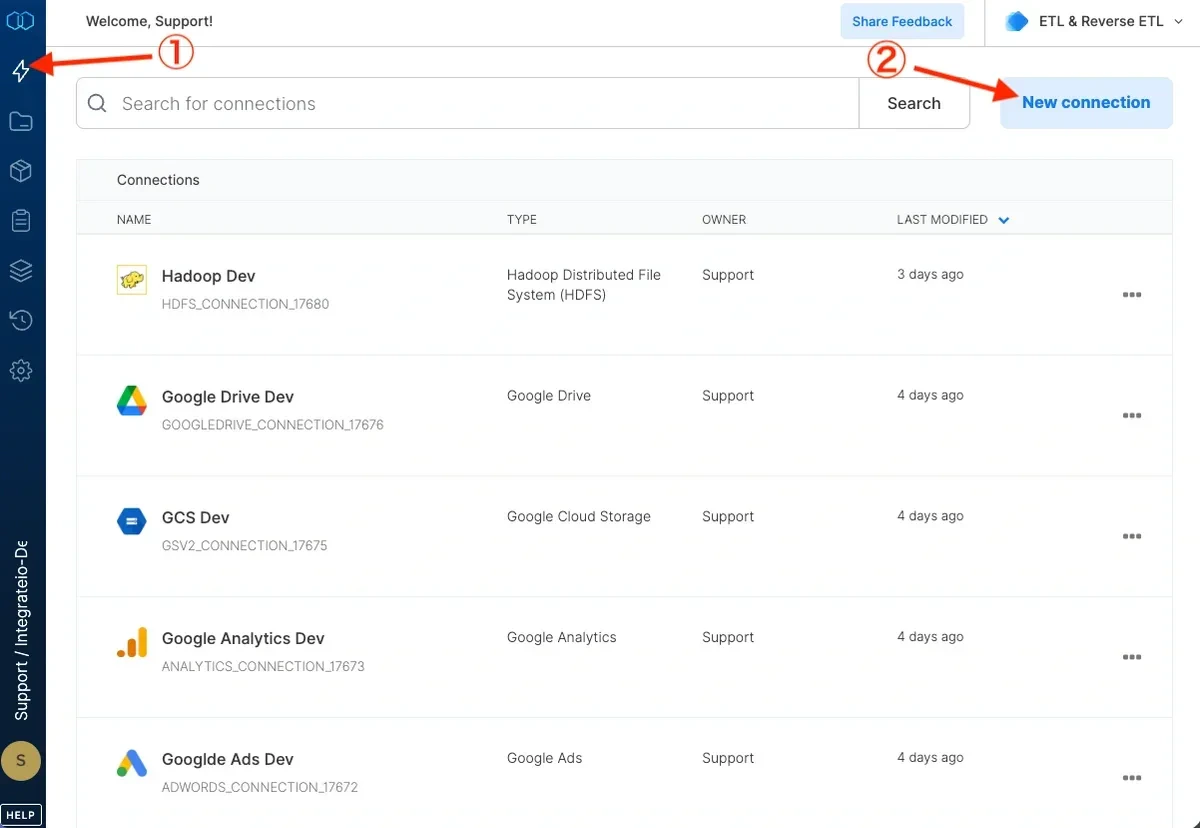
3
Select Salesforce.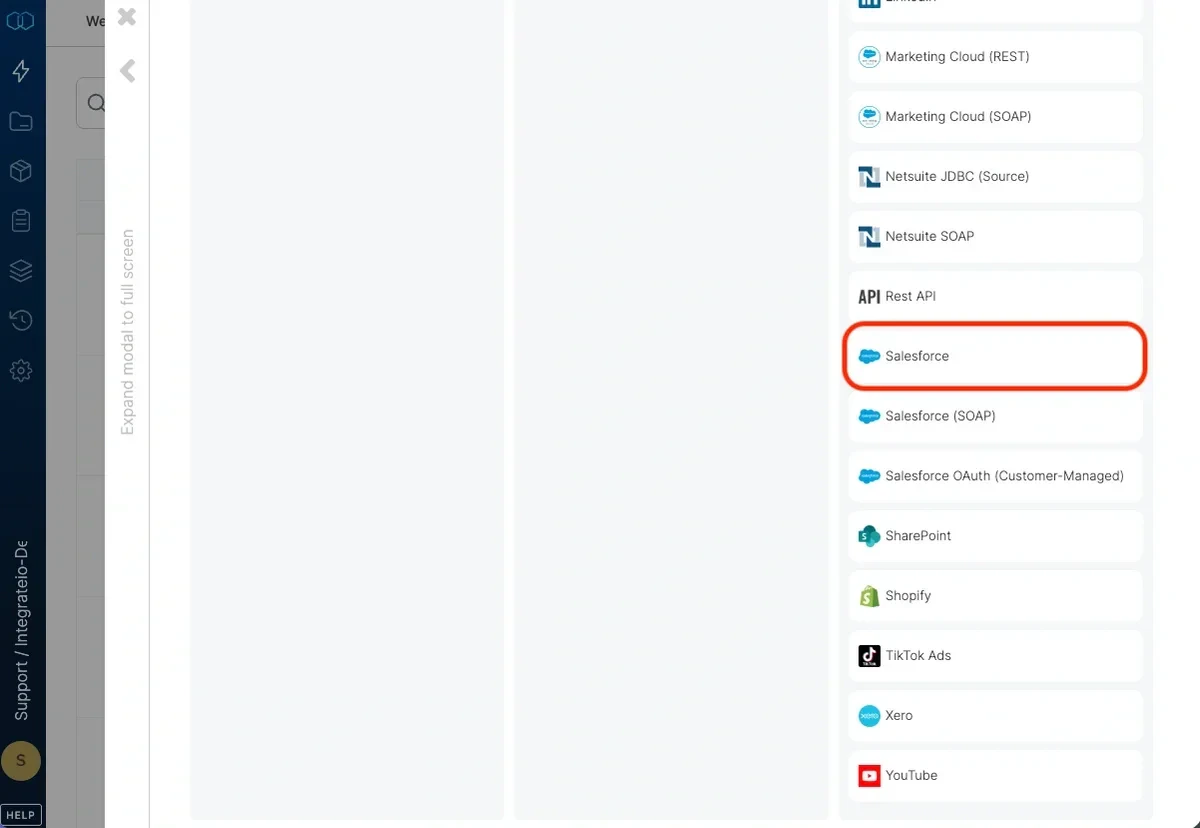
4
Select the Salesforce environment you’d like to connect to - production or sandbox - and click authorize.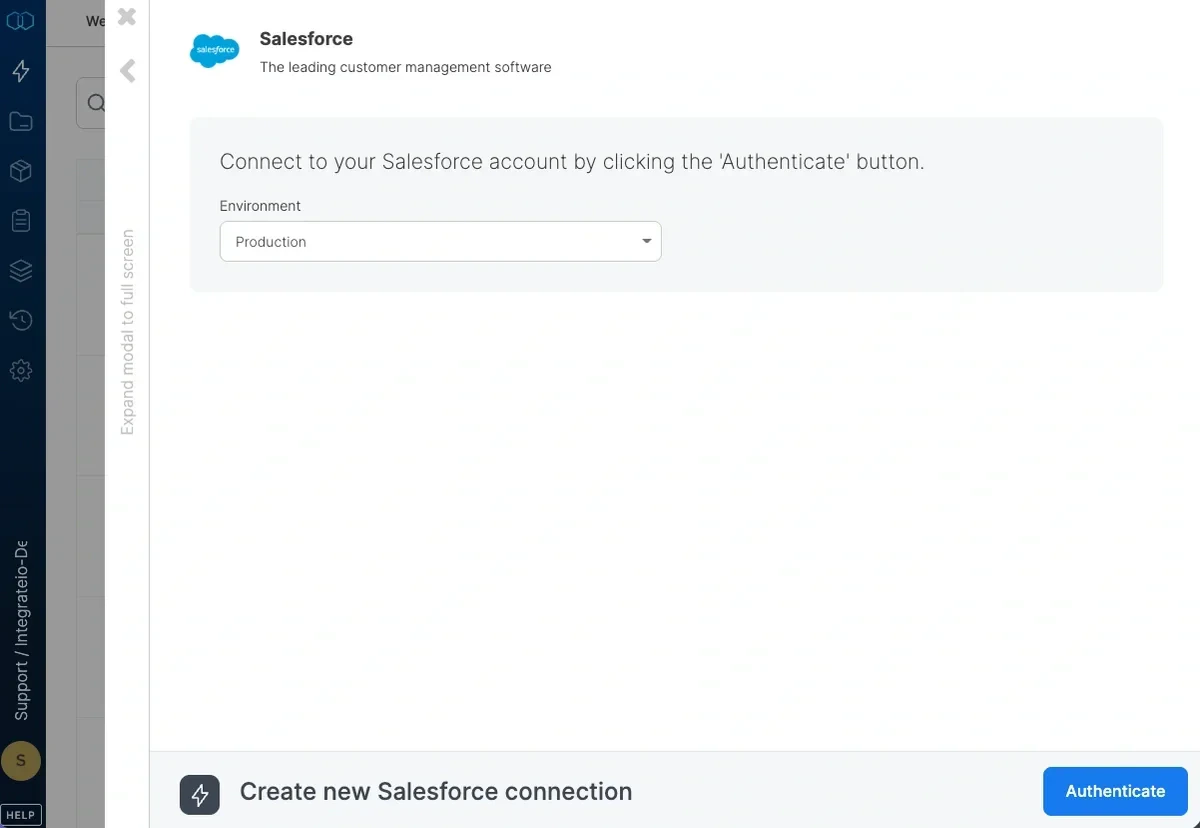
5
In the Salesforce login window, sign in with your Salesforce account. (Note: The user name for a sandbox account is your user name with a dot sandbox account name suffix. For example, If your user name is danielle@ilovemycompany.com and your sandbox account name is test, your user name for it is danielle@ilovemycompany.com.test)
6
In the next page, click “Allow” to allow Integrate.io ETL access on your behalf to Salesforce.
7
In the new Salesforce connection window, name the connection and click create salesforce connection.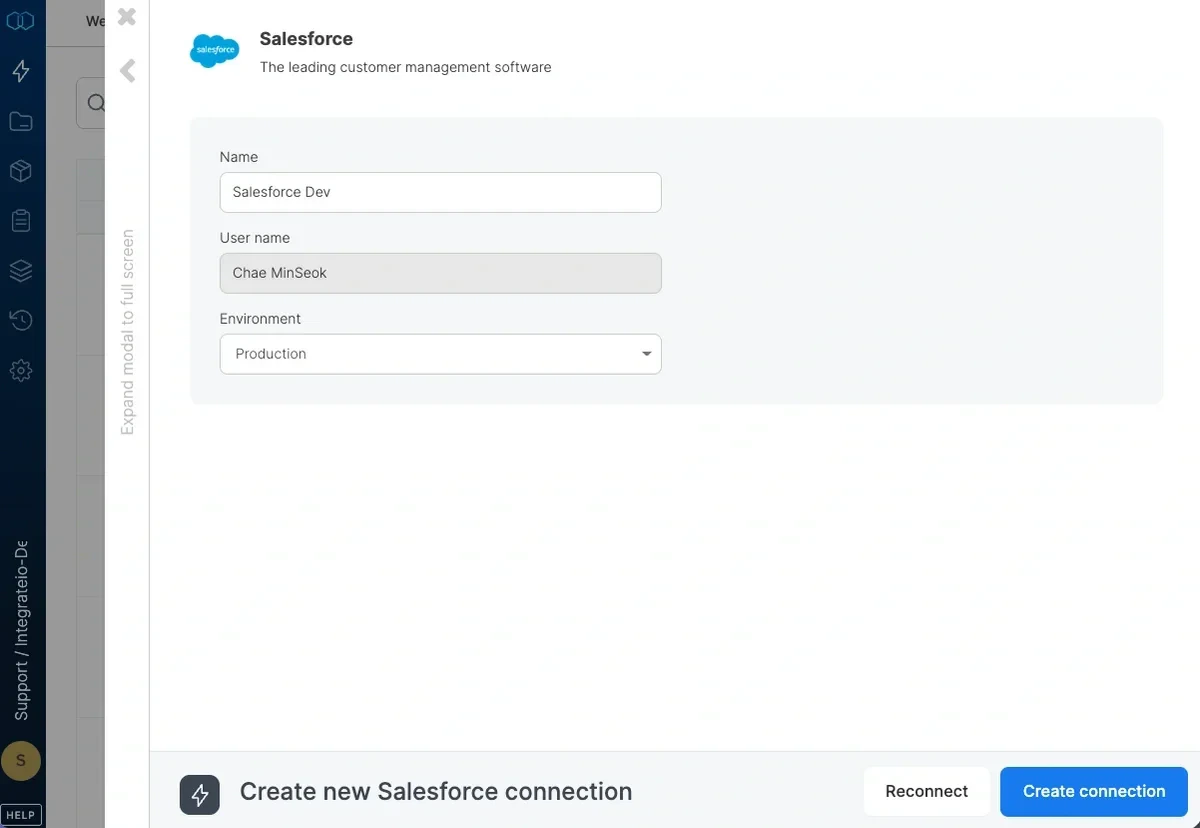
To modify Salesforce connections in Integrate.io ETL
1
Click the Connections icon (lightning bolt) on the top left menu.
2
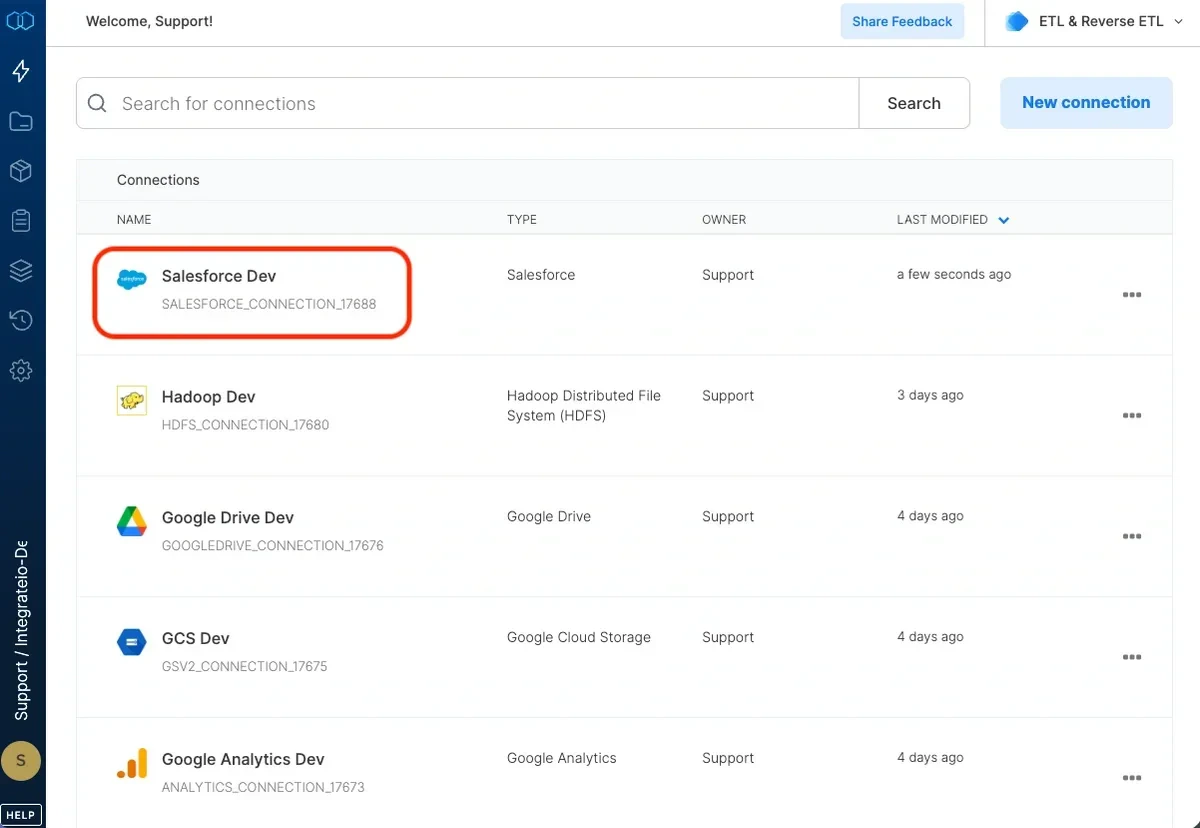
Click a connection to open and modify it. Make any necessary changes, then click Reconnect, and Save changes. To exit the Salesforce connection window without changes, click Back to connections (grey tab on the left side) on the Salesforce connection window.
3
To delete a Salesforce connection, click the three vertical dots on the far right of the connection listing and select the Delete connection option.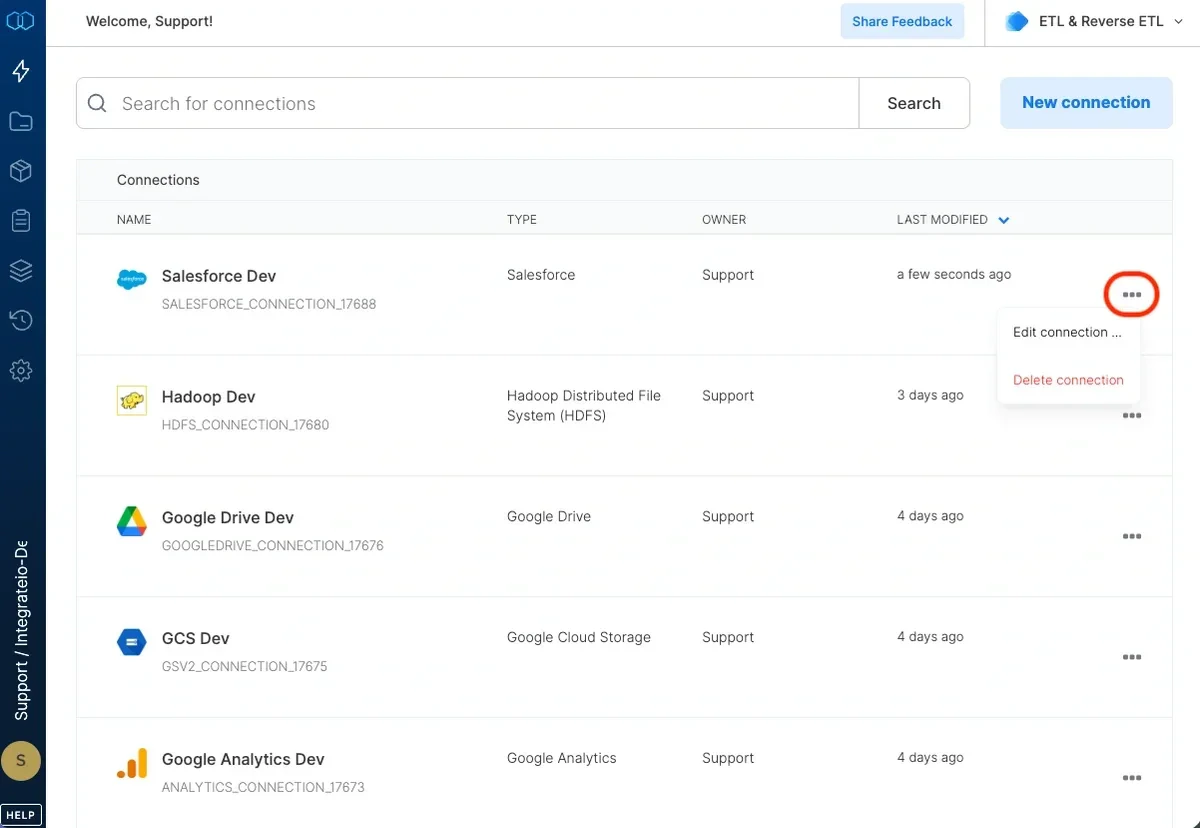
Salesforce Apps Installation Restrictions (Oct 2025)
Salesforce recently introduced controls for uninstalled connected apps, which affect how users can approve third-party integrations like our ETL Salesforce connector. If a connected app isn’t explicitly installed in a customer’s Salesforce org, users without the proper permissions will encounter OAuth errors (such asOAUTH_APPROVAL_ERROR_GENERIC) during authentication. To fix this, customers must either install the connected app within their org or grant users the “Approve Uninstalled Connected Apps” permission through a profile or permission set. This permission allows users to authorize and connect to apps that aren’t officially installed in their org.
For orgs that have API Access Control enabled, Salesforce replaces this with the “Use Any API Client” permission, which serves the same purpose. Support teams should advise customers to check their Connected Apps OAuth Usage page to confirm whether our ETL app appears as “uninstalled.” If so, the Salesforce admin should either install it or assign one of the above permissions to affected users. This change ensures users can continue authenticating successfully with third-party apps like ours.
For more info, please check Salesforce article here.
Connection Setup: Salesforce (SOAP)
Integrate.io ETL can read your Salesforce SOAP data. This article details creating the Salesforce SOAP connection in Integrate.io ETL. Note that Integrate.io ETL can only be used with Salesforce editions that have API access. Some plan types, including trial versions, do not have API access by default and cannot be used with Integrate.io ETL.To create a Salesforce SOAP connection in Integrate.io ETL
1
Click the Connections icon (lightning bolt) on the top left menu.
2
To create a connection, click New connection.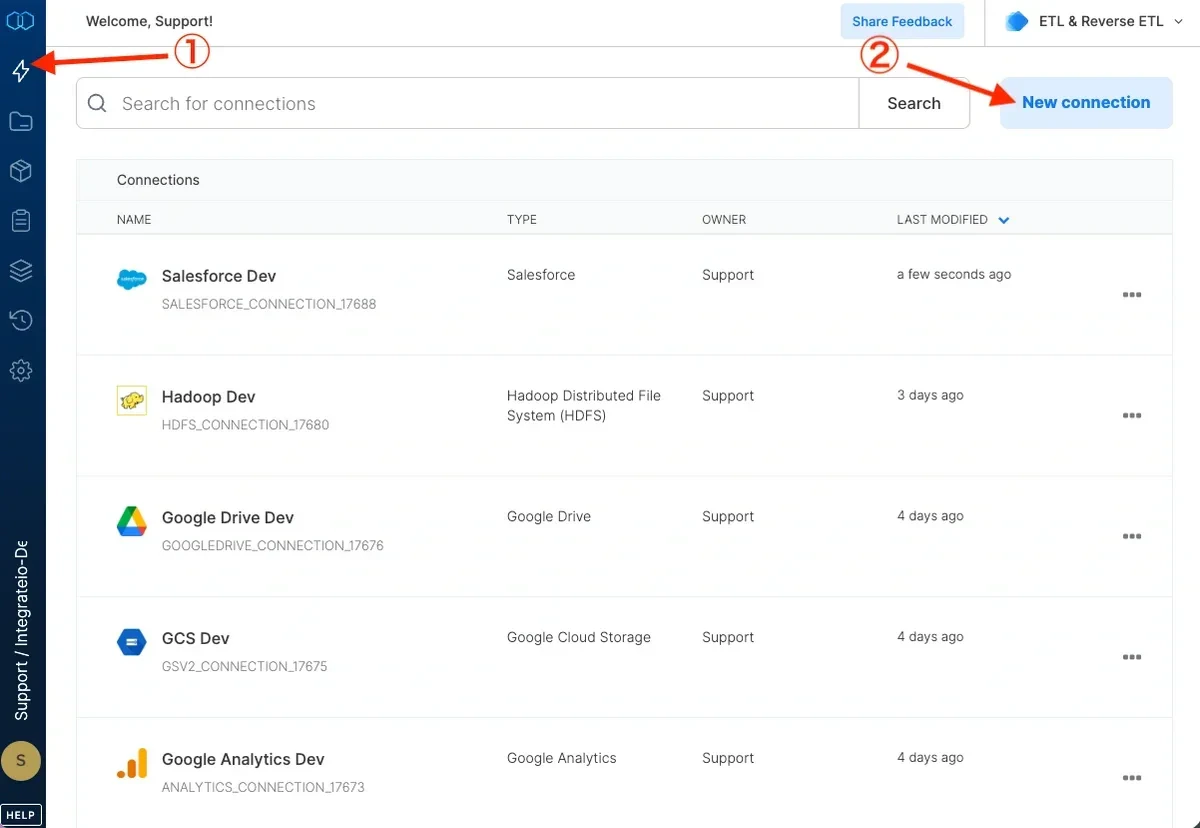
3
Select Salesforce (SOAP).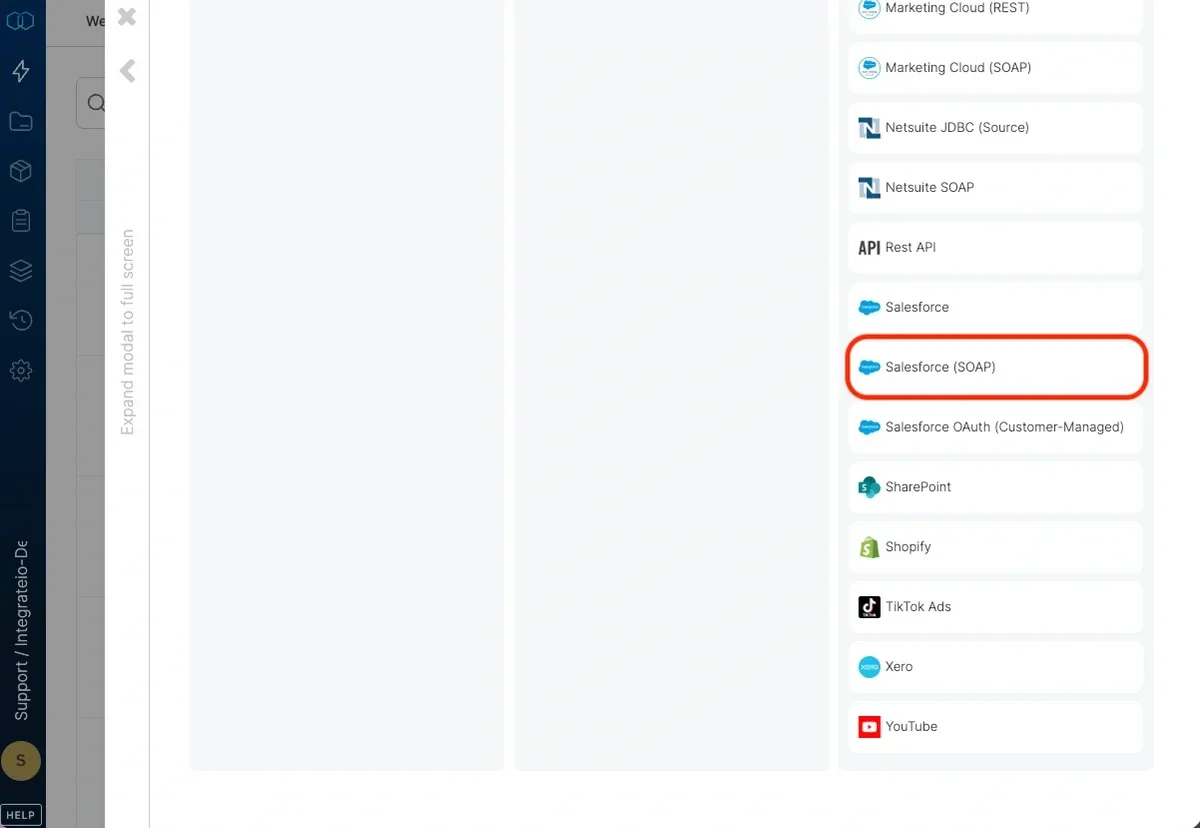
4
In the new Salesforce (SOAP) window, name the connection and enter the connection information.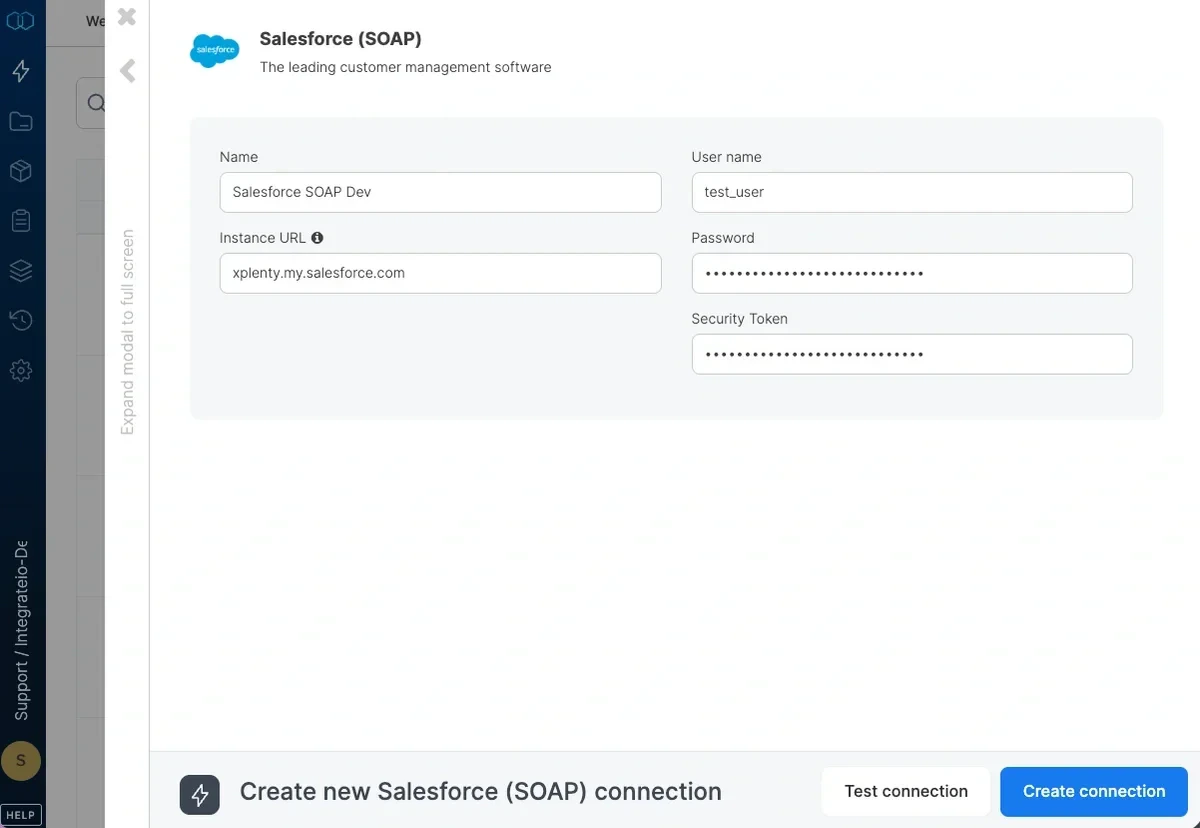
- Name - Name of the new connection
- Instance URL - Your Salesforce SOAP Instance URL (Login Server URL)
- Username - Your Salesforce SOAP Account Username
- Password - Your Salesforce SOAP Account Password
- Security Token - Your Salesforce SOAP Security Token. Obtain your security token by changing your password or resetting or security via Salesforce user interface. For more information, please refer to the documentation
5
Test the Salesforce SOAP connection by clicking Test connection. Once the connection tests successful, click Create connection.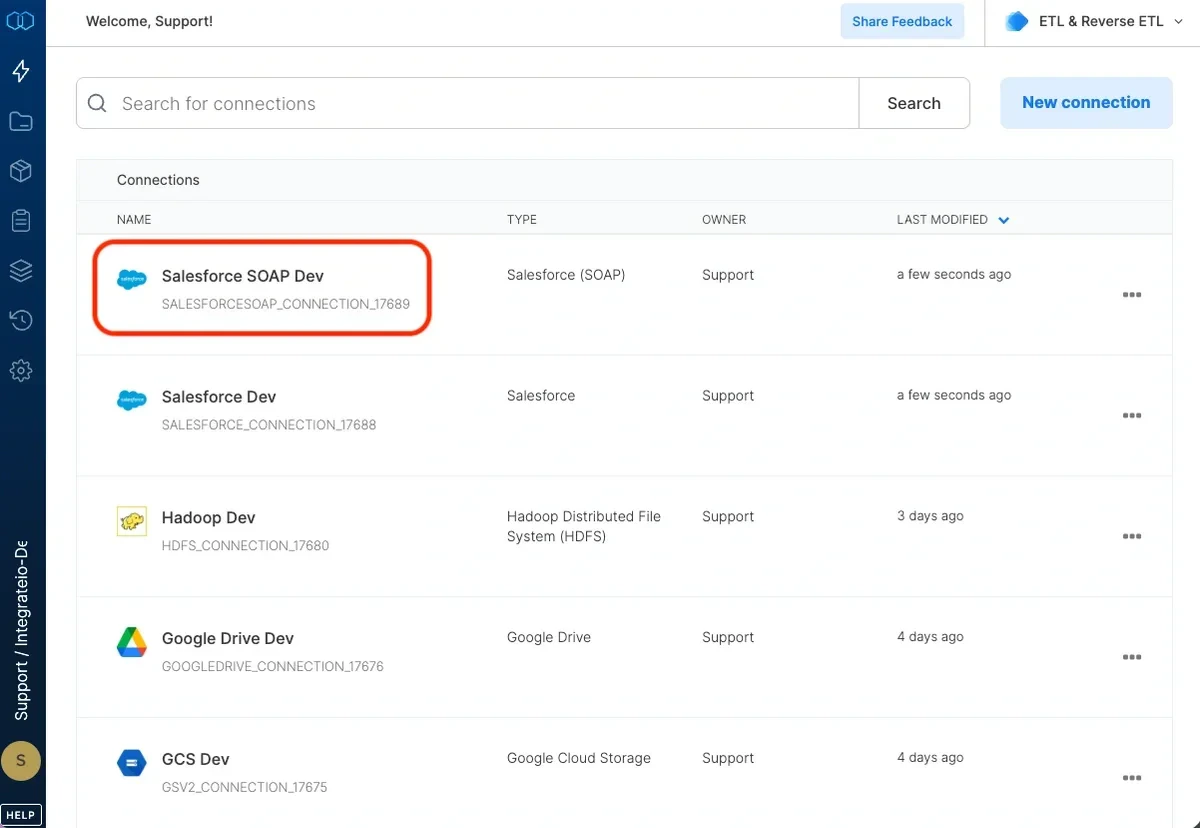
To modify Salesforce SOAP connections in Integrate.io ETL
1
Click the Connections icon (lightning bolt) on the top left menu.
2
Click a connection to open and modify it. Make any necessary changes, then click Reconnect, and Save changes. To exit the Salesforce SOAP connection window without changes, click Back to connections (grey tab on the left side) on the Salesforce SOAP connection window.
3
To delete a Salesforce SOAP connection, click the three vertical dots on the far right of the connection listing and select the Delete connection option.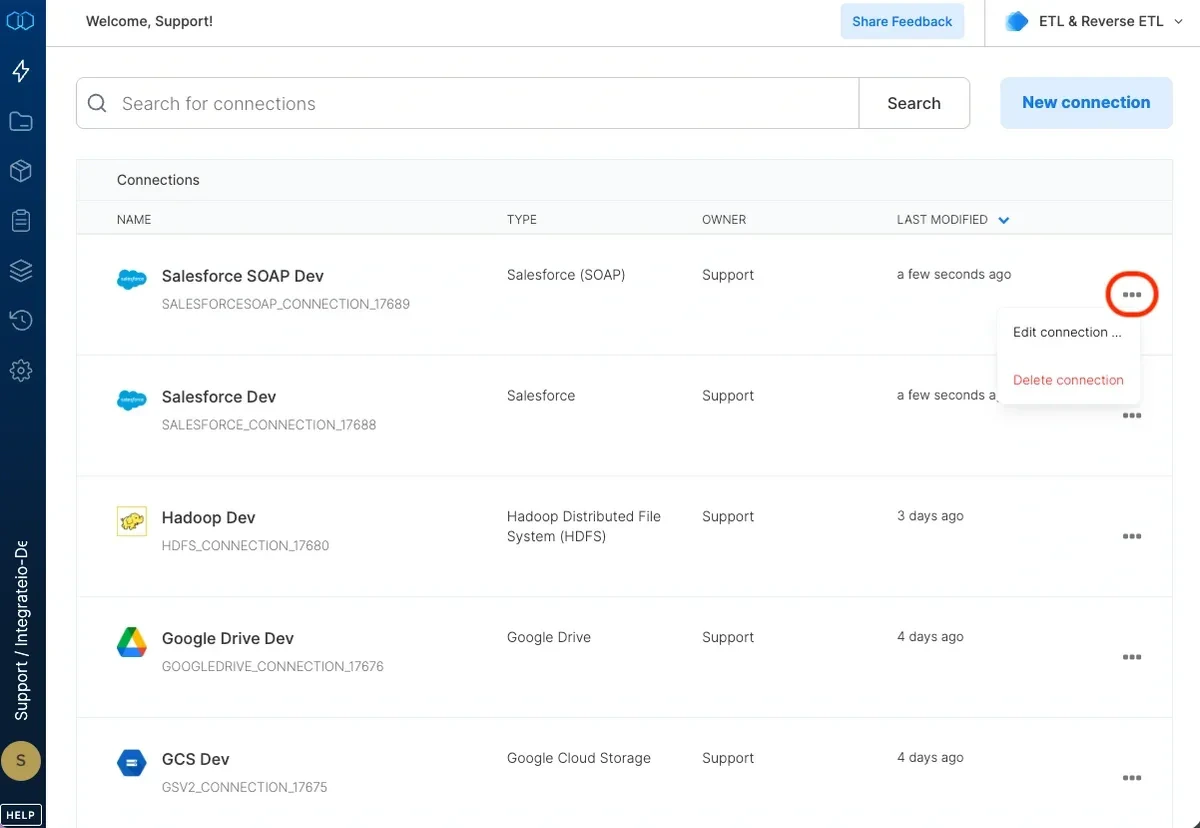
Connection Setup: Salesforce (Customer OAuth)
A customer-managed OAuth connection uses your own Salesforce External Client App instead of Integrate.io’s shared app. The connection’s OAuth Flow setting controls how Integrate.io ETL gets access tokens:- Refresh Token (default): You generate a refresh token with the authorization code flow and paste it into the connection. Integrate.io ETL uses it to get new access tokens. Steps 1 to 3 below cover this flow.
- Client Credentials: Integrate.io ETL gets access tokens from the Client ID and Client Secret alone, on your org’s My Domain. No user signs in interactively, so there is no MFA or passkey prompt. Use this flow for an API-only integration user. See Client credentials flow.
Step 1: Get Client ID and Client Secret from Salesforce Dashboard
1
Log into Salesforce with an admin account.
2
In the top-right, click the gear icon → Setup.
3
In the left sidebar, search for App Manager and click it.
4
Click New External Client App (or find an existing one and click View).
5
Fill in:
- Connected App Name:
My OAuth App - API Name: auto-generated
- Contact Email: your email.
6
Scroll down to API (Enable OAuth Settings) and:
- Check Enable OAuth Settings
- Callback URL: use
https://oauth.pstmn.io/v1/callbackfor Postman testing - Selected OAuth Scopes:
- Perform requests at any time (refresh_token, offline_access)
- Manage user data via APIs (api)
- Full access (full)
- Uncheck Require Proof Key for Code Exchange (PKCE) option
- Check Require secret for Web Server Flow and Require secret for Refresh Token Flow options.
7
Click Save. You may need to wait a few minutes for the app to become active.
8
Go back to App Manager, find your app, and click View.
- Consumer Key → this is your
client_id - Consumer Secret → this is your
client_secret(click “Reveal”)
Step 2: Generate Authorization Code (using Postman)
1
Open Postman.
2
Create a new OAuth 2.0 authorization under the Authorization tab.
3
Fill in:
- Grant Type: Authorization Code
- Callback URL:
https://oauth.pstmn.io/v1/callback - Auth URL:
https://login.salesforce.com/services/oauth2/authorize - Access Token URL:
https://login.salesforce.com/services/oauth2/token - Client ID: (from Salesforce Dashboard)
- Client Secret: (from Salesforce Dashboard)
- Scope:
full refresh_token api
4
Click Get New Access Token.
5
You will be redirected to Salesforce → login and allow access.
6
Postman will receive a redirect like:
https://oauth.pstmn.io/v1/callback?code=YOUR_AUTH_CODECopy the value of code=... – this is your Authorization Code.Step 3: Exchange Authorization Code for Tokens
Use the followingcurl command to exchange the authorization code for:
access_tokenrefresh_tokeninstance_url
CURL example:
Example Response:
Client credentials flow
Use the client credentials flow when the connection runs as an API-only integration user. Salesforce issues tokens for the app’s Run As user, so nobody signs in and Salesforce never shows an MFA prompt. The connection has no refresh token. Prerequisites:- An External Client App with a Client ID (Consumer Key) and Client Secret (Consumer Secret). See Step 1.
- A Salesforce user to run the integration as, with API access to the objects you want to read or write.
- Your org’s My Domain URL, for example
https://yourcompany.my.salesforce.com. You can find it in Salesforce under Setup → My Domain.
Configure the External Client App
1
In Salesforce, open your External Client App in App Manager.
2
In the app’s OAuth settings, enable the Client Credentials Flow.
3
In the app’s OAuth policies, set the Run As user to your integration user.
4
If the Run As user’s profile has Login IP Ranges, Salesforce rejects token requests from other addresses with
invalid_grant: ip restricted. Add all of Integrate.io ETL’s IP addresses, not only the address of a rejected request, because Salesforce can also check each API call a job makes. Alternatively, set the app’s IP Relaxation policy to Relax IP restrictions.access_token means the app is ready.
Create the connection in Integrate.io ETL
1
Click the Connections icon (lightning bolt) on the top left menu, then click New connection and select the customer-managed Salesforce OAuth connection.
2
Set OAuth Flow to Client Credentials. The Environment and Refresh Token fields are hidden for this flow.
3
In Instance URL, enter your My Domain URL, for example
https://yourcompany.my.salesforce.com. Integrate.io ETL accepts only *.my.salesforce.com and *.my.salesforce.mil hosts, because Salesforce accepts client credentials only on the My Domain. You can also paste the full token URL, such as https://yourcompany.my.salesforce.com/services/oauth2/token. Integrate.io ETL saves only the My Domain part.4
Enter the Client ID and Client Secret from your External Client App.
5
Click Test connection, then click Create Connection.
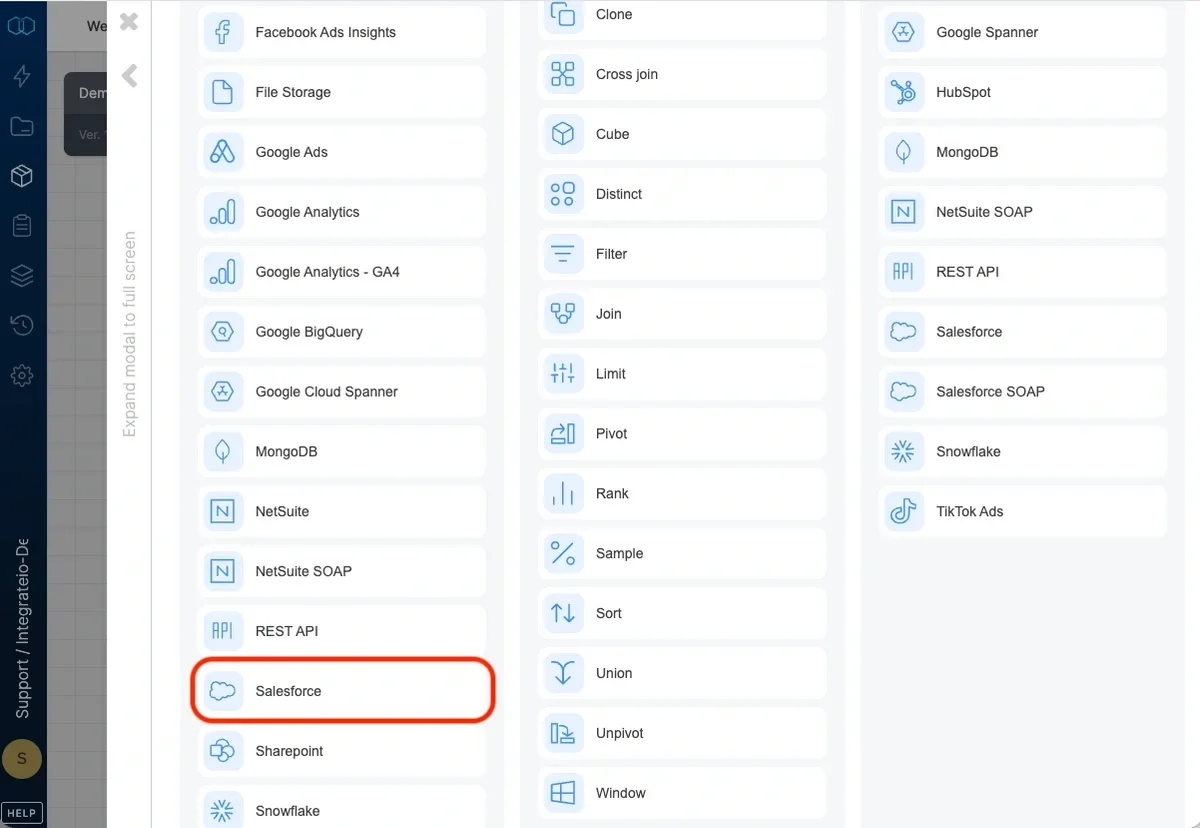
Connection
Connections are part of configuring a no-code Salesforce integration, allowing secure API-based access without writing custom code. Select an existing Salesforce connection or create a new one (for more information, see Allowing Integrate.io ETL access to my data on Salesforce.)Source Properties
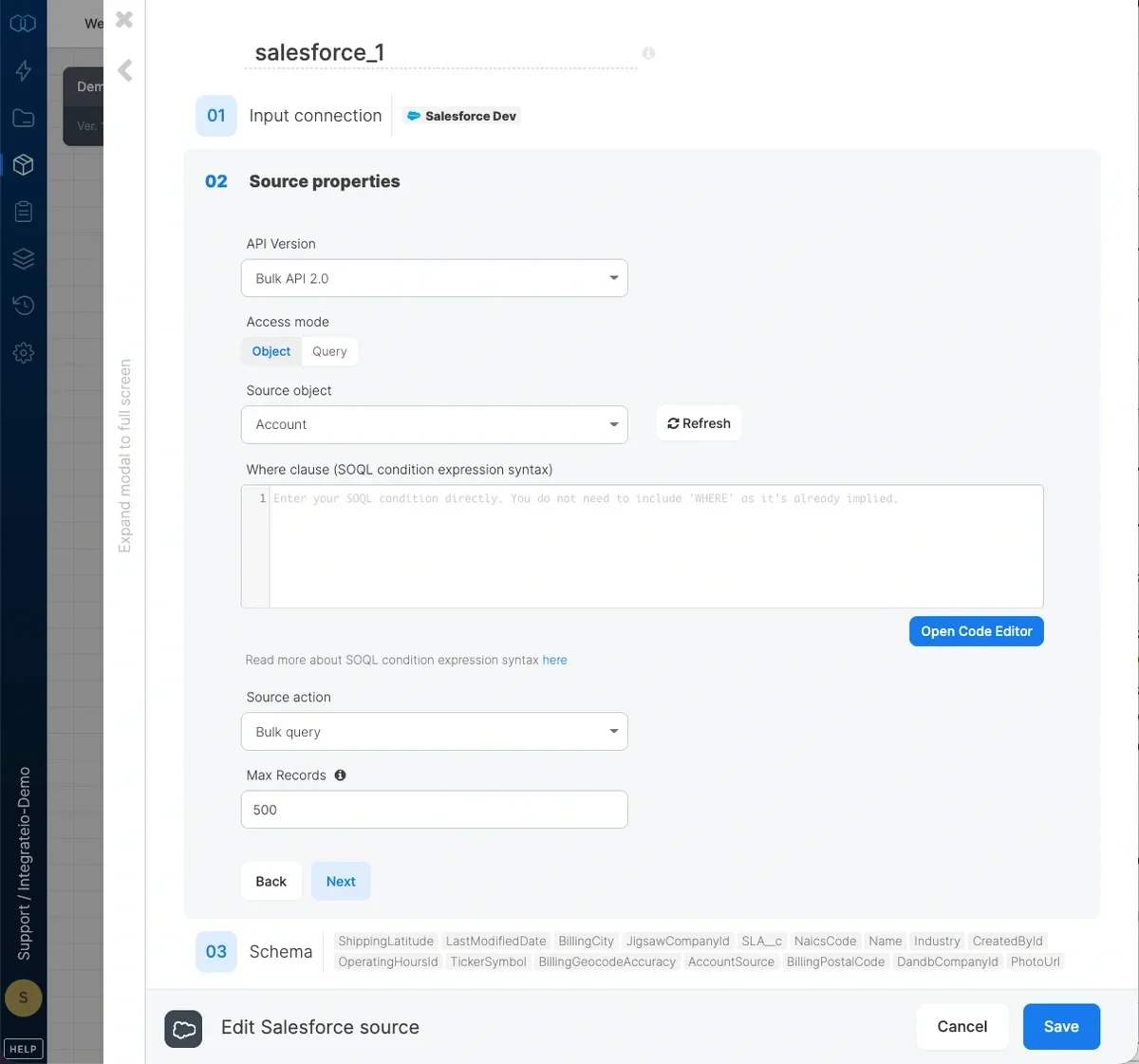
- API Version - list of Salesforce Bulk API versions we support. Read more about Bulk API 2.0 here
- Access mode - select object to extract an entire object or query to execute a SOQL query.
- Source object - the table name from which the data will be imported.
- where clause - optional. You can add predicates clauses to the WHERE clause as part of the SQL query that is built in order to get the data from the database. Make sure to skip the keyword WHERE.
- Source action - Use
bulk query(default) to read available records orbulk query allto read available and deleted records. - Query - type in a SOQL query. Read more about SOQL syntax here.
- Max records - Specify the number of records to retrieve per page/API call to prevent timeouts. If left empty, all records will be retrieved in a single API call. Only available in Bulk API 2.0
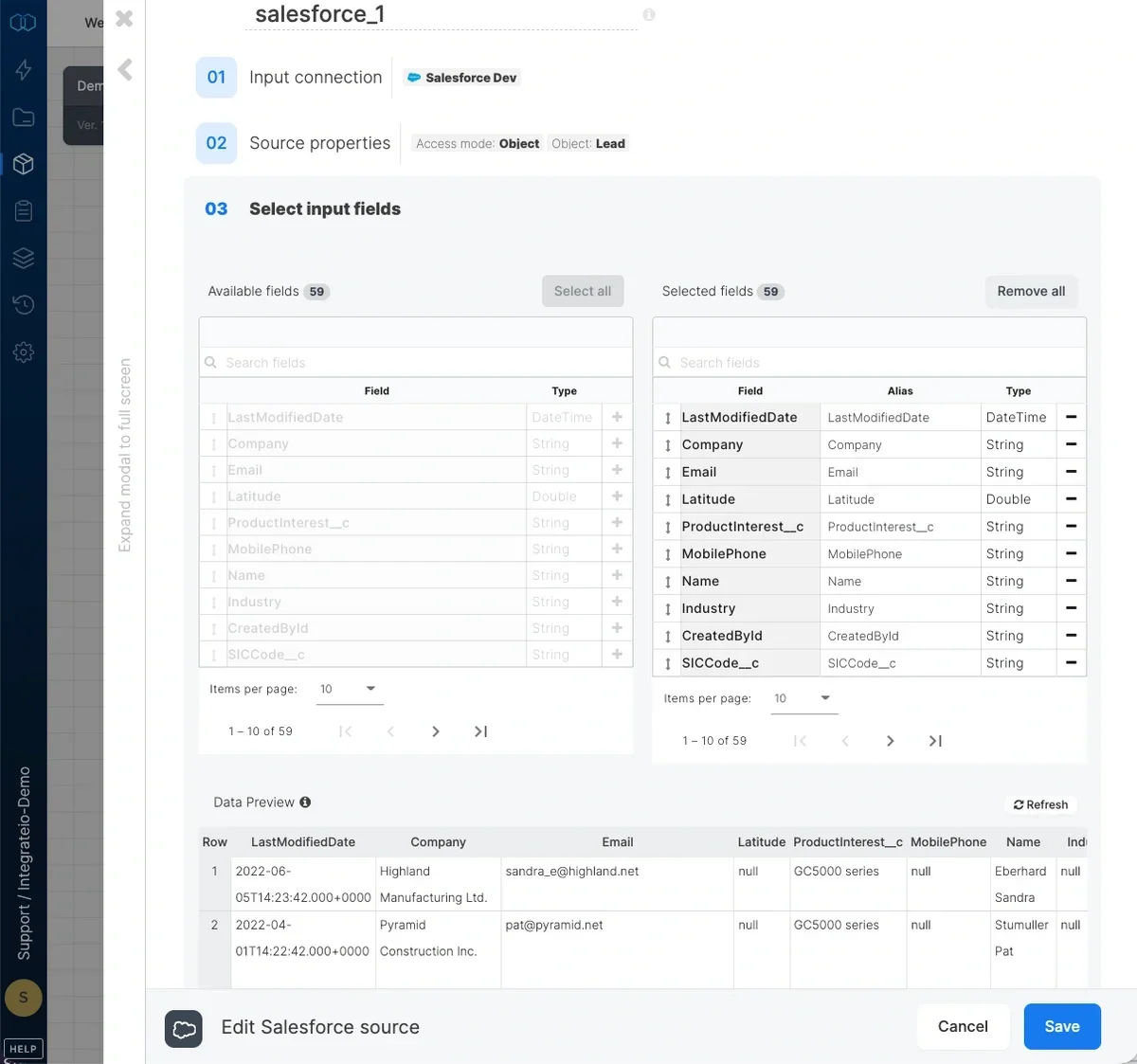
Source Schema
After defining the source object, select the fields to use in the source. The fields you select are used to build the SOQL query that will be executed to read the data. Careful field selection helps reduce unnecessary API usage and improves performance in no-code Salesforce integrations.Loading data incrementally from Salesforce
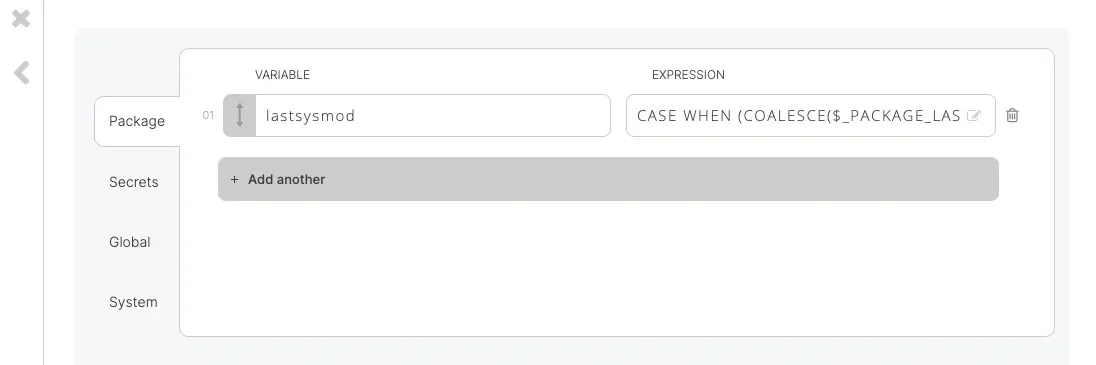
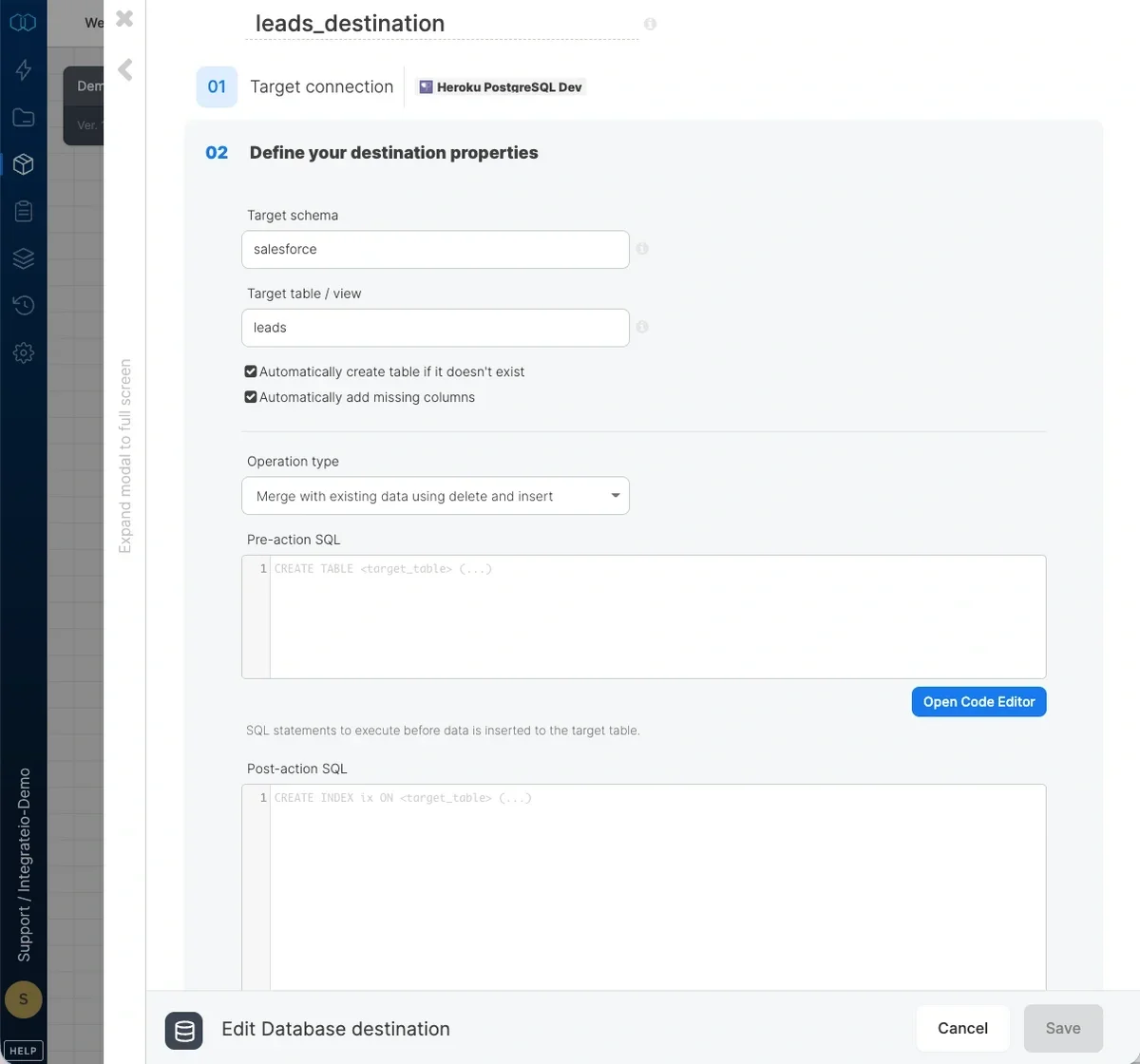
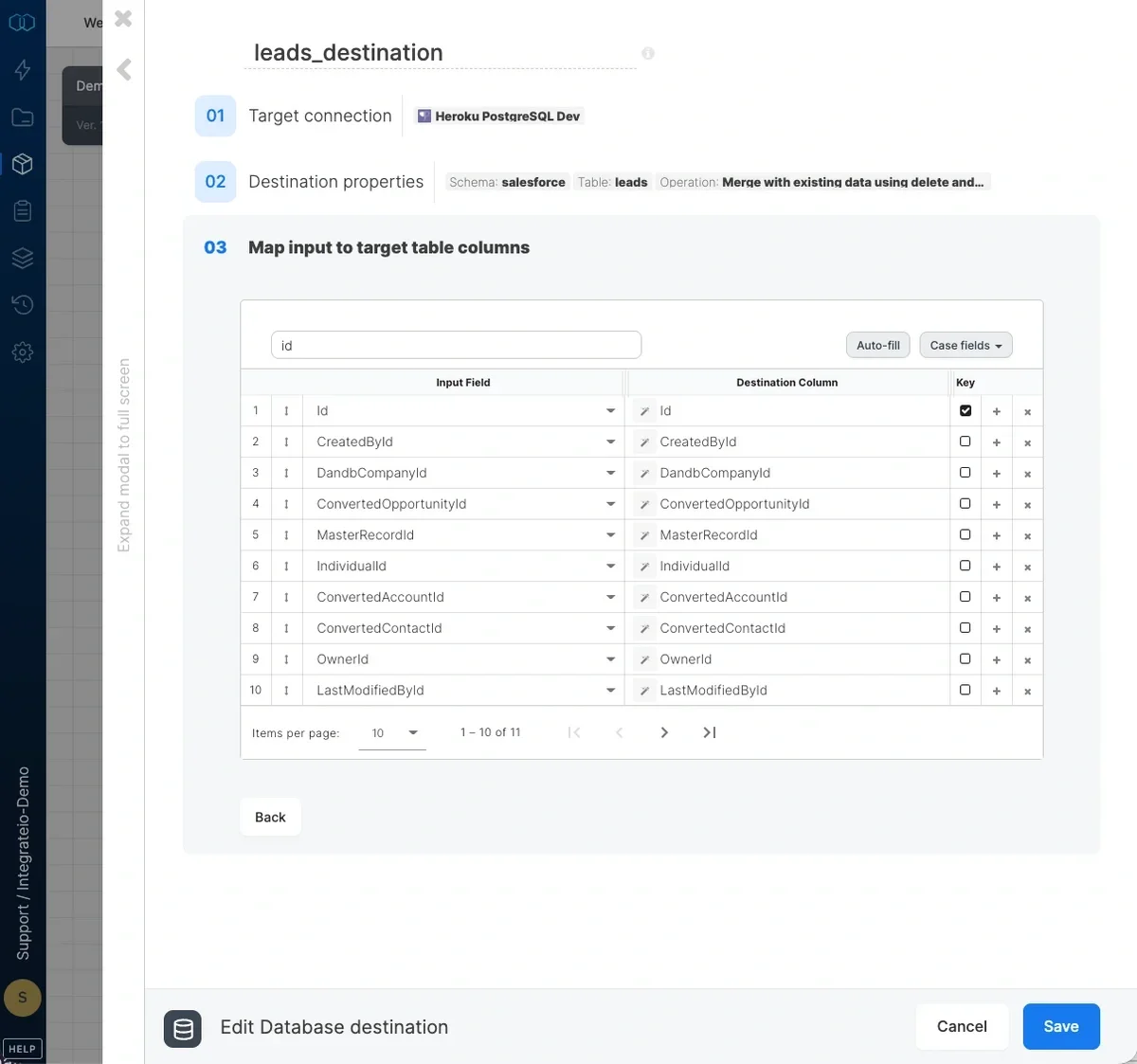
Incremental loading is a common pattern in ETL products that support pulling data from systems like Marketing Cloud, transforming it, and writing updates back into Salesforce while minimizing API consumption In order to load data incrementally (changes and additions) to objects, the object to synchronize should have the systemmodstamp column. This column is automatically updated whenever a user or an automated process updates a record. Use the following condition in the where clause field with a variable: SystemModstamp > $lastsysmod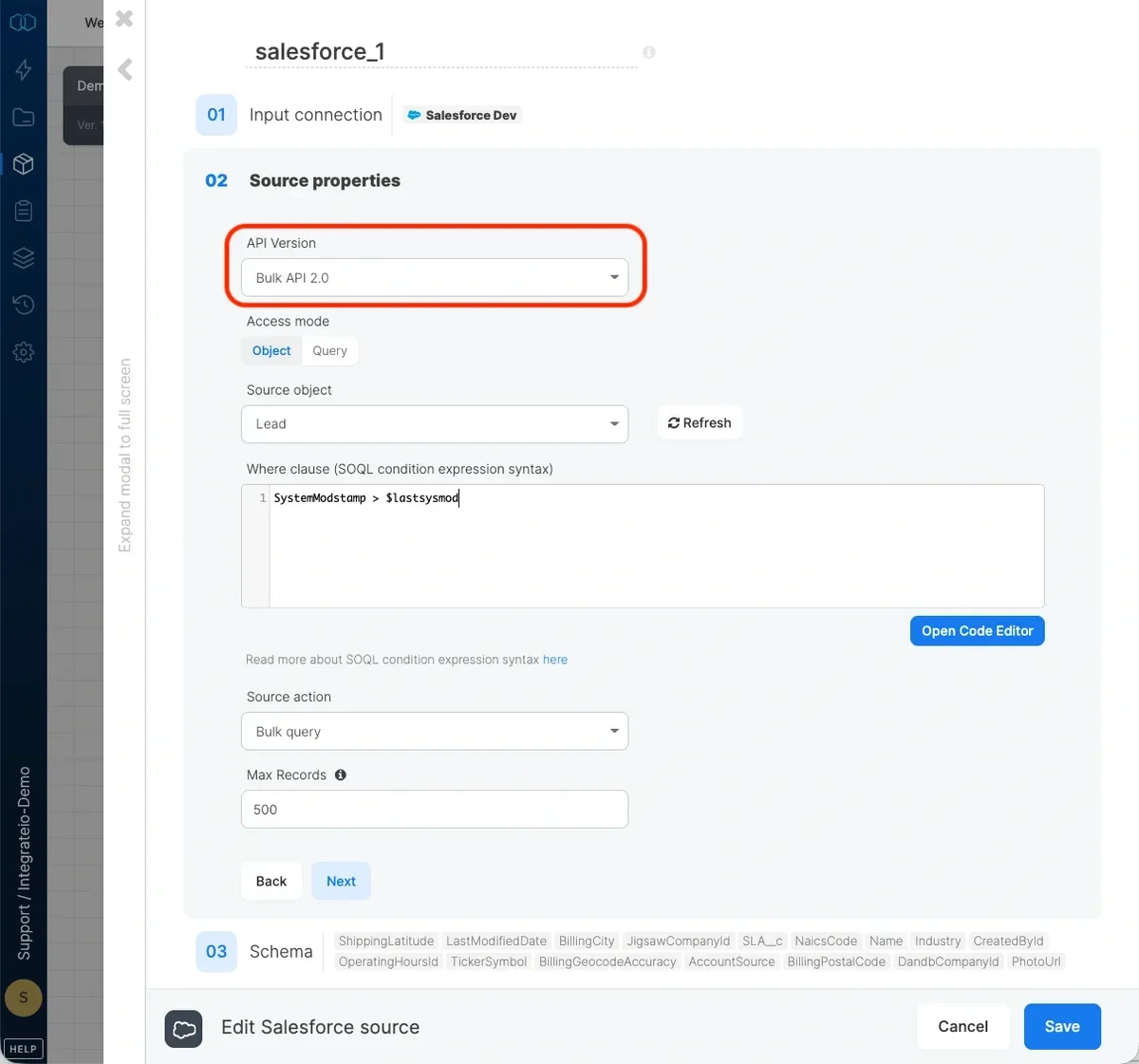
Enabling PK Chunking
You can enable PK Chunking for large datasets such as initial bulk load. By enabling this feature, Salesforce automatically splits the Bulk API Query job into multiple batches. Integrate.io ETL then polls for the progress of each of the batch then process them in parallel once all are done. The parallelism depends on the cluster node count (higher node count can pull more batches in parallel). Note that PK Chunking is disabled in Bulk API 2.0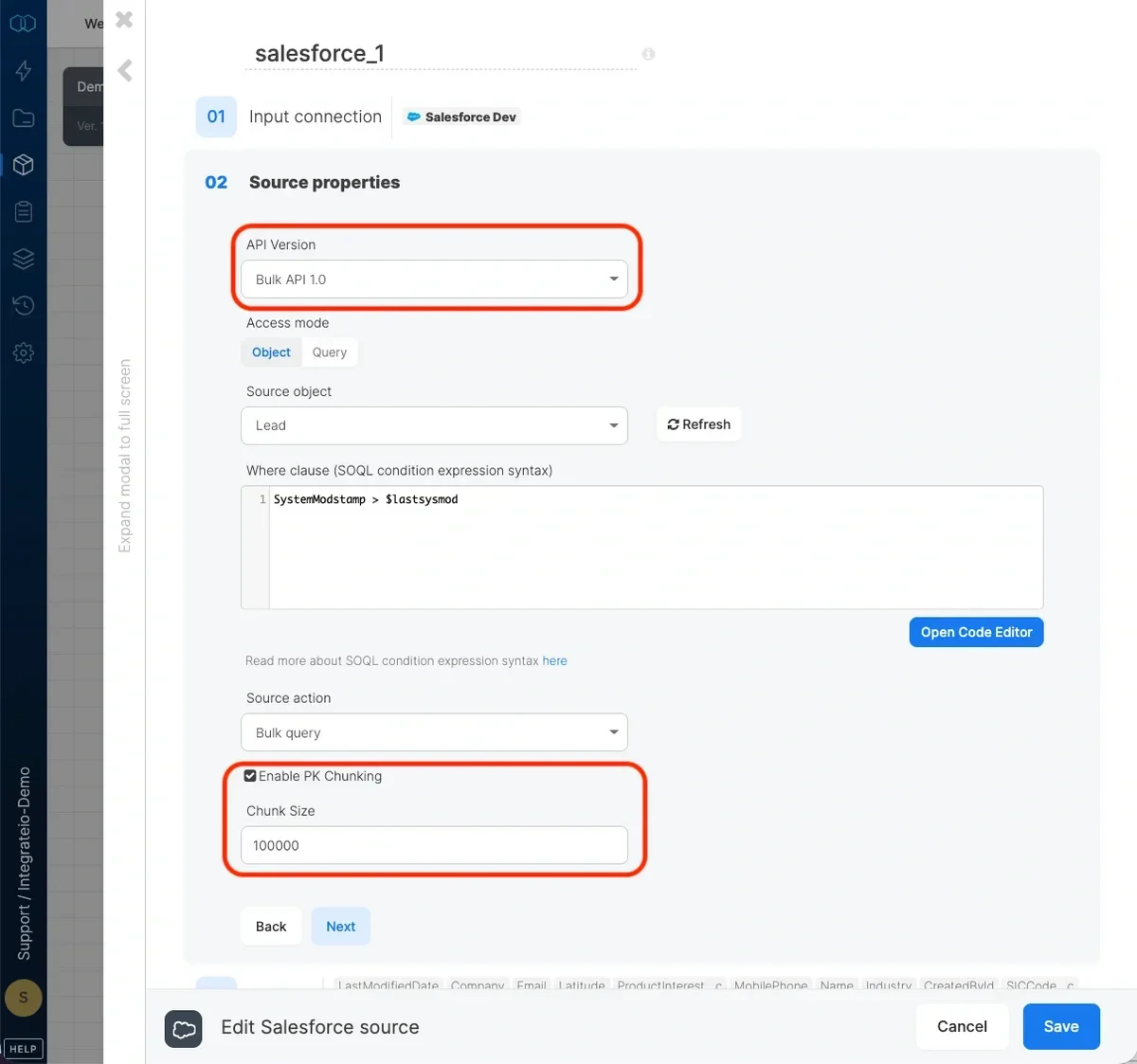
Limitations
It is currently not possible to join a Salesforce Sandbox environment source connection with a Salesforce Production environment source connection. This limitation applies to Join, Union and Cross-join components to join Sandbox with Production source data.Querying Parent Fields
It is possible to execute query containing parent fields, for example following query:Sales_User__r.Id and Sales_User__r.Name are fields from Account’s parent object: Sales__User__c (Sales_User__r is the relationship name prefix for the Account object, for more details about the difference on __c and __r is here)
Please note that when doing the query, the schema column might not pop up if the data returned is empty.